

The camera on an ASUS laptop can be disabled by its keyboard shortcut or blocked by privacy settings, even when the hardware is fine. Open the lens shutter and use the camera-marked key if your model has one.
Next, try Windows Camera. If it shows video, check your calling app's settings. If Windows can't detect the webcam, check whether it appears in Device Manager.
In this guide
1. Check the lens cover and keyboard control
Inspect the lens area at the screen's top edge for a sliding privacy cover. Slide it open if your laptop has one. A closed cover can leave a dark picture while Windows still recognizes the camera.
Check the keyboard for a camera symbol. ASUS uses F10 on supported models, but the shortcut isn't universal. Depending on the hotkey setting, press F10 alone or Fn + F10 and look for Camera on on the screen.
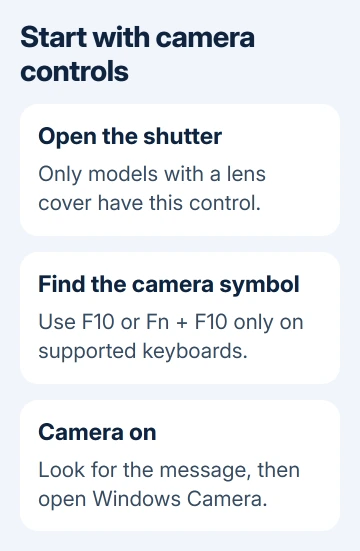
ASUS's camera troubleshooting instructions say to skip this shortcut check when the keyboard has no F10 camera hotkey. Check the model's manual before trying any other keyboard shortcut.
Remove anything covering the lens, such as a misplaced screen protector. Wipe a dirty lens gently with a clean, soft cloth. That helps a blurry view, but it won't make an absent camera appear in Device Manager.
Once you've turned the camera on, close your calling app and try Windows Camera. If the shortcut restores the preview, reopen your meeting app and check its selected camera before the next call.
2. Compare the Windows preview with the failing app
Open Start, type Camera, and launch the Windows app. Allow access if asked. Look for a live preview that changes when you move in front of the lens, rather than only the camera light turning on.
If you see a live preview, the camera is working in that app. Close Camera before opening Teams, Zoom or another meeting app, so the check doesn't leave a second program trying to use the webcam.
Open the meeting app's video settings and select the built-in camera. An external webcam, a virtual camera installed by another program or a disconnected dock camera can remain selected after the hardware changes.
If your model has several camera devices, use the ordinary color webcam for the meeting preview. Don't assume an infrared device intended for face recognition is the correct video-call source.
If only one app fails, continue with its permissions. If Windows Camera also fails, copy the exact message or error code. 0xA00F4244 means Windows isn't detecting a camera; it calls for more than changing the meeting's video background.
The Windows Camera capture guide explains checking the preview and a saved photo once video returns. A failure to save a picture is separate from a missing camera.
3. Give Windows and the app camera access
On Windows 11, open Settings > Privacy & security > Camera. Enable Camera access, then turn on Let apps access your camera. In the app list, enable the affected Microsoft Store app when an individual permission switch is offered.
On Windows 10, open Settings > Privacy > Camera. Under device access, choose Change if needed and enable Camera access for this device. Then enable app access and the required app in the list.
For a browser or desktop meeting app, also enable Let desktop apps access your camera. The separate switches for Store apps don't control desktop programs, and desktop programs may not have individual permission switches.
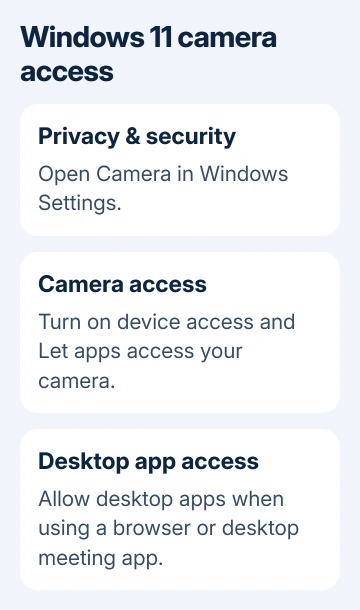
After allowing access, quit the app and launch it again. If video returns, a permission setting was blocking it. If a managed laptop's controls are grayed out, have IT check its camera policy before changing drivers.
For a problem that occurs only during browser calls, also check that site's camera permission and chosen input. The webcam troubleshooting guide separates browser permissions from the Windows controls that govern the browser itself.
4. Restart and restore camera detection
Save your work and choose Start > Power > Restart. Waking the laptop from sleep doesn't restart Windows. Try Camera again when Windows returns, especially if the error says something needs restarting.
Right-click Start to display its menu, then choose Device Manager. Expand Cameras; some webcams appear under Imaging devices. Read the device's name and any warning symbol before changing it.
Right-click the webcam. If Enable device appears, enable the device, then reopen Camera. If Disable device appears instead, the webcam is already enabled, so leave that control alone.
If the device isn't listed, choose Action > Scan for hardware changes. If it returns, test before doing anything else. If it's still missing after the shutter, keyboard switch and restart checks, use your model's support options.
For failure just after a driver update, open the webcam's Properties > Driver tab. Select the available Roll Back Driver control and restart. If that control is grayed out, Windows doesn't have an older driver you can restore there.
I'd record the camera's error and whether Device Manager lists it. A warning beside a detected camera, an absent device and video blocked in one app lead to different repairs.
5. Apply model updates and arrange service if needed
Update the software for your model
Check for available updates through Windows Update. In Windows 11, also review Advanced options > Optional updates for relevant drivers. On Windows 10, check View optional updates when it is offered.
Use MyASUS > System Update if your laptop offers it. Otherwise, ask ASUS support for the package matched to your model. Features and camera drivers differ between laptops.
Reinstalling the camera device is a later step for a camera that remains listed but fails. In Device Manager, right-click it, select Uninstall device, then use Action > Scan for hardware changes and restart to let Windows detect it again.
If Windows offers to remove the driver too, have the correct replacement ready before choosing that option. Avoid a full Windows reset before checking why the webcam is missing.
When the built-in camera still fails
If the built-in webcam remains absent or fails in every app, request ASUS service. Give support your model, Windows version, Camera error and whether Device Manager lists the webcam. Use a USB webcam for calls while repair is arranged.
The Short Version
Start at the lens cover and ASUS camera key, then compare Windows Camera against the calling app. Repair permissions when one app fails; check detection and model updates when every app fails.
Checked November 16, 2026.
 If you have any business, I can build it online






