

An X1 Carbon Gen 10 camera that freezes apps or causes blue screens needs its driver and MCU firmware checked. Owners got video working again with the matching firmware; resetting the Camera app hadn't helped the original owner.
This applies to a crash when video starts, not simply a covered lens or a privacy lock. Identify the exact ThinkPad model before choosing a firmware package.
In this guide
1. Match the crash to the camera, then confirm the model
Save your work and close meeting apps. Open Start, search for Camera, and try the built-in app once. Note whether it shows a picture, freezes, disables the camera or causes Windows to restart.
If Windows crashes, keep the stop-code name shown on the blue screen. Don't repeatedly reopen the camera just to reproduce the same crash. The first result is enough to move to the driver and firmware checks.
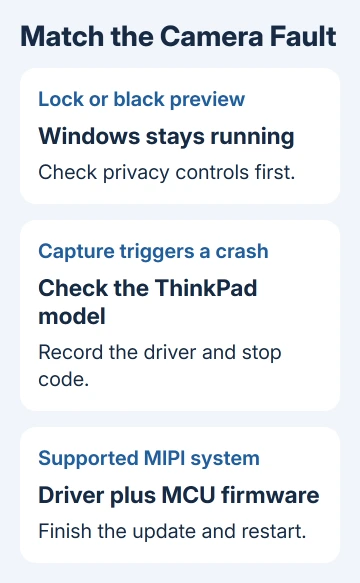
The original owner could use Windows Hello after restarting, but video apps and the Windows Camera Frame Server service crashed. Face sign-in worked, but recording video still failed.
Open System Information from Start and read System Model. The reported machine was ThinkPad X1 Carbon Gen 10, with machine types 21CB or 21CC covered by the matching firmware package.
A different Lenovo generation needs its own support listing. Don't select the Gen 10 download because the laptop's name contains X1 Carbon. Check both the model and machine type to see whether the firmware package is meant for your laptop.
If your camera only shows a lock or black picture without crashing, start with the Lenovo camera privacy checks. A privacy block and a Windows capture crash need separate repairs.
2. Check the camera driver before installing firmware
Right-click Start, select Device Manager, and expand Cameras. Open the integrated camera's Properties, then read the device name and Driver tab. Record the provider, version and date.
The affected camera in the report appeared as Intel(R) AVStream Camera. Intel MIPI camera software is part of the relevant setup. Lenovo's MCU package requires the Intel MIPI camera drivers to be installed.
Use the laptop's installed Lenovo support application, or its exact-model support page, to check the offered camera package. Choose the Intel MIPI camera driver for your machine type and Windows release.
A best-driver message in Device Manager doesn't tell you whether Lenovo has a newer model-specific package. Check the manufacturer's listing rather than treating that message as the end of the driver search.
Complete the driver install and any requested restart before the firmware step. If the installer says your system isn't supported, stop and recheck the model and package instead of forcing it to run.
I'd keep the driver details with the crash code. They give support something concrete to compare if the camera still fails after the firmware update.
3. Install the MCU firmware listed for that ThinkPad
Open the Lenovo MCU firmware download for the supported model. Read its supported systems and README before downloading the installer.
The MCU is a small controller involved in this device's camera system. It has its own firmware, separate from the Camera app and the Intel camera driver. Resetting Camera doesn't replace that firmware.
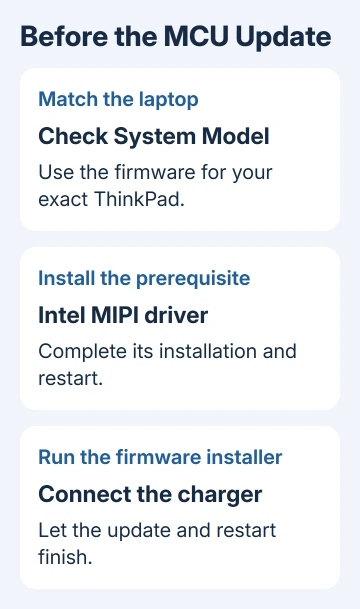
The saved package README for n3acw03w lists the X1 Carbon Gen 10, Gen 11, X1 Yoga Gen 7 and Gen 8, and X1 Nano Gen 2 and Gen 3. Check the current page for your exact machine type rather than extending that list to newer generations.
Close your apps, connect the charger and follow the installer. Let the update and automatic restart finish without interrupting power. The installer can reject a system that doesn't meet its power requirements.
The README describes running the downloaded executable, accepting its setup prompts and completing the installation. Follow those on-screen steps; you don't need an unattended deployment command to update one laptop.
Once Windows returns, check the update result before reopening a meeting. An installer error needs its exact code recorded. If the installer failed, reopening it repeatedly won't confirm that the firmware was updated.
For the n3acw03w package, check Device Manager > Universal Serial Bus devices > Intel(R) Usb Bridge Device. On Details, select Hardware IDs. Its README uses REV_1003 to identify that firmware revision.
4. Test Camera before returning to the meeting app
Open Camera first and check that its live preview stays running. Close it, then reopen it once. A preview that appears only for a moment before freezing hasn't passed this check.
Next, close Camera and check the meeting application's video settings. Select the integrated camera and check the preview before joining a call. This separates a remaining meeting-app problem from a camera that still fails across Windows.
Several owners on Microsoft's forum traced the 2023 failure to an Intel Extension update. One owner managing a fleet first recovered some machines with MCU firmware, then reported success across their affected devices after a newer package.
They needed two installation-and-restart cycles with the packages available then. That isn't a requirement to flash current firmware twice. Follow today's instructions; ask support if the update succeeds but video still crashes.
One early report described Camera working while classic Teams broke it again. That older report is another reason to test both Camera and your meeting app before relying on the camera for a call.
For a working preview, save a picture with Windows Camera to check ordinary capture before going back to your call.
5. Take a continuing crash to Lenovo with the useful details
If Camera still causes a blue screen, open the laptop's support request and ask for help with Intel MIPI camera capture and MCU firmware. Include the machine type, Windows build, camera driver version and firmware installer result.
Include the stop code and whether face sign-in still works. Send existing crash dumps through the private support channel if requested. Advice about webcam permissions won't fix a Windows crash that happens whenever you start the camera.
For a company laptop, send IT that report so they can compare it with other machines that received the same updates. A USB webcam can provide a separate video option for an urgent meeting while the integrated camera is being repaired.
The Short Version
Confirm the ThinkPad generation, install its matching Intel MIPI driver and MCU firmware, then finish the restart. Test Camera before the meeting app. Continued crashes need Lenovo to review the driver, firmware result and stop code.
Checked November 16, 2026.
 If you have any business, I can build it online






