
To change your iPhone ringtone, open Settings > Sounds & Haptics > Ringtone, then tap the sound you want. Tapping a tone previews it and selects it for incoming calls, so you don't need to download an app for a different built-in sound.
If just one person still has the old ringtone, check that person's contact card. A ringtone assigned to a contact can differ from the phone's default, and changing call sounds doesn't automatically change texts or alarms.
Choose the ringtone for ordinary incoming calls
Open Settings and select Sounds & Haptics, then tap Ringtone to see the call sounds. Text Tone and the other alert categories are separate, so make sure you're choosing a sound from the Ringtone list.
Tap a sound to hear it. Try another if its opening is too quiet or hard to recognize. Once you've chosen one, leave it selected and go back to the previous Settings screen.
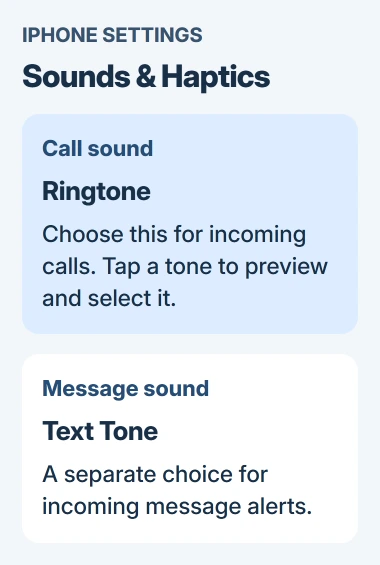
Apple's tone selection instructions confirm that tapping a sound both plays a preview and sets it. Choosing a built-in tone doesn't involve exporting anything or making an audio file.
I'd choose something whose opening you recognize immediately. A long musical lead-in can be pleasant in a preview but less useful when the phone rings from a bag or another room.
Return to the Ringtone list if you want to compare your choice again. Then ask someone to call while the phone is nearby. For this first check, choose someone whose contact card doesn't have its own ringtone.
Changing the default doesn't assign the same sound to every alert. If the call now sounds right but an incoming message still uses the old sound, change the separate Text Tone setting when you're ready.
Give one contact a different call sound
Open Contacts and select the person. Tap Edit, choose Ringtone, and select the sound for their calls. Confirm your choice and save the edited contact, tapping Done where shown.
This gives one caller a recognizable sound without changing your general ringtone. The contact ringtone guide walks through choosing that person's tone.
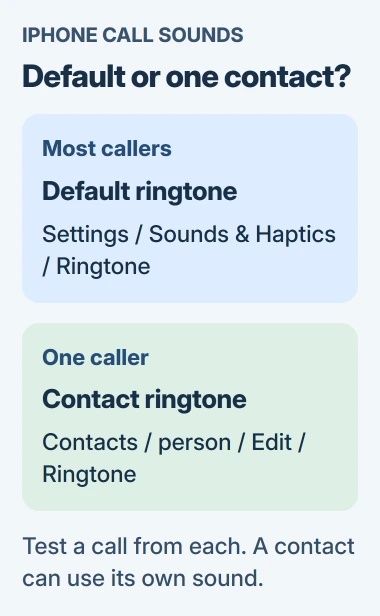
Ask that contact and someone else to call you. If only the chosen contact sounds different, you've set it correctly. If you changed the wrong person's card, fix that card instead of changing your phone's main ringtone again.
To make that contact use your phone's general ringtone again, edit their Ringtone setting and choose Default. Save the change, then try another call from the same number.
The Text Tone field on a contact is separate. Change it only when you also want a different message alert from that person. A call ringtone selected here doesn't automatically become their text sound.
If the contact's ringtone saves correctly but later changes by itself, use the ringtone reset checks. Check what happened after you saved it so you can work out why the tone changed.
Set the ringing volume for your iOS version
Return to Sounds & Haptics and adjust the ringtone slider. On current iOS 27, you'll find the ringer controls in the Ringtone section, as shown in the sound settings guide.
On versions with Ringtone and Alerts, one slider controls both calls and alerts. These ringer controls are separate from the media volume you adjust while playing a video or song.
Check Change with Buttons too. Turning it on lets the volume buttons adjust the ringer level. Turning it off helps keep that level where you set it instead of changing it with those buttons.
On iOS 27, Alarms and Timers and Alerts and System Sounds can have their own volume levels when Match Ringtone Volume is off. That explains why adjusting an alarm or alert slider may leave calls sounding the same.
For a different vibration pattern, enter the ringtone's Haptics choices. Haptics means the vibration you feel. Choose an existing pattern, or use Create New Vibration if you want to record your own sequence.
Try an incoming call to check the sound and vibration together. A different vibration pattern won't make the ringtone louder. Turning up music or video volume also won't change an alert that has its own volume setting.
Use an existing purchased or custom tone
Purchased tones sit near the top of the sound list. Tap one just as you would a built-in tone. If a past purchase is missing, look for Download All Purchased Tones in that list.
The button may be missing if all available purchases are downloaded or your account hasn't bought tones. Some old purchases can't be downloaded again, so resetting the phone repeatedly won't help with that.
To buy a tone, open Tone Store from the ringtone settings and check the purchase before confirming. The store isn't available in every region, and purchases belong to the Apple Account you used to buy them.
For your own recording, follow the custom ringtone creation steps. Having a song in Music or an audio file in Files doesn't put it in your ringtone list automatically.
After you export your custom sound as a ringtone, choose it for general calls or for one contact. Keep the original recording in case you change phones and need to make the tone again because it didn't transfer.
If the selected ringtone still doesn't play
First check Silent mode. On an iPhone with an Action button, open Sounds & Haptics and turn Silent mode off. On a model with the Ring/Silent switch, move that switch toward the front of the phone for ringing.
Then open Control Center and check Focus. Do Not Disturb and other Focus modes can silence calls even though the tone previews normally. The silencing controls explain that separate behavior.
If you can hear the preview but one caller has the wrong sound, check that contact's Ringtone setting. If every preview is silent, turn up the ringer slider and check whether the speaker plays other audio.
If your phone stays silent, give Apple Support the model and iOS version. Say whether you can hear the preview and whether it happens with every caller.
The Short Version
Pick the main call sound in Sounds & Haptics, then Ringtone. Give one contact a different call sound in their Ringtone field. Check ringer volume, Silent mode and Focus if the selected sound previews correctly but incoming calls stay quiet.
Checked November 4, 2026.

Isaac Smith is the founder and editor of PC Glance, a website that covers computers, laptops, and technology. He is a tech enthusiast and a computer geek who loves to share his insights and help his readers make smart choices when buying tech gadgets or laptops. He is always curious and updated about the latest tech trends.