

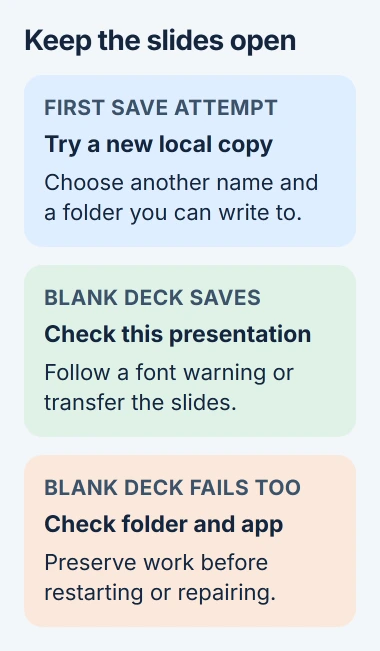
Keep the presentation open when PowerPoint reports an error saving the file. Try File > Save As with a new name in a folder on your computer before restarting the app or trying repairs that could lose the edits still on screen.
The next checks tell you whether to work on the save location or the presentation itself. Saving a local copy, trying a blank presentation and reading any font warning help you choose the right repair.
1. Save a separately named local copy
Cancel the error message and return to your open slides. Choose File > Save As, or Save a Copy if that's the command your version shows. Pick a local folder you can write to and give the copy a new name.
In the desktop Windows Save As screen, choose This PC > Browse to select a folder. Check the actual location: a folder inside OneDrive still belongs to that synced storage, even though it appears in File Explorer.
Use PowerPoint Presentation (.pptx) for an ordinary deck. If the original contains macros, the small programs stored with a presentation, keep a macro-enabled format such as .pptm so those programs aren't removed.
The presentation-saving instructions explain choosing a location, name and file format. Changing only the name inside the same failing folder may leave the original storage problem in place.
Check that the copy appears in the folder you chose and includes your recent edits. Keep the original window open until you've confirmed that the saved copy holds the work you need.
If the copy saves, continue working from that file while you check the original destination. If it doesn't, keep PowerPoint open and compare a blank presentation next.
2. Compare a blank presentation and the destination
Choose File > New > Blank Presentation without closing the unsaved one. Add a little sample text and save this new deck in the same local test folder under a different name.
If the blank deck saves, PowerPoint can write a presentation there. Check the affected file's content and the full error message before you consider reinstalling the entire Office suite.
If the blank deck also fails, try another folder you're allowed to use and check the drive's free space. If saving locally works but a shared folder fails, tell its owner what happened.
For a OneDrive destination, check the cloud icon for a paused sync, storage problem or account error. The OneDrive sync checks cover that side of the problem.
For a network folder, confirm you can reach it and ask its administrator whether you can create and replace files there. Opening the old presentation doesn't necessarily give you permission to save over it.
I'd keep the local copy that saved until the right version reaches the folder you wanted. A file that hasn't uploaded to the cloud needs different checks from one PowerPoint can't save anywhere.
3. Follow a warning that names fonts
Read the full save message. If it lists fonts that can't be saved with the presentation, check font embedding before assuming the file is damaged. Embedding stores a font inside the deck so another computer can use it.
In desktop PowerPoint for Windows, open File > Options > Save. Find Embed fonts in the file near the bottom and check which presentation is selected in that section.
Microsoft's font-embedding guidance explains that some fonts can't be embedded because of their license or file type.
If your copy doesn't need embedded fonts, clear Embed fonts in the file, choose OK, and try saving under another name. PowerPoint will stop trying to include those fonts; it won't install them on someone else's computer.
Check the saved deck's text and layout before sharing it. Another computer may use a different font if it doesn't have the original. If the layout must stay the same, use a font that allows embedding or prepare a PDF too.
The PowerPoint PDF export steps help preserve a viewable copy for presenting or printing. A PDF doesn't replace the editable deck's slides, animations and other presentation features.
4. Move the slides into a fresh presentation
If a blank deck saves and the affected presentation still doesn't, try copying its slides into that blank deck. Keep the troubled presentation open and give the new one a different name.
Choose View > Slide Sorter in the original. Select a small group of slides and copy them. Switch to the new presentation, open Slide Sorter, and paste the group there.
Save the new presentation after pasting that group. Continue with the remaining slides in small groups, keeping their order. If the error returns after one group, work through that group to find the slide that brings it back.
The damaged-presentation recovery methods include transferring slides. The article covers older PowerPoint releases; Slide Sorter and copy-and-paste are the controls used here.
Re-create a troublesome slide in the new file, or copy its parts separately while saving between changes. The slide's pictures, charts or other objects may need rebuilding even when its visible text looks normal.
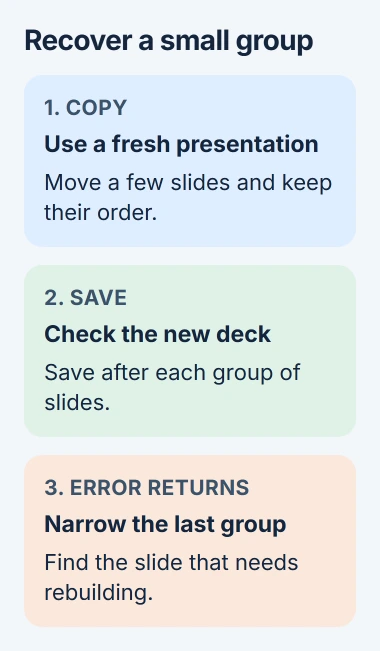
Compare the finished copy with the original. Check slide order, notes, pictures, links and animations. Copying the slides is a way to recover your work, so check the parts you need before treating the new deck as complete.
5. Preserve what you can before repairing Office
If copying slides keeps failing, try saving a PDF under a new name while the original stays open. Check that its pages are readable. It can give you a viewable copy of your work even when the editable file won't save.
Another last-resort option is File > Save As > Outline/RTF when offered. It saves the text shown in Outline view. Pictures, tables and any text outside that outline won't be in the recovered file.
If even a blank presentation won't save to folders you can use, save what you can of your work before repairing PowerPoint. Close the Office apps, then open Installed apps from Start in Windows 11.
Find Microsoft 365 or your Office edition, open its menu, and choose Modify. Follow the Office repair choices; the repair can affect the whole suite.
If saving still fails, give support the exact error, PowerPoint version, file type and save location. Say whether a blank file saved, and whether a local copy, removing font embedding or copying slides helped.
The Short Version
Keep the deck open and try a new local copy. Compare a blank deck, follow font-specific warnings, and transfer slides in small groups if only one presentation fails. Preserve readable material before restarting or repairing Office.
Checked November 5, 2026.

Isaac Smith is the founder and editor of PC Glance, a website that covers computers, laptops, and technology. He is a tech enthusiast and a computer geek who loves to share his insights and help his readers make smart choices when buying tech gadgets or laptops. He is always curious and updated about the latest tech trends.