
Downloaded files on Android are usually in Files > Downloads, or My Files > Downloads on a Samsung Galaxy. If you downloaded something in Chrome, check its Downloads list too.
Music, movies and books saved for offline use inside an app can stay inside that app instead. Start with what you downloaded and which app saved it, because Android doesn't put every kind of download in one shared folder.
Open the phone's file manager first
Swipe up to open the app list and look for Files, Files by Google or your phone maker's file manager. On a Galaxy, My Files may be in the Samsung folder. App-list search can find it without moving any apps.
Open the app and select Downloads. Look for the filename or file type you remember, such as a PDF, picture or ZIP archive. A file you opened from a website may have a different name from the page's title.
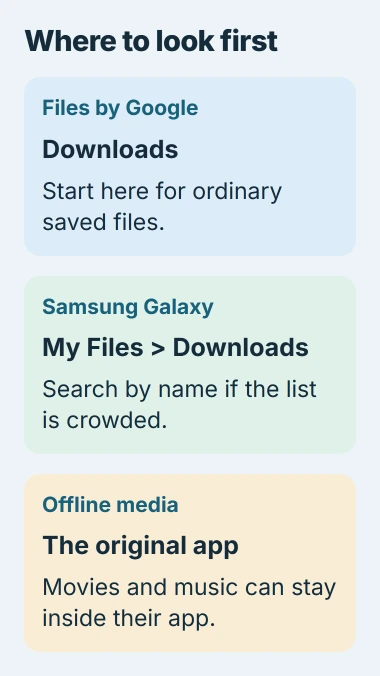
Google's file-finding instructions explain that the file manager can differ by manufacturer. An app called Files isn't necessarily the same app on every phone, so follow the categories shown on yours.
Tap a file to open it. If Android asks which app to use, choose one suitable for that file type. Even when the file is there, you need a compatible app to view it.
Search by name and sort by the download date
Use the file manager's search control if the Downloads list is crowded. Try part of the name rather than the entire title, especially if the website added a number or date to it.
On Samsung, open My Files > Downloads, tap Search, and enter the name. Those are the Galaxy file search controls. Check the results before assuming a file is gone.
If you don't remember the name, return to the category and use its Sort by options where available. A recent download is easier to recognize in date order than among years of documents arranged alphabetically.
Also check Recent or Recents if your app has that view. It can help you find a newly saved item, but it isn't a backup. If you've moved or deleted the original, the recent entry may no longer open it.
A scanned document has a more specific destination. Files by Google saves its PDF scans in Downloads > Scanned; the Android document-scanning guide explains that local folder and the separate Drive destination.
Find a file through Chrome's Downloads list
Open Chrome, tap More and choose Downloads. This list shows files downloaded through Chrome. It helps when you remember the website but not the filename; it won't list every document on your phone.
If Chrome's address bar is at the bottom, swipe up on the address bar and tap Downloads. The Android Chrome instructions include that alternative layout.
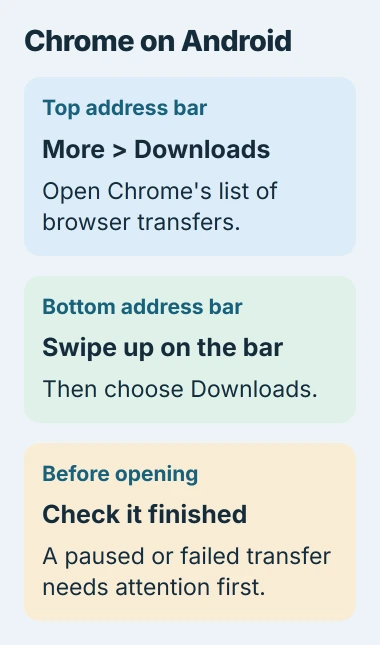
Check whether the file finished downloading. Resume a paused transfer, or try the original page again if it failed. The entry can appear even when the full file hasn't reached your phone.
Tap the completed item to open it. To send it somewhere, use the entry's More > Share option. That sends the saved file, so the recipient doesn't need access to the original website.
I'd use this list before downloading a second copy. It saves hunting through duplicate filenames and helps show whether the first attempt actually finished.
Look inside the app for offline movies and music
Open the streaming, reading or podcast app you used to download the item. Look in its Downloads, Offline or library section. These saved items may not be ordinary files another app can open.
A movie downloaded by a subscription service isn't the same as an MP4 saved from a website. Access can depend on that service's account, app and offline-playback rules, so searching My Files for a movie title may find nothing useful.
An email attachment can also stay in your mail app without being saved as a separate document. Return to the message and use its download or save control if you need a local copy.
If you saved the document to Drive or another account, open that app using the account you saved it with. Searching the phone's Downloads folder won't search all your cloud accounts.
Check storage locations when the first search fails
If your phone supports a memory card and you chose it as the save location, open that card in the file manager. Check Internal storage and SD card if both choices are shown.
If you moved the file after downloading it, search from the file manager's main screen instead of only inside Downloads. Check Documents or Images too, depending on the file type.
If you deleted it while cleaning, check the bin used by that Android app before downloading it again. File managers and photo apps can keep separate deleted-item lists.
Don't empty a bin or clear an app's storage while looking for a wanted download. Those actions can remove the copy you're trying to recover. Find its original location first.
Copy a found download to a computer
Once you've found the file, unlock your phone and connect it to a Windows PC with a USB data cable. Tap Android's USB notification and select File transfer under the USB-use options.
Follow the Android USB transfer steps, then use File Explorer to open the phone's shared storage. Navigate to the folder you found on the phone and copy the item.
Open the copied file on the computer before removing the phone copy. The PC's own Downloads folder and the phone's Download folder are different locations, even though their names are similar.
If a completed download still can't be found or opened in Chrome or your file manager, contact the app's support with its filename and any error. Keep the original message or download page in case you need another copy.
The Short Version
Start in Files or Samsung My Files, then Downloads. Use Chrome's download list for browser transfers and the original app for offline media. Search other storage locations or the right bin before assuming the file is gone.
Checked November 5, 2026.

Isaac Smith is the founder and editor of PC Glance, a website that covers computers, laptops, and technology. He is a tech enthusiast and a computer geek who loves to share his insights and help his readers make smart choices when buying tech gadgets or laptops. He is always curious and updated about the latest tech trends.