
An overheating Chromebook needs a hard, clear surface and a lighter workload first. Save your work, close demanding apps, and shut it down if the heat is uncomfortable or it keeps switching itself off.
Once it's cooled, compare light work with the activity that made it hot. ChromeOS Diagnostics shows processor use and temperature, helping you work out whether an app is keeping it busy or the cooling needs repair.
1. Stop the heavy work and let the case cool
Move the Chromebook off a bed, blanket or cushion onto a desk. Keep its cooling openings clear and choose a spot away from direct sunshine. A soft surface can trap heat against the case and block openings underneath.
Save your open work if it still responds, then close the game, video meeting or other demanding activity. If the case is painfully hot or the machine shuts down repeatedly, turn it off and let it cool before testing again.
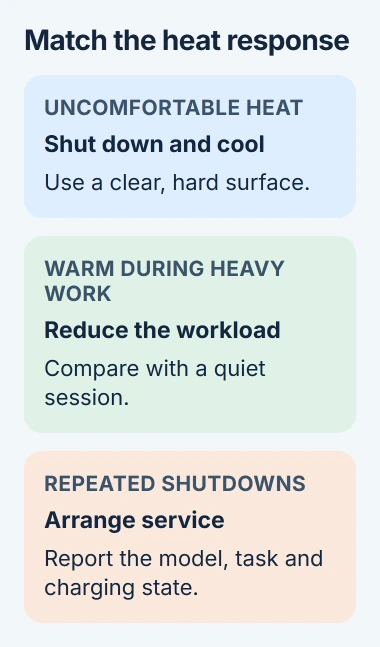
Check the outside without taking the machine apart. If the trackpad is lifting, the case is separating or the battery is visibly swollen, contact the manufacturer. Stop using and charging a visibly damaged device instead of testing it.
For a school or work Chromebook, tell the administrator about the heat and any shutdown. They may already have repair instructions for your model and can arrange a replacement while yours is checked.
2. Repeat the task with fewer apps open
After it cools, start the Chromebook normally and leave extra browser tabs and apps closed. Try your ordinary work before reopening everything you had running before.
Then run the task that caused the heat. A video meeting, game or demanding web app can keep the processor busy. Note whether warmth builds only during that activity or also while the machine is sitting idle.
If closing one app leaves the Chromebook less busy and the case gradually cools, focus on that app next. Update it, reduce its optional effects or keep it closed between uses.
If you've disabled hardware video decoding, review what that switch changes. It can give the main processor more video work. Restore an unnecessary override before comparing heat.
Give the case time to cool after closing a busy task. The processor can become less busy before the warmth fades. Watch how the heat changes over the session rather than repeatedly reopening the same heavy work.
3. Find the browser task that keeps using the processor
Press Shift + Esc in Chrome to open its Task Manager. Check the CPU column, which shows processor activity, and look for a tab or extension that stays busy when you aren't using it.
If CPU isn't visible, check the column options in Task Manager. Select the column heading to compare the busiest tasks. Watch for a little while to see whether activity drops after a page loads or keeps going.
Close an unwanted tab normally after saving its work. If it won't respond, select its task and use End process. Any unfinished work held by that task can disappear when you end it.
If an extension is responsible, open Extensions > Manage Extensions from Chrome's menu. Switch it off and repeat the activity. If processor use falls, you've found an add-on to update, replace or leave disabled.
A high reading isn't a temperature warning by itself. Use this list to see which browser task is busy, then open Diagnostics to compare what the processor is doing overall.
If the Chromebook also freezes when it isn't hot, the ChromeOS freezing checks cover app failures and memory testing. A frozen tab alone doesn't identify a cooling fault.
4. Compare CPU use and temperature in Diagnostics
Open Settings > About ChromeOS > Diagnostics, or press the launcher key and search for Diagnostics. This app requires ChromeOS version 90 or newer.
Google's Diagnostics instructions describe CPU use, temperature and speed. Open the CPU section and compare its graph during light work with the demanding task.
CPU means the main processor. If a demanding app keeps it busy, that explains the extra heat. If use stays high when you're doing very little, check what else is still running.
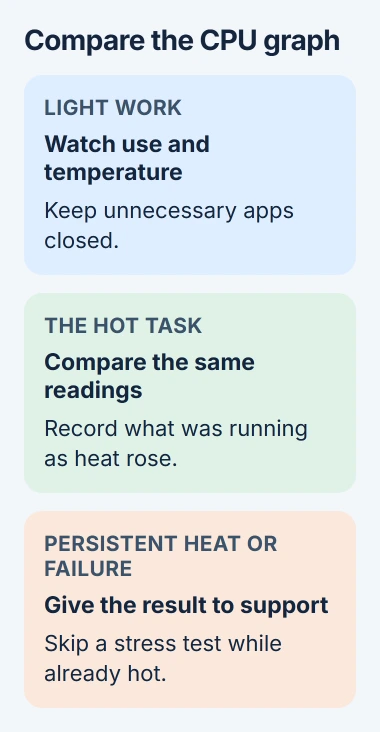
Note the readings and what you were doing, along with any fan noise or shutdown. Tell support what was running when the temperature rose. A number without the workload or model tells them much less.
Use your model's guidance to judge temperature. The app doesn't give one temperature limit that tells you when every Chromebook needs repair; a limit for another computer may not apply to yours.
The CPU tests add load to the device. Don't start a stress test while it is already overheating. If support asks for a test after it has cooled, follow their instructions and record the named result.
5. Install available updates and compare again
While the Chromebook is cool and operating normally, open Settings > About ChromeOS and select Check for updates. Finish an offered update and restart when requested.
Update the affected app too, then compare light work with the demanding task again. An update can change how an app behaves, but a blocked vent or damaged battery still needs a physical check.
For an extension that caused continuous activity, keep it off until its update is available. Re-enable it by itself when you're ready to test, instead of restoring several disabled add-ons together.
On a managed Chromebook, an administrator controls some updates and apps. Send them the task name and your CPU comparison, and leave the school's or employer's management settings in place.
I'd keep a factory reset for a software problem that actually calls for one. Repeated temperature-related shutdowns deserve a hardware check before you spend time wiping and rebuilding the same machine.
6. Ask for cooling or battery service when it keeps returning
Contact the manufacturer if it becomes uncomfortably hot during light work, keeps shutting down after cooling, or reports a failed CPU test. A failed test can mean a processor or cooling problem that needs help for your model.
Give support the model, ChromeOS version, whether it was charging, the app involved and any Diagnostics result. Say whether the problem also happens on a hard surface with very little open.
Some Chromebooks have fans and others cool without one. Ask support what your model should do before treating silence as a broken fan or trying to open it for cleaning.
If the heat is severe only while charging, tell support which adapter you're using and what happens when it charges. Use the charger specified for your Chromebook while they check whether the battery or charging system needs repair.
The Short Version
Cool the Chromebook on a clear desk, reduce its workload, and check busy browser tasks. Compare CPU use and temperature in Diagnostics, update available software, and seek service for persistent heat or repeated shutdowns.
Checked November 5, 2026.

Isaac Smith is the founder and editor of PC Glance, a website that covers computers, laptops, and technology. He is a tech enthusiast and a computer geek who loves to share his insights and help his readers make smart choices when buying tech gadgets or laptops. He is always curious and updated about the latest tech trends.