
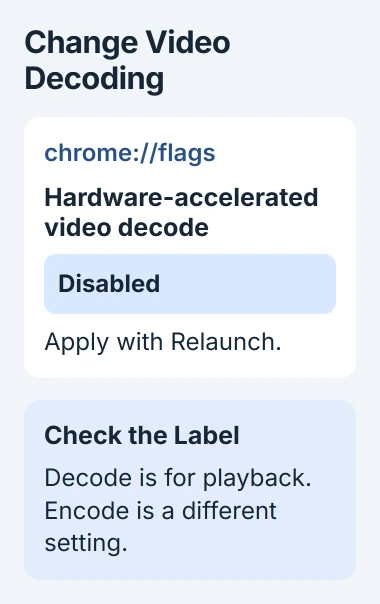
To turn off hardware video decoding on your Chromebook, open chrome://flags and set Hardware-accelerated video decode to Disabled. This changes one part of graphics acceleration; other graphics features can stay active.
Use this setting if a guide points you to a System page your Chromebook doesn't have. For a playback or display problem, restart and try the same page again to see whether the change helped.
Check which graphics setting the instructions mean
Hardware acceleration gives your graphics chip work that the main processor would otherwise handle. Video decoding is one of those jobs: turning compressed video into the individual frames you watch.
Chrome's desktop graphics switch and ChromeOS video decoding control different things. The Chrome blank-page guide describes the desktop browser switch; a Chromebook needs the control described here.
Status: November 3, 2026. Chromium still lists the video-decoding flag for ChromeOS. It is an experimental control, so availability can change between releases.
Google adds that administrators can control video decoding on managed ChromeOS devices. Its device policy reference explains that turning this off prevents hardware video decoding.
The Chromium source also lists this flag for ChromeOS. Neither control stops your Chromebook from using its graphics chip for other work.
Change the video-decoding flag, then relaunch
Save open documents and unfinished forms, and finish any call before you start. Changing this flag means restarting the browser, which would interrupt that work.
- Open Chrome and enter
chrome://flagsin the address bar. - Search within the flags page for Hardware-accelerated video decode.
- Check the full label. Video encode is a different setting, used when creating video rather than playing it.
- Note the current selection, then choose Disabled for the decode entry.
- Select Relaunch and let the browser restart.
The direct address is chrome://flags/#disable-accelerated-video-decode. If your version includes the flag, this should open the same entry, where you can check its label.
Irvine Unified School District's IT team published this procedure after a Canvas problem caused negative numbers to display incorrectly. The team reported that disabling video decoding worked around that particular display fault.
Change just this flag so you can see what it affects. Check whether your missing picture returns, the video plays correctly, or the page displays as it should.
Replay the same content and judge the result
Go back to the video or page that failed. Keep its quality setting unchanged and try what you were doing when it failed. If you change the content too, it's harder to tell whether the graphics setting helped.
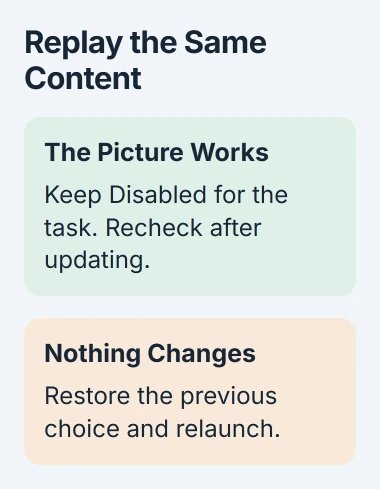
If playback now works, leave the flag disabled for the immediate task. Google says hardware video decoding can improve efficiency and reduce power use, so disabling it can make the processor do more work.
If playback works but your laptop works harder or uses more battery, decide whether that's an improvement for you. I'd finish the task with this setting, then check for a ChromeOS update before keeping it permanently.
If the picture hasn't changed, put the flag back to its previous selection and relaunch. It hasn't helped, and leaving it changed makes the next checks harder to judge.
If your Chromebook freezes during other tasks too, use the whole-device freezing checks. A video-decoding change isn't a substitute for checking an app that freezes the whole system.
The entry is missing or the school controls it
First, check the spelling in the flags search and open the direct address. If there still isn't a matching entry, don't substitute an unrelated GPU, Vulkan, rasterization, or video-encoding flag just because its name sounds similar.
Those options control different graphics tasks. Your ChromeOS version might also put an entry somewhere different from an old screenshot.
For a managed Chromebook, give the IT team the device model, ChromeOS version, and the page that fails. Google states that administrators can control hardware-accelerated video decoding through ChromeOS device policies.
Ask IT whether that policy is already set and whether they can try a temporary change on the affected devices. You don't need to remove school management or use Developer Mode for this check.
If only a school assignment displays incorrectly, include the course page and a description of the affected symbol or video. The administrator needs to know whether this is one site's content or a problem across several services.
Update ChromeOS before making the workaround permanent
Open the time panel, select Settings, and go to About ChromeOS. Choose Check for updates. If an update downloads, finish the restart that ChromeOS requests before comparing the troublesome page again.
Google's Chromebook update instructions explain that system updates arrive through this page. A separate Windows graphics-driver installer won't update a Chromebook's graphics software.
After updating, try the flag's normal selection again. If the problem has gone, you can stop relying on the workaround. If it returns, record that result along with whether disabling decoding still helps.
If the problem continues, send those details to the manufacturer or site support. Include what happens on another device if you can try one. Knowing the page and what goes wrong helps them see the problem for themselves.
The Short Version
Look for Hardware-accelerated video decode in Chrome's flags, choose Disabled, and relaunch. Test the original problem, then undo the change if it doesn't help. This affects video decoding; it isn't a master switch for Chromebook graphics.

Isaac Smith is the founder and editor of PC Glance, a website that covers computers, laptops, and technology. He is a tech enthusiast and a computer geek who loves to share his insights and help his readers make smart choices when buying tech gadgets or laptops. He is always curious and updated about the latest tech trends.