
Yes, Bluetooth headphones can work on a plane with Airplane Mode enabled, when the airline permits them. Turn on Airplane Mode first, then enable Bluetooth if it isn't already on; the headphones don't need cellular service.
When you can use Bluetooth still depends on the airline. It may allow headphones during the flight but restrict them during taxi, takeoff or landing, so follow your crew's instructions.
Check when the airline allows wireless headphones
Before departure, check the device rules of the airline operating your flight. If you're taking connecting flights, check each carrier; the rules can differ between aircraft and parts of the trip.
British Airways' onboard device guidance permits Bluetooth devices during the flight but tells passengers to switch them off for taxi, takeoff and landing. Other airlines can set different conditions.
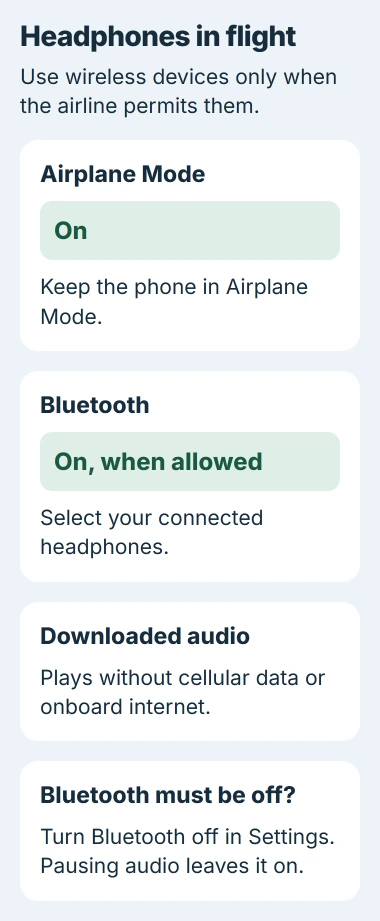
Bluetooth may work on your phone even when you aren't allowed to use it during that part of the flight. That's why the crew's instructions can differ from general advice about wireless headphones.
Listen to the crew and pause playback for announcements. If staff ask you to turn Bluetooth off, use your phone's settings. Lowering the volume or pausing a song leaves Bluetooth on.
I'd pair and test the headphones before boarding. Then you'll only need to reconnect headphones you know work, without learning their pairing steps in your seat.
Set up an iPhone without turning cellular back on
Open Control Center and turn on Airplane Mode. On a Face ID model, swipe down from the screen's upper-right corner. On a Home button model, start at the bottom edge and swipe up.
The airplane symbol shows that the mode is on. Next, open Settings > Bluetooth and check the switch. Turn it on if needed, turn on your headphones and tap their saved name if they don't reconnect.
Apple says Bluetooth can remain available in Airplane Mode. Your phone may have kept your earlier choice, so check whether its Bluetooth switch is on.
Leave Airplane Mode on while connecting your headphones. If switching modes disconnected your earbuds, you can reconnect them without turning cellular service back on.
Play a downloaded song or video and listen for it in your headphones. If it comes from the phone speaker, use the audio output control to choose your headphones before raising the volume.
If the airline needs Bluetooth completely off, use Settings > Bluetooth and turn the switch off. Disconnecting from Control Center doesn't always turn Bluetooth off completely on an iPhone.
Turn Bluetooth back on with Android Airplane mode
On a Pixel, open Settings > Network & internet and enable Airplane mode. Next, go to Connected devices > Connection preferences > Bluetooth and turn on Use Bluetooth.
The Android wireless-connection instructions explain how to keep Bluetooth on in Airplane mode. Your phone can remember that choice the next time you turn the mode on.
On a Samsung Galaxy, you'll usually find Airplane mode at Settings > Connections > Flight mode. Bluetooth is also under Connections. If your model uses different wording, search Settings for either control.
After turning Bluetooth on, choose your headphones from the saved-device list. If you haven't connected them to this phone before, follow the headphones' instructions to put them in pairing mode, then search for them.
Check that your phone shows the headphones as connected, then play a file saved on the phone. Bluetooth can be on while the headphones are disconnected or the sound is playing through something else.
If pairing also fails on the ground, use the headphone reset and pairing checks before your trip. Airplane mode isn't a repair for headphones that never pair with the phone.
Download entertainment before losing internet access
Bluetooth sends sound from your phone to your headphones. Streaming music or loading an online video also needs internet, so the headphones can work while the app waits to load its next track.
Download what you want in your app while you still have internet. Open its downloaded section and try the items you plan to use, especially if the app needs an active subscription to play them offline.
To check before leaving home, turn on Airplane mode, leave Wi-Fi off, turn Bluetooth back on and play the download. If it plays, your phone doesn't need cellular service for that file.
If onboard Wi-Fi is available and allowed, connect to it separately. You don't need to pay for internet to play downloaded audio through headphones. Connecting headphones won't give your phone internet access either.
For an equipped Delta flight, the Delta Wi-Fi connection procedure covers joining the onboard network. Pairing the headphones doesn't complete that internet login.
Separate your phone's audio from the seatback screen
Headphones paired with your phone play that phone's sound. They won't automatically play a movie from the seatback screen, even when the phone and screen are close together.
Check the seat's entertainment controls for a Bluetooth pairing option. If the system offers one, follow its pairing instructions and confirm the displayed device name before starting the movie.
If the entertainment system only has a headphone socket, you'll need a compatible wired connection or an approved transmitter. Check the airline and aircraft setup before buying one.
Noise cancellation works separately too. Whether you can use it without Bluetooth depends on your headphones. Check their controls if you want a quieter cabin when wireless use is restricted.
If the download plays on your phone but the headphones won't connect, try another audio output or a headset you know works. When asking the headphone maker for help, tell them the model, phone version and how pairing fails.
The Short Version
Keep Airplane Mode enabled, turn Bluetooth on if permitted and select your headphones. Downloaded media doesn't require internet. Follow the airline's wireless-device rules for each part of the flight.
Checked November 5, 2026.

Isaac Smith is the founder and editor of PC Glance, a website that covers computers, laptops, and technology. He is a tech enthusiast and a computer geek who loves to share his insights and help his readers make smart choices when buying tech gadgets or laptops. He is always curious and updated about the latest tech trends.