
No, the usual caffeinate command doesn't reliably keep a MacBook running when you close the lid. It prevents sleep caused by inactivity; for a dependable closed-lid desktop setup, connect power, an external display, a keyboard and a mouse.
What matters is why your Mac sleeps. An idle timer, closing the lid and the screen going dark are different events. Adding more command flags won't necessarily stop the one that's interrupting your work.
Choose between an open lid and a desktop setup
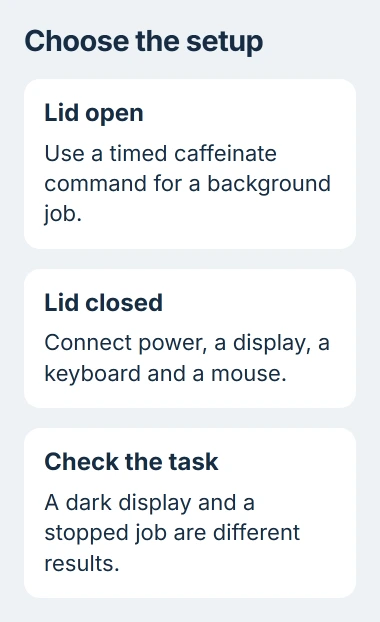
For a download, export or other background job, I'd leave the lid open and prevent idle sleep for the time the job needs. That avoids turning a simple unattended task into a display-connection problem.
For work on an external monitor, set up the MacBook with its lid open first. Confirm that the display, keyboard and mouse work, connect the power adapter, then close the lid and continue from the external controls.
Apple says a laptop used with a closed lid and external display should be connected to power and use an external keyboard and mouse. A USB-C display can supply power if its connection supports charging your Mac.
Check the battery menu to see whether your Mac is charging. A USB-C cable can carry the desktop picture without the cable or dock supplying the power your setup needs.
Once you can use the external desktop with the lid shut, start your task. A working screen is a useful first check, but watch the download or export's progress before leaving it unattended.
Keep an open Mac awake for a limited job
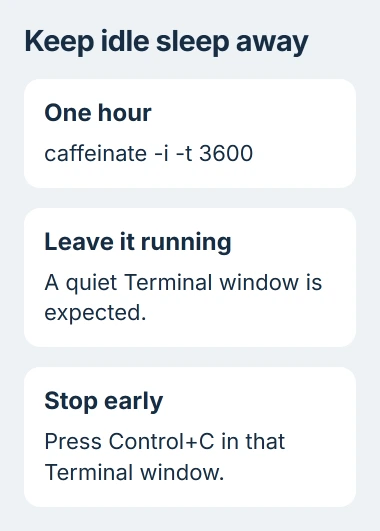
Open Terminal from Applications > Utilities. To prevent idle system sleep for one hour, enter:
caffeinate -i -t 3600Press Return. Terminal normally waits without printing a success message while the command runs. Leave it running while your other app works; the lack of a message is normal.
The -i option prevents idle system sleep. The -t value is a duration in seconds, so 3600 means one hour. Choose a duration that covers your job rather than leaving an unlimited command running by accident.
The screen can still go dark while your Mac and export keep running. Keeping the computer awake and keeping the display lit are separate options.
If a large iCloud sync stalls after sleep, keeping the Mac awake can give the current transfer time to finish. A transfer that remains stuck while awake needs its own sync checks.
To stop the command early, return to its Terminal window and press Control+C. The command prompt returns, and caffeinate stops keeping your Mac awake.
Match the flags to the behavior you need
Running caffeinate without flags prevents idle sleep by default. Adding -i makes the command easier to understand when you look at it later.
Use -d when the display needs to stay awake too, such as when you're watching a long task's progress onscreen. For the same one-hour limit, the command becomes caffeinate -di -t 3600.
The -s option asks your Mac to stay awake while it's on AC power. It doesn't do the same on battery power, and it doesn't replace setting up the power and accessories needed for closed-lid use.
The -u option tells your Mac that you're active. Without a timeout, that request lasts just five seconds, so it isn't the right choice for keeping a transfer running all afternoon.
These options come from the caffeinate manual. For the manual installed on your Mac, run man caffeinate, then press Q when you've finished reading.
Use only the flags your task needs. With several flags together, you can lose track of whether the command keeps the display lit, prevents idle sleep or works only on AC power.
Check that caffeinate is still running
Open another Terminal window and enter pmset -g assertions. This lists the apps currently asking your Mac to change its sleep behavior, including caffeinate.
Look for a caffeinate entry and the kind of sleep it's preventing. An idle-sleep entry means your Mac can stay awake without keyboard activity. It can still sleep for other reasons.
The idle-sleep request allows other sleep causes, including closing the lid, choosing Sleep and a low battery. That's why your MacBook can sleep even while caffeinate is running.
If the command prompt has returned in the first window, check whether the timer ended or the command showed an error. Before starting another timer, check that your job still needs the Mac awake.
For the opposite problem, check which apps are keeping a Mac that refuses to sleep awake. A caffeinate command you forgot to stop can be part of that problem.
When closing the lid still stops the work
Reopen the lid and check your task before changing anything else. Note whether it resumed, failed or kept running while you couldn't see the display. The next step depends on which of those happened.
For a closed-lid desktop that loses its screen, check power and the video connection first. On Apple-silicon laptops, unlock the Mac and approve the connected accessories with the lid open.
If the monitor works directly but fails through a dock, take the dock, cable and power details to its maker. More caffeinate flags won't correct an accessory that the Mac hasn't accepted or a failing video connection.
Keep an awake Mac on a ventilated surface. Before putting it in a bag, stop the job and let the computer sleep or shut it down.
If your Mac still sleeps with the required accessories and power connected, contact Apple Support. Include your Mac model, macOS version, the command you used and whether it also happens with the lid open.
The Short Version
Use a timed idle-sleep command for background work with the lid open. For closed-lid work, connect power and the external display, keyboard and mouse first, then check that your job keeps running.
Checked November 5, 2026.

Isaac Smith is the founder and editor of PC Glance, a website that covers computers, laptops, and technology. He is a tech enthusiast and a computer geek who loves to share his insights and help his readers make smart choices when buying tech gadgets or laptops. He is always curious and updated about the latest tech trends.