
An Overwatch black screen with menu music can come from the game's saved display settings. For a Battle.net installation, try resetting its in-game options from the launcher before downloading the game again.
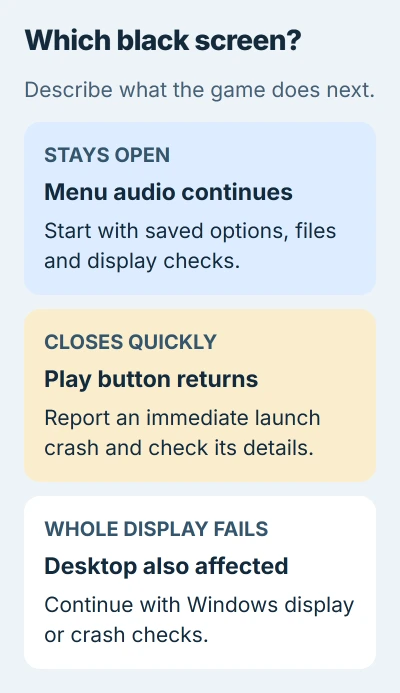
A window that stays black and one that closes straight away need different checks. Watch what happens each time you launch the game so you can follow the right steps.
1. Reset the game's options outside the black window
Close Overwatch, then select it in Battle.net. Open the options control beside Play, choose Game Settings, and find Overwatch's Reset In-Game Options command. Confirm the reset and start the game again.
This restored the picture for an owner on Blizzard's forum in March 2025. They could hear the menu and see a preview while switching windows, but the game itself stayed black.
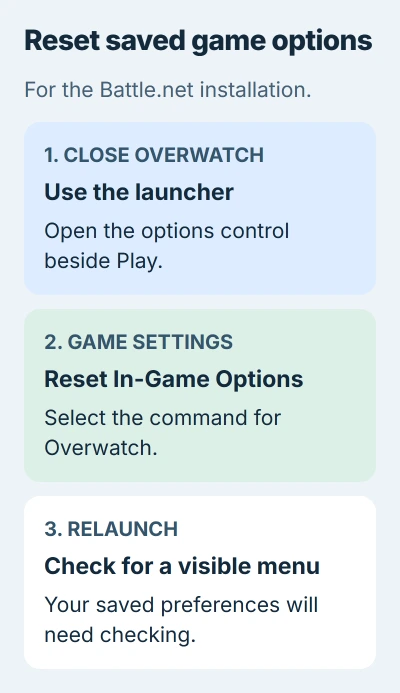
The reset changes your saved preferences, so check your display and control settings afterward. Use it only for Overwatch, leaving other games and the launcher's folders alone.
Once you can see the menu, change one display setting at a time and relaunch to check it. If a change brings back the black window, use the setting that worked and tell support which one failed.
For Steam installations, use the file check in the next section; Steam doesn't offer Battle.net's reset command. If your Battle.net layout doesn't show it either, move on to the file check instead of guessing which settings files to delete.
The 2025 owner had already reinstalled and updated drivers without success. Turning off several overlays, which show extra information over the game, hadn't helped either. A reset is a useful first try, though other causes are possible.
2. Check the installation through the correct launcher
If Battle.net offers Scan and Repair in Overwatch's options menu, run it with the game closed. Wait for the scan and any downloads to finish, then try Play again.
In Steam, open your Library, right-click Overwatch, and choose Properties. Open Installed Files, then select Verify integrity of game files. Steam checks the installed content and replaces files that need repair.
These file-verification steps check the copy Steam installed. If you have another installation, checking that copy won't repair the one you're trying to launch.
If another update is waiting, let it finish too. Launch the game again and note what happens: the title screen appears, the window stays black with sound, or you're sent straight back to the launcher's Play button.
I'd finish one file check before considering a full reinstall. If it finishes normally and nothing changes, tell support exactly how the launch fails. That's more useful than downloading the game repeatedly.
3. Compare a launch with overlays and extra apps closed
Close optional recording tools, performance monitors and game overlays using their own controls. Then start Overwatch from the same launcher, keeping the rest of your setup unchanged.
For Steam's overlay, open the game's Properties > General and clear Enable the Steam Overlay while in-game. This per-game setting affects only Overwatch.
If you can now see the game, reopen those optional tools one at a time. If one brings back the black screen, update it or leave its game overlay off while asking its developer for help.
If nothing changes, restore the optional settings you still want. The earlier owner tried several overlay changes unsuccessfully, so this check isn't a reason to strip out every background program on the PC.
When the whole display loses its picture even outside the game, follow the Windows display-blackout checks instead. That's a wider failure than one black Overwatch window.
4. Update the graphics driver before deeper changes
Use your PC or graphics-card manufacturer's official support tools to install a driver for your graphics hardware. Restart if asked, then try launching Overwatch again with the other settings unchanged.
Microsoft's driver-update instructions cover Device Manager and the manufacturer's site.
If the black screen started just after a driver change, note the version and tell support when it started. Those details help them check the driver change before suggesting another package.
If Windows crashes or restarts, record its stop code and use the Windows crash guide. That's different from Overwatch closing while your desktop stays visible.
5. Check security-software conflicts for immediate closure
In a separate October 2026 report, Overwatch opened a black window briefly or closed almost immediately. Reinstalling, trying another launcher, using a new Windows profile and reinstalling the graphics driver hadn't helped that owner.
They traced it to WithSecure/F-Secure DeepGuard. The crash report listed fshook64.dll, part of that security software, running inside the game. They confirmed the failure returned when DeepGuard was enabled.
Their fix was an exception for Overwatch.exe, with DeepGuard left enabled. That October report describes the game closing right away with this security software installed.
If you use that security product and the game closes right away, send its support team the game file's location and crash details. Ask them to review an exception for your genuine installed copy of Overwatch.exe.
An exception skips some security checks on that file, so involve your administrator on a managed PC. Don't apply it to a different security product or a whole drive. Without that software, skip this step and report the launch failure.
Send the launch result and graphics details to support
Open Windows Search, enter dxdiag, and select the DirectX Diagnostic Tool. Choose Save All Information to make a report for support. It lists your graphics hardware and driver details so they can check the display problem.
Include your launcher, game version, and what happened after the reset and file check. Say whether sound continues or the game closes. Send reports through support so you don't post personal system details publicly.
The Short Version
Reset Overwatch's saved options in Battle.net, check its files through the launcher you use, and compare without optional overlays. Update the graphics driver. Immediate closure with WithSecure needs a separate security-software review.
Checked November 5, 2026.

Isaac Smith is the founder and editor of PC Glance, a website that covers computers, laptops, and technology. He is a tech enthusiast and a computer geek who loves to share his insights and help his readers make smart choices when buying tech gadgets or laptops. He is always curious and updated about the latest tech trends.