
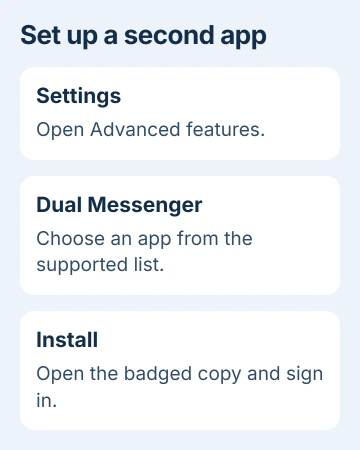
Samsung's Galaxy A16 can run a second copy of a supported messaging app through Settings > Advanced features > Dual Messenger. Turn on the app's switch there, install its second copy and sign into your other account.
This works with the apps listed in that menu, rather than every app on your phone. The second copy has its own account and data, so you'll need to set it up separately.
Open the A16's supported-app list
Open Settings, tap Advanced features, then choose Dual Messenger. You'll see the installed messaging apps that support a second copy. Choose the app from this list, rather than looking for a duplicate button on its icon.
The current A16 manual includes Dual Messenger. Samsung's setup instructions explain its switch and installation prompt. What's available can vary with your model, software and carrier.
If the menu is empty, check whether you've installed the messaging app you want. A supported app needs to be on your phone before its second copy can appear as an option here.
If an installed app isn't in that list, Dual Messenger doesn't offer it on your setup. A second Home screen shortcut will just open the same app and account.
If Dual Messenger itself is missing, check Settings > About phone for your model number and Software information for the software version. Share those details with support to check whether your A16 includes Dual Messenger.
On a work-managed phone, ask your administrator whether they restrict accounts or app installation. Check that before considering a factory reset for a missing setting.
Install the second copy and sign in
Tap the switch beside the messaging app you want to duplicate. Choose Install, then review the prompt and tap Confirm if your version asks for it.
Return to the Apps screen and find the second app. The Dual Messenger badge marks its icon so you can recognize the extra copy. Open that badged icon to use your second account.
Sign in with your other account's details. Dual Messenger gives the app its own space, but you'll still need an account and whatever password, verification code or other sign-in checks that service requires.
Some messaging services need a phone number for each account. Make sure you can receive verification on the number you'll use. The messaging app decides what each account needs.
After signing in, check the account name or number inside each copy. I'd do that before sending anything, since the similar icons make it easy to send from the wrong account.
Send a short test message from the second account to a person who knows you're setting it up. Then open the original app and check that it still shows your first account.
Each icon should now open the account you intended. If you've got two icons but haven't finished signing into the second copy, finish that sign-in to complete setup.
Choose which contacts the second app sees
Return to Settings > Advanced features > Dual Messenger. Turn on Use separate contacts list if you want to select contacts for the second copy rather than share the ordinary list.
Tap Add, choose the contacts you want, then tap Done. Open the second messenger again and check whether its contact list matches what you selected.
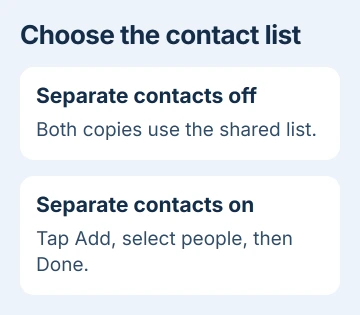
Leave that option off if you want both copies to use the same contacts. Two messaging accounts don't require you to save every contact twice.
If someone is missing only from the second messenger, check your selected contacts before adding their number again. They may be in your phone's ordinary list but left out of the separate one.
This setting chooses contacts for the second app; it doesn't lock or hide its icon. To hide an app from the Home screen, use the separate feature in the Galaxy app-hiding guide.
Check alerts and downloaded pictures for each copy
When a new message arrives in your second account, check the icon on its notification. The badge and account name help you tell which account received it.
If only one copy stays quiet, open its own notification settings first. When you have a notification from that copy, touch and hold it to reach the phone's settings for that app.
The Android notification controls let you change alerts without removing an account. Silencing the second app can be useful for a work account, while keeping personal alerts active.
Downloaded Dual Messenger pictures can also be stored separately. Open My Files > Internal storage (Dual Messenger) > DCIM, then the messaging app's folder when those choices appear.
Try that location if a downloaded picture isn't showing in Gallery. Check inside the second app first to make sure the download finished, then look in the phone's folders.
The folders you see depend on the app and what it's saved. If a folder is empty, that isn't a reason to copy chats from your original account into the second app.
Remove the extra app without confusing the two accounts
To remove the extra copy, return to Dual Messenger in Settings. Turn off that app's switch and confirm Uninstall if asked.
Save any chats or downloaded files you need with the messaging app's backup or export tools first. Removing the second app deletes the data it stores on your phone; it isn't a backup of your first account.
To remove every Dual Messenger copy, the menu can offer More options > Delete all my data. That removes all the extra copies, whereas an individual app's switch removes just that copy.
Removing the original app can also remove its second copy. If you only want to stop using the extra account, use that app's Dual Messenger switch so you choose the copy you mean to remove.
If installation or sign-in keeps failing, tell support which app is listed, the exact prompt that failed and your A16 model and software version. For account verification trouble, contact the messaging service's support.
The Short Version
Open Dual Messenger in Advanced features to install a supported second app. Sign into your other account through its badged icon, choose shared or separate contacts and check its alerts. Save its data before removing it.
Checked November 5, 2026.

Isaac Smith is the founder and editor of PC Glance, a website that covers computers, laptops, and technology. He is a tech enthusiast and a computer geek who loves to share his insights and help his readers make smart choices when buying tech gadgets or laptops. He is always curious and updated about the latest tech trends.