
A Mac camera that won't work in a meeting app may be blocked by a permission or Screen Time restriction. Try the built-in camera in Photo Booth first, then check the failing app's access before moving to a restart or hardware service.
These checks cover a camera built into a MacBook, iMac or connected Apple display. A Mac without one needs an external camera; using an iPhone wirelessly has its own connection requirements.
1. Try the intended camera in Photo Booth
Quit the meeting app and open Photo Booth from Applications. Look for a live preview. If several cameras are available, open Camera in its menu bar and choose the built-in camera you're checking.
The camera-selection controls explain this menu. If an iPhone or disconnected USB camera is selected instead, you'll be checking the wrong camera.
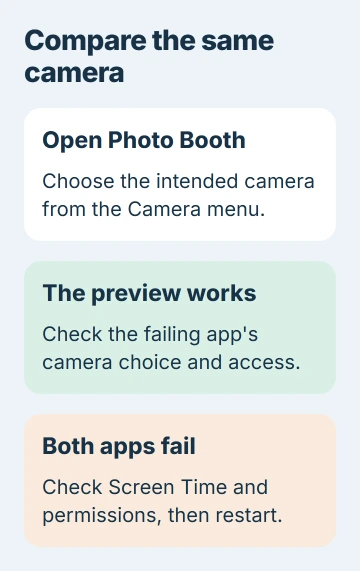
A moving preview means the camera is sending an image to Photo Booth. If your meeting app still fails, check its camera choice and permissions before treating the Mac's camera as broken.
If Photo Booth is showing an old picture, return to its camera view before judging the preview. The Photo Booth capture guide distinguishes the live camera view from saved thumbnails.
If no app produces a preview, continue through the system restrictions and restart checks. Note whether the camera's green indicator stays off, lights steadily or flashes; that detail helps with the final support decision.
2. Allow the app in Privacy & Security
Open System Settings > Privacy & Security > Camera. Find the installed app that needs access and turn it on. Quit and reopen that app if prompted, then start its camera preview again.
Apple's camera privacy instructions explain that installed apps appear here after asking for access. Built-in apps such as Photo Booth and FaceTime already have access.
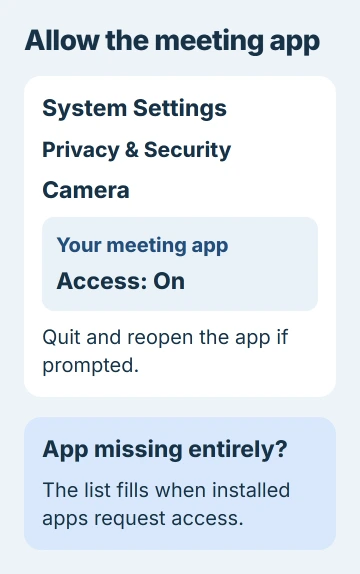
If the app isn't listed at all, use the missing Mac camera permission guide. The list fills when apps request access, so looking for an Add button won't help.
For older macOS versions, the controls are in System Preferences > Security & Privacy > Privacy > Camera. Follow the route for your Mac's settings app, rather than looking for both layouts.
For a meeting in your browser, macOS permission applies to the browser. Your browser also controls the meeting website's access. In Safari, check Safari > Settings > Websites > Camera for the meeting site.
If only one meeting service fails after you've allowed the browser and site, tell its support team. If Photo Booth works too, mention it; that narrows the problem compared with a camera that fails everywhere.
3. Check Screen Time's camera and app limits
On macOS 27, open System Settings > Screen Time. Choose Content & Privacy Restrictions, then Other Features. Set Camera to Allowed if it's blocked.
On macOS 26, the route is Screen Time > Content & Privacy > App & Feature Restrictions. Turn Camera on there. Earlier releases can call this section App Restrictions or Apps.
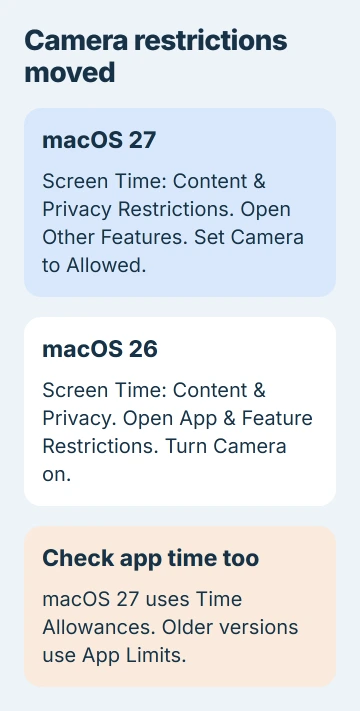
The menus changed in macOS 27. Its Other Features controls replace the older camera-restriction route, so the wording in older repair instructions won't match every Mac.
Check available app time too. In macOS 27, open Screen Time > Time Allowances and review the category containing your meeting app. In macOS 26, inspect that app under App Limits instead.
If the app has used all its allowed time, ask whoever manages Screen Time to review its allowance. Camera permission won't remove that separate time limit.
If someone else manages Screen Time, ask them to check both camera access and how much time the app has left. If your organization manages the Mac, ask IT about locked or unavailable controls.
Try the preview again after correcting a restriction. If it works, stop there. If the same camera still fails in Photo Booth and your meeting app, move to software updates and the power checks.
4. Update and restart the Mac
Save your work, then open System Settings > General > Software Update. Install an available compatible update and restart when asked. Update the failing third-party app the way you normally would too.
If no update is offered, choose Apple menu > Restart. After signing back in, open Photo Booth before starting your usual meeting apps and browser tabs.
Use the same camera for each attempt to keep the comparison useful. If the preview returns after restarting, the camera is available again. Check the original app next.
I'd restart before trying commands that stop the Mac's camera services. A normal restart is the supported step for Apple silicon and lets you compare the two apps again.
If Photo Booth works but recording has no sound, the Mac camera recording guide covers choosing the microphone separately. Video access and audio input aren't one setting.
5. Use the correct power reset for an Intel Mac
Open Apple menu > About This Mac. Check whether it lists Apple silicon under Chip or Intel under Processor. Don't use an Intel keyboard reset simply because another Mac owner used it.
On Apple silicon, restart your Mac normally, or shut it down before starting it again. You don't need a separate SMC key sequence.
On an Intel Mac, follow the SMC reset for your model. SMC means System Management Controller, the component that manages power and certain hardware behavior.
The reset differs for a laptop with a T2 chip, an older Intel laptop and a desktop. Find your group first, then follow its steps, including which side of the keyboard to use when specified.
Then reopen Photo Booth and check the built-in preview. If it still fails, write that down for support instead of trying reset sequences for other models.
6. Arrange service for a continuing camera failure
If the built-in camera still won't work after these checks, arrange an Apple repair assessment. The camera guidance also calls for service when its indicator flashes green.
Give support the Mac model, macOS version, whether Photo Booth worked and what happened to the indicator. Include any exact error message, with private meeting details removed.
For an iPhone used as the camera, follow the Continuity Camera connection guide instead. A failed wireless iPhone connection doesn't mean your MacBook's built-in camera needs replacing.
The Short Version
Compare Photo Booth with the failing app, then check permissions and Screen Time. Update and restart; Intel Macs have separate SMC steps. Seek service for a continuing built-in camera fault or a flashing green indicator.
Checked November 5, 2026.

Isaac Smith is the founder and editor of PC Glance, a website that covers computers, laptops, and technology. He is a tech enthusiast and a computer geek who loves to share his insights and help his readers make smart choices when buying tech gadgets or laptops. He is always curious and updated about the latest tech trends.