
When a mouse and keyboard stop together, a shared USB hub, dock or wireless receiver may have failed. Connect them directly to the PC, then try a spare wired keyboard or mouse so you can reach Windows.
These checks cover external devices in normal Windows 11 or Windows 10. Get one control working first, since you'll need it to reach Settings or Device Manager.
1. Bypass the hub or dock before changing Windows
Follow each cable or receiver back to the computer. If both devices connect through a monitor, dock or USB hub, plug them into the PC's own USB ports for this test.
Unplug each input device, wait briefly, then reconnect it. Try a different built-in port if the first one doesn't respond. On a desktop, a rear port gives you another connection to compare with the front ports.
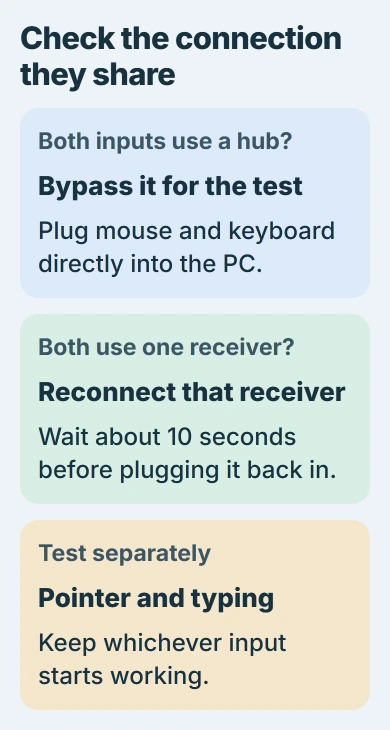
Microsoft's mouse and keyboard hardware checks recommend another USB port and bypassing the hub. A powered hub also needs its power connection working.
If the devices work when plugged in directly, leave them there while you check the hub's power, upstream cable and support information. The upstream cable connects the hub or dock to your computer.
If the dock also holds an external drive, leave the drive connected while moving only the input cables. Unplugging the entire dock during a file transfer risks interrupting the drive as well.
After reconnecting, test pointer movement and typing separately. If one device works again, keep using it. It gives you access to Windows, and the two devices may now need different fixes.
2. Check batteries, receivers and the active connection
Charge both wireless devices or fit fresh batteries as their manuals describe, then check their power switches. A mouse's light can be hard to see, and a lit keyboard doesn't tell you whether Windows is receiving your keystrokes.
For a keyboard-and-mouse set with one USB receiver, unplug that receiver, wait about 10 seconds, then reconnect it directly to the PC. Disconnecting a shared receiver affects both devices at once.
Check that the receiver matches your keyboard-and-mouse set. Similar-looking receivers aren't automatically interchangeable. If your devices have numbered computer channels, select the channel paired with this computer.
A Bluetooth set uses the PC's Bluetooth connection instead of a USB receiver. The wireless mouse connection guide explains how to tell those two connection types apart.
Don't remove both Bluetooth pairings while those devices are your only controls. Connect a wired keyboard, mouse or another working input first, then pair one device at a time using the maker's instructions.
If switching to the correct channel or reconnecting the receiver restores both devices, test them in your ordinary app. If only one returns, keep it connected and compare the other device next.
3. Restore one working control so repairs are reachable
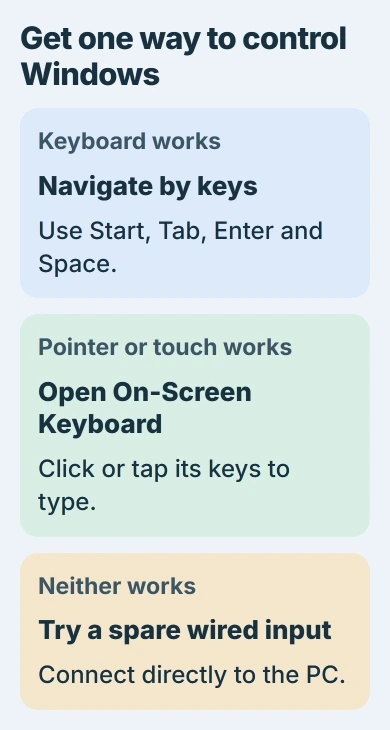
Borrow a simple wired USB keyboard or mouse if you can and connect it directly. On a laptop, try the built-in keyboard and touchpad too; they don't use the external devices' receiver.
With a working keyboard, open Start with the Windows key and type the setting or app name. Tab moves between controls; Enter or Space activates the selected control.
With a working mouse, open Settings > Accessibility > Keyboard in Windows 11 and enable On-Screen Keyboard. Windows 10 keeps it under Settings > Ease of Access > Keyboard.
The On-Screen Keyboard instructions also explain its sign-in-screen option. Select Accessibility near the bottom of the sign-in screen, then open On-Screen Keyboard.
Click or tap the on-screen keys to type. You'll still need a working pointer or touchscreen to use it, so it can't help when all input has stopped responding.
If the whole PC appears frozen and no spare input works, follow its manufacturer's shutdown and restart instructions. A forced shutdown can lose unsaved work, so use an ordinary restart through working controls whenever possible.
4. Compare each device on another computer
Connect the keyboard and mouse to a second compatible PC, using the correct receiver or cable. Test ordinary typing and pointer movement there. Install a required model driver if the maker says the device needs one.
On the original PC, try a keyboard or mouse you know works. I'd test with borrowed equipment before spending money on replacements. Testing both ways tells you more than repeatedly reconnecting the same failing equipment.
If both original devices work elsewhere but fail on the first PC, check that PC's connection or software next. If the set also fails on another PC with its own receiver, check the set, receiver and their power.
If only the keyboard fails on both computers, the keyboard symptom checks cover typing faults separately. A working mouse lets you use those controls without continuing to treat both devices as dead.
A device working on another PC won't tell you whether a particular Windows driver caused the failure. Use that result to choose your next check, rather than uninstalling every input device.
5. Update the affected PC after access returns
Save your work and restart Windows normally. When you can control the PC, open Start, search for Check for updates, and open that result. Select Check for updates and finish any requested restart.
To update one device, search Start for Device Manager. Find the affected keyboard or pointing device, open its Properties, then use Driver > Update Driver and follow the prompts.
Use the computer or accessory maker's supported software for your exact device. If no update is available, skip that step.
Keep the spare input connected. Don't download unrelated driver collections, disable USB controllers or uninstall all keyboard and mouse entries together; the last two can remove the controls you need to finish the repair.
If input fails only inside the blue recovery menus, follow the Windows Recovery keyboard and mouse checks. Those menus load separately from normal Windows and need different repair steps.
6. Take the comparison results to the right support team
Contact the PC maker if several known-working direct USB devices fail on this computer but work elsewhere. Report which ports work, whether built-in laptop controls respond, and whether the problem starts before or after signing in.
Contact the accessory maker if the original set fails on another compatible computer too. If they fail only through the dock, give the dock maker its model and explain that both devices work when connected directly.
The Short Version
Bypass shared USB equipment, check wireless power and the correct receiver, then restore one working input. Compare each device on another PC before updating a specific driver or arranging service.
Checked November 5, 2026.

Isaac Smith is the founder and editor of PC Glance, a website that covers computers, laptops, and technology. He is a tech enthusiast and a computer geek who loves to share his insights and help his readers make smart choices when buying tech gadgets or laptops. He is always curious and updated about the latest tech trends.