
Install the 1Password Chrome add-on through the official Chrome Web Store listing, then pin its icon and sign in to your 1Password account. Installing the extension is free, but using it requires a 1Password membership.
These steps apply to Chrome on a computer. Chrome on Android, iPhone and iPad doesn't install this desktop extension; those devices use their own password-filling setup.
Get the current extension in the right Chrome profile
Open Chrome in the profile where you normally browse. Start from the official browser download page, choose Download for Chrome, and follow its store link.
Check that the listing shows AgileBits Inc as the publisher. Its extension ID, the last part of the store address, is aeblfdkhhhdcdjpifhhbdiojplfjncoa. Use that to check you've found the right extension, even if names look similar.
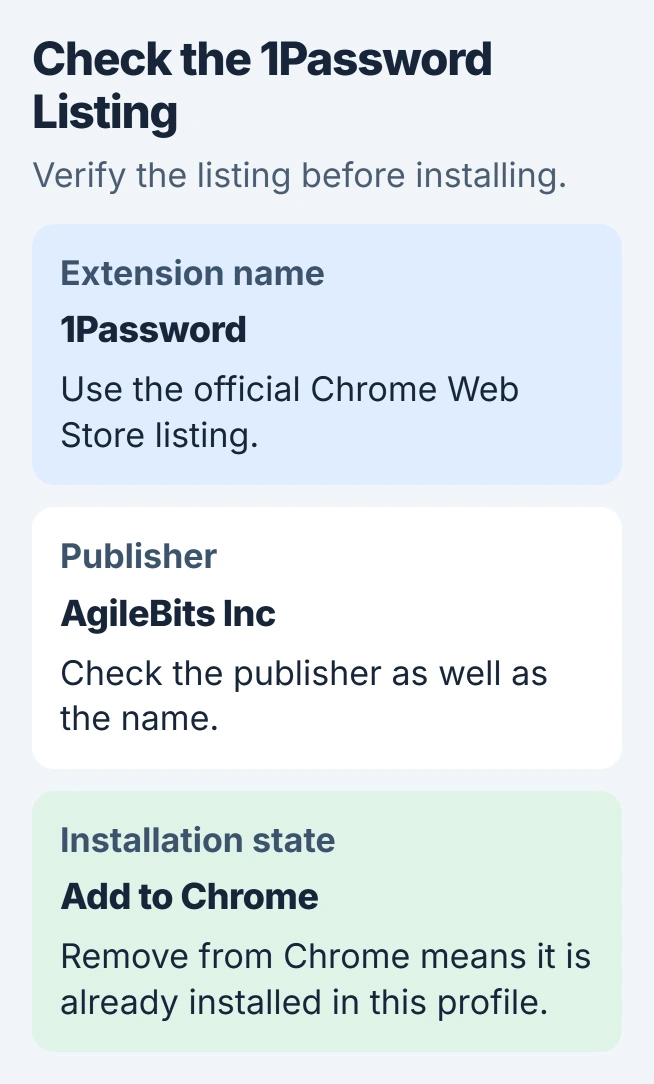
Select Add to Chrome, read the permissions, then confirm with Add extension. If the store offers Remove from Chrome, it's already installed in this profile. Check the toolbar next instead of trying to add it again.
Google says you need a regular window for extension installation. Leave Guest or Incognito mode first. Your organization's administrator can also block installation.
Extensions belong to Chrome profiles. Installing one in your personal profile doesn't add it to a separate work profile on the same PC. Check the profile picture beside the address bar when the extension seems to disappear.
Put the 1Password button on the toolbar
Click Chrome's Extensions button beside the address bar. Find 1Password and select Pin. Close that menu and check that its button remains visible, so you can open your password list without searching through Chrome's menus.
If it's missing from that menu, choose More > Extensions > Manage extensions. Find the 1Password card and turn its switch on if it's off. If the card is there but turned off, you don't need another download.
The missing-button procedure helps when 1Password is installed but its icon isn't visible. An unpinned extension can still work; pinning keeps its button beside the address bar.
If Chrome labels an extension unsupported, read the Chrome extension support explanation before trying to force it on. A hidden button and an old extension aren't the same problem.
Open the extension and connect your account
Select the pinned button and follow its setup prompts to sign in or add your existing account. Use the account you already keep your passwords in. Creating another account won't bring the first account's saved items into the new one.
Depending on your setup, the extension may connect through an installed, unlocked 1Password desktop app or ask you to sign in. Complete the usual account verification. A business account can use your organization's sign-in process.
After signing in, open the extension and search for a login you recognize. If that saved item appears, you've connected the right account. The toolbar icon alone only tells you the extension is installed.
If several accounts are available, open the account menu at the upper left of the extension's pop-up. Select the account you need, or All Accounts. Check the account and visible vaults before deciding your passwords are missing.
Keep your account password and Secret Key out of support messages and screenshots. If sign-in fails, use account recovery or your company's support; reinstalling the extension won't recover your sign-in details.
Try filling one existing login
Visit the sign-in page for a website whose login is already saved. Open and unlock 1Password, then choose its Sign in prompt when offered. If several saved accounts match, use Other options to choose the right one.
The browser usage guide also covers searching from the toolbar. Find a saved login there and choose Open & Fill when you want 1Password to open its saved website address.
I'd check one familiar login before importing passwords or changing other settings. Once it works, you can focus any later trouble on the website, its saved address or an item in the wrong account.
For a new login, enter the username and password on the intended site and sign in. When 1Password offers to save it, inspect the item details and destination vault before choosing Save.
If two password menus appear, decide which manager you want handling the form. The Chrome password-saving controls affect Google's manager separately from your 1Password account.
Connect the desktop app when unlocking stays separate
If unlocking the desktop app leaves the extension locked, check both integration switches. In the unlocked desktop app, open its account or collection menu, choose Settings > Browser, and enable Connect with 1Password in the browser.
In the browser extension, open the account menu, then Settings > General. Enable Integrate this extension with the 1Password desktop app. Restart Chrome afterward and check whether they now lock and unlock together.
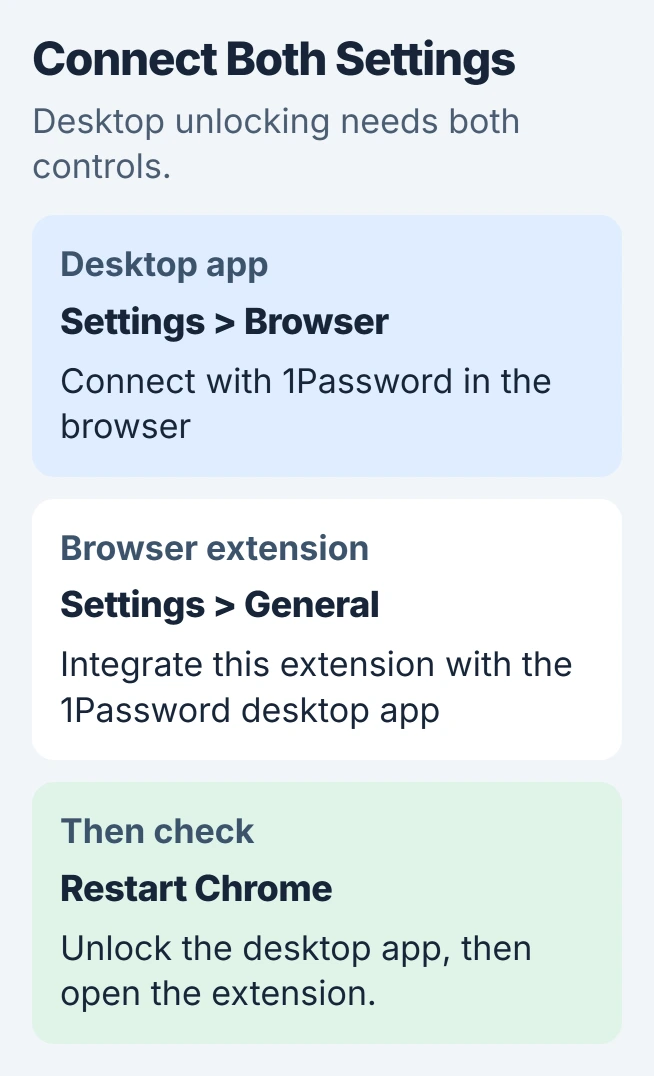
1Password's app connection instructions use both switches. Updating only the desktop app can leave the browser extension out of date, so check that too.
Check versions or get help with a blocked installation
Open Extensions > Manage extensions, find 1Password, and select Details to read its version. Chrome normally updates extensions automatically. An old extension labeled desktop app required needs replacing with the current one.
The current system requirements list Chrome 140 or later on a compatible computer. Use Help > About Google Chrome to check your browser and install an available update.
If your organization blocks installation or these controls, ask IT whether the extension is allowed. Send the official store link and displayed message. Changing a personal browser won't override the organization's policy.
If it still fails, send 1Password Support your operating system, Chrome and extension versions, and the step that fails. Say whether the extension opens and the desktop app unlocks, so support can work out where the connection fails.
The Short Version
Install from the official store link in your chosen profile, pin the button and connect your existing account. Try a saved login. If the desktop app and extension don't unlock together, check both integration switches and versions.
Checked November 5, 2026.

Isaac Smith is the founder and editor of PC Glance, a website that covers computers, laptops, and technology. He is a tech enthusiast and a computer geek who loves to share his insights and help his readers make smart choices when buying tech gadgets or laptops. He is always curious and updated about the latest tech trends.