
An alert that Google Chrome has a critical security vulnerability calls for a check in Chrome's own updater. Open Help > About Google Chrome, wait for the check, then use Relaunch if offered.
A warning inside a website or a desktop notification can also be an advertisement or a fake update prompt. Use the browser's controls to check your installed copy instead of downloading whatever that message offers.
1. Open the updater without using the warning's button
On Windows or a Mac, open Chrome's three-dot menu and choose Help > About Google Chrome. Or type chrome://settings/help as the address and press Enter.
Leave that page open while it checks. If an update is available, let it download, then choose Relaunch. Save unfinished forms or web-app work first. Incognito windows won't return after the restart.
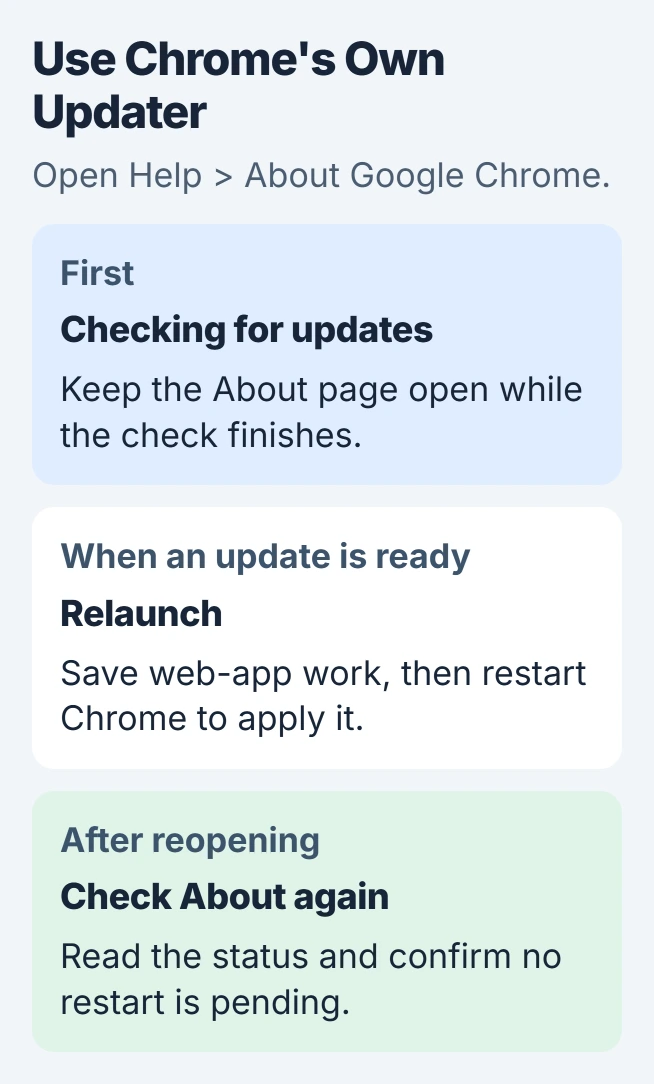
Google's Chrome update procedure says this page checks automatically. A downloaded update won't take effect until you restart the browser, so use Relaunch when it's offered.
After Chrome opens again, return to the same page. Read the update status and note the version shown. Once the check finishes and no restart is pending, you can return to normal browsing.
On Linux, use the distribution's package manager to update Chrome. On a Chromebook, Chrome updates with ChromeOS. Those devices shouldn't be treated as Windows PCs needing a downloaded Windows installer.
2. Check where the alarming message came from
Check whether the message fills a website tab, appears in a Windows notification with a site's address, or comes from About Google Chrome. A Chrome logo inside an advertisement doesn't tell you who sent it.
Close a suspicious tab with the tab's close button instead of pressing a button inside the page. If it switches to full screen, press Esc first so you can reach the browser controls and read the address.
I'd finish the built-in update check before interacting with that page again. It gives you a route to the real updater even when the message's wording, logo or design looks convincing.
The unwanted-software guidance warns about suspicious update pop-ups. Don't follow requests to run a pasted command, install an unrelated extension or disable antivirus.
A security news headline may describe a real problem without knowing which version is installed on your PC. Check Chrome's own update status; the headline's date or an old download link may not tell you which update you need now.
3. Stop a website notification that keeps returning
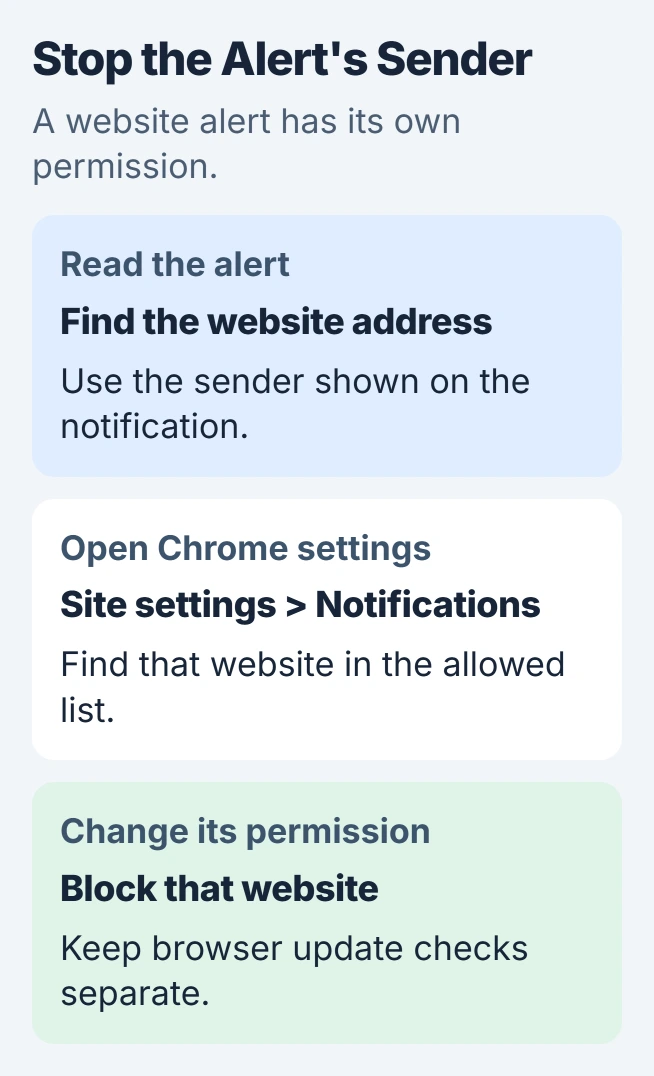
If the warning arrives as a desktop alert, read the website address shown on it without opening the alert. A site you've allowed to send notifications can keep sending messages while you're doing something else.
In Chrome, choose Settings > Privacy and security > Site settings > Notifications. Find the section for sites allowed to send notifications. Use the unwanted site's menu to block its permission, leaving wanted sites alone.
Use the notification settings guide to add a site to the blocked list. Use the address shown on the unwanted alert, so you don't block a legitimate site by mistake.
A pop-up blocker controls new website windows separately. The Chrome pop-up permission guide explains that distinction. Blocking pop-ups alone won't undo notification permission you've already granted.
Watch whether the same sender returns after you change its permission. If its alerts stop, you've stopped that site's notifications. Chrome's own About page still tells you whether the browser is up to date.
4. Follow the actual error when Chrome won't update
Write down the wording on the update screen. Updates are disabled by administrator needs different help than a download or connection error. On a company or school device, give IT that wording.
For an ordinary failed update, restart the computer and try the check again. The update troubleshooting steps also identify antivirus, firewall and parental controls that can block the updater's connection.
If you manage those controls, check whether they block tools.google.com or dl.google.com, then correct the specific blocked connection. For a managed network, have the administrator review it.
If Chrome needs reinstalling, use the official Chrome installation route for Windows. Keep access to browser data you need before removing it, and use a version supported on your operating system.
A computer running an unsupported operating system may need an operating-system upgrade to receive current Chrome releases. Downloading an old browser installer from the warning doesn't make that system supported again.
5. Check what happened if a file was downloaded or run
If you only downloaded a suspicious installer and haven't opened it, leave it unopened and delete that file. Removing its entry from Chrome's downloads list is separate from deleting the saved file on the computer.
If you ran the installer on Windows, open Windows Security > Virus & threat protection. Use Scan options > Full scan and follow the results. Review Protection history for threats and the action taken.
For persistent malware, the Windows Security scan options include an offline scan. It restarts your PC to scan outside your usual Windows session, so save your work first.
On a Mac, review Finder > Applications for the unwanted program and follow its removal instructions. If you're unsure what was installed or it keeps returning, contact the program vendor or a trusted support technician with its name.
If unwanted extensions or changed search settings remain afterward, use the Chrome settings-reset guide. Check which settings it changes and which it keeps before deciding whether a reset fits the problem.
When the warning continues after updating
Compare the sender and location with the original warning. Review permission for a recurring site alert. For an error on Chrome's About page, send Chrome Help or IT the wording, operating system and browser version.
If you entered an account password into the suspicious page, change it through the account's real app or website using a trusted device. Treat that as a separate account problem, even if the browser update has now completed.
The Short Version
Check for updates through Chrome's About page and choose Relaunch when offered. Check which webpage or notification sent the warning. Follow any real update error, and scan the computer if you ran a suspicious installer.
Checked November 5, 2026.

Isaac Smith is the founder and editor of PC Glance, a website that covers computers, laptops, and technology. He is a tech enthusiast and a computer geek who loves to share his insights and help his readers make smart choices when buying tech gadgets or laptops. He is always curious and updated about the latest tech trends.