
A saved city's forecast helps you narrow down why iPhone Weather isn't working. If that city loads but My Location doesn't, check location access. If every city is blank, compare connections and check the service status first.
Run these checks in the app itself. An old temperature on the Home Screen widget can come from the widget's own location choice, even when the full app works.
1. Compare My Location with a saved city
Open Weather, tap its Location List button and choose a saved city. Compare it with My Location. Check for a temperature and hourly forecast, rather than just the location's name.
If you don't have a saved city, find one using the list's search field. Choose the result you want and tap Add when offered. You can then check that forecast without relying on your phone's current position.
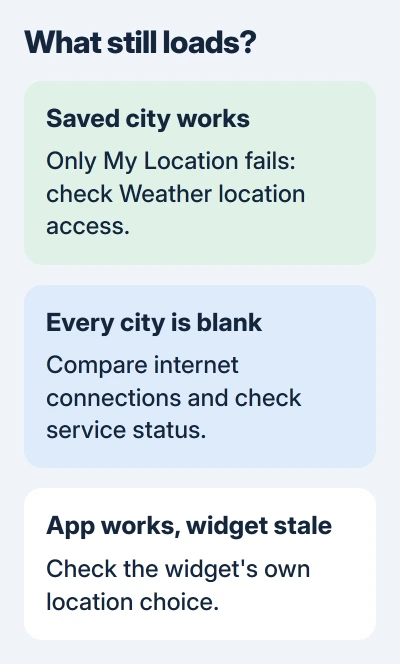
Apple's Weather instructions explain that the current-location forecast uses Location Services. That makes the saved-city comparison more useful than changing every privacy control at once.
If the app works and only its widget is wrong, use the Weather widget location guide. Keep the working app's saved cities while you check the widget's separate choice.
If all locations fail in the app, try the connection check next. If only My Location fails, go to section 3. For a missing map layer or alert, check feature availability later in this guide.
2. Compare connections and check the service
Open a webpage in Safari to check your internet access. Then try Weather over your other available connection: cellular instead of Wi-Fi, or Wi-Fi instead of cellular.
If Weather fails only on cellular, open Settings > Cellular or Mobile Service, depending on your region. Find Weather in the app list and check that it can use cellular data.
If Weather works over one connection, focus on the network where it fails. Public Wi-Fi may need you to complete a sign-in page first. A Wi-Fi symbol can stay visible even when apps can't reach the internet.
Check Weather on the system status page. Open its entry if an issue is listed and read the affected time or service details.
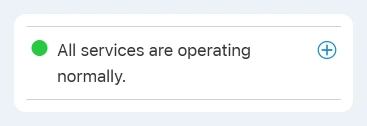
During a reported outage, wait and use another forecast source for now. A normal status entry doesn't rule out a problem on your phone. Continue if Weather still won't load over a working connection.
I'd check this before deleting the app or resetting network settings. Erasing your saved network preferences won't fix a service interruption.
3. Give Weather the location access it needs
Open Settings > Privacy & Security > Location Services and make sure Location Services is on. Open Weather in that list and allow access while using the app, or the app-and-widgets choice your iOS version offers.
Turn on Precise Location if you want a more accurate position for the local forecast. Reopen Weather, choose My Location and give the forecast a moment to load.
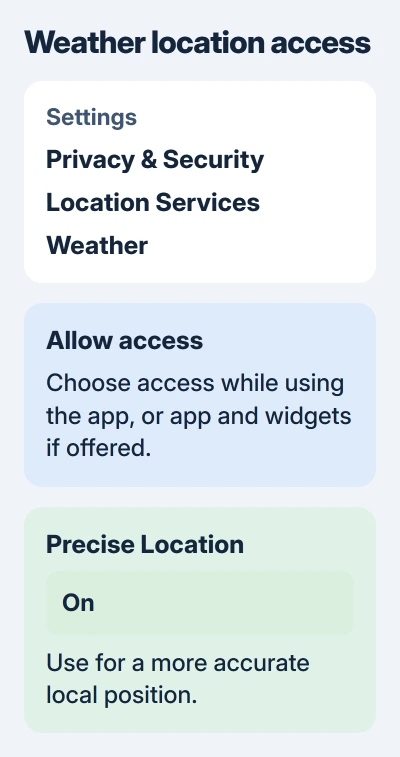
If Weather wasn't listed, open it and choose My Location to let it request permission. Answer the prompt, then return to its Location Services entry to check what you allowed.
An approximate location can still give you a forecast for a broader area. Precise Location helps when Weather picks the wrong nearby location. It won't help if the app can't receive any forecast data.
If Maps and other apps also show the wrong position, use the iPhone GPS checks. That affects more than a single city's forecast in Weather.
4. Reopen Weather, then restart and update
If Weather still freezes or shows blank panels, close and reopen it. With Face ID, swipe upward starting at the display's lower edge, pausing halfway. Swipe the Weather preview up to close it.
On Home-button models, double-click the button to open the app switcher, then swipe the Weather preview up. Open Weather from its icon and check the same city as before.
If that doesn't help, restart the iPhone normally. Check Settings > General > Software Update for an available iOS update, then retest after installation finishes.
These are the first steps in the app troubleshooting procedure. Try each once and check the result. Repeatedly closing Weather won't help while its connection is still failing.
5. Separate missing features from a blank forecast
A city can have a working temperature and forecast while next-hour precipitation, air quality or severe-weather information is unavailable. The feature availability list shows which regions support those extras.
Check whether the missing information is available for that location. This can change when you travel. Reinstalling Weather won't add a regional data source that isn't offered there.
If the location is right but the forecast is wrong, choose Report an Issue from Weather's list menu when available. Describe the incorrect condition. This sends forecast feedback; it won't fix an app that can't open.
6. Reinstall only after the simpler checks
If Weather alone still fails, note the cities you want to keep, then delete the app and download Weather by Apple again from the App Store. Deleting an app can remove its locally stored information.
Open it, allow the permissions it needs, and compare the same saved city and My Location. Make sure the full forecast works before adding widgets back.
If it still fails, contact support with the iPhone model, iOS version and exact symptom. Include whether every city fails, whether Wi-Fi and cellular differ, and whether location access changes the result.
For urgent weather decisions while forecasts aren't loading, use your local official weather service. An old widget temperature or empty warning panel can't tell you conditions are safe.
The Short Version
Compare a saved city with My Location. Check the connection and service status for blanks, or permissions for local-only trouble. Reopen, restart and update before reinstalling. Check regional support if only one feature is missing.
Checked November 5, 2026.

Isaac Smith is the founder and editor of PC Glance, a website that covers computers, laptops, and technology. He is a tech enthusiast and a computer geek who loves to share his insights and help his readers make smart choices when buying tech gadgets or laptops. He is always curious and updated about the latest tech trends.