

Open System Settings > Wallpaper to change your MacBook's background picture. Choose a built-in image, or use Add Photo to select a picture from Photos or a file saved on your Mac.
The change should appear on the desktop as you choose it. If you're using several desktop Spaces or an external display, check which desktop you're changing before making every screen match.
Choose a picture in Wallpaper settings
Open the Apple menu, click System Settings, then choose Wallpaper in the sidebar. Scroll the sidebar if you can't see it. Move the settings window aside afterward so you can watch the desktop change.
Choose an image from a built-in category. Pictures provides still images, Colors provides a plain background, and Dynamic Wallpapers can change appearance with time or your light/dark settings.
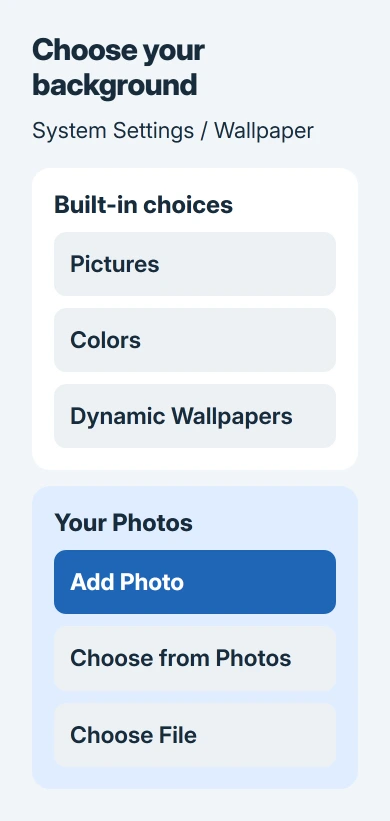
Apple says its wallpaper choices include built-in categories and your own pictures. The options beside the current wallpaper depend on which type you've selected.
Some built-in pictures need to download before they're available. Click the image and let that finish while your Mac is online. Check the actual desktop rather than judging only the small preview in Settings.
On macOS Monterey or earlier, open System Preferences > Desktop & Screen Saver instead. System Settings arrived with macOS Ventura. You can still choose your picture in the older layout; the pane just has a different name.
Add a photo or an image file
In current Wallpaper settings, scroll to Your Photos and click Add Photo. Choose Choose from Photos when the picture is already in your Photos library, then select the image you want.
For a downloaded image or another file on your Mac, choose Choose File. Find the picture in the file picker and click Open. You don't need to import it into Photos first.
For a quicker route from Finder, Control-click the image file and choose Set Desktop Picture. Right-clicking performs the same menu action. This is handy when the exact photo is already open in a folder.
In the Photos app, select the picture, open Share, then choose Set Wallpaper. Use the route that matches where you've already saved the picture. You don't need extra copies just to select it.
I'd start with one photo you can recognize easily, so it's obvious if you're changing the wrong screen. Once the right desktop changes, adjust the framing or add a rotating folder.
If the file is on a phone, AirDrop it to the Mac before selecting it in Finder. Wait for the transfer to finish so you select the saved image, not a preview of a file that's still arriving.
Adjust the picture's fit without stretching faces
Select your personal image in Wallpaper settings and look for its size or position menu near the preview. The Wallpaper settings reference explains which controls appear for each wallpaper type.
Fill Screen fills the desktop and may crop the picture's edges. Fit to Screen keeps the whole picture visible and can leave space around it. Stretch to Fill Screen changes the proportions to fill the display.
Choose Fill for a landscape if you don't mind cropping the edges. Choose Fit when you need the whole subject, such as a group photo with people near both sides. Compare the result before changing the original image.
A portrait photo won't match the shape of a wide MacBook screen. Some cropping or empty space is normal. Stretching the photo to fill the display can make faces look wider without adding any detail.
If the picture looks soft, try the original file rather than a small preview or a thumbnail sent through a message. A larger source gives the desktop more detail to work with; changing the fit can't restore missing detail.
Keep one background or rotate a photo set
To keep a single background, choose a still picture from Your Photos or Pictures. Check the menu beside the preview if the image continues changing, since a photo set or dynamic wallpaper can behave differently.
For rotation, use Add Photo > Choose Folder to select a Finder folder. An album or folder from Photos can be added under Photo Sets. Then choose that set and adjust the change interval offered for it.
Review a few pictures in the set before leaving it enabled. A folder containing both narrow portraits and wide landscapes won't give every image the same framing. Use a smaller, carefully chosen set if the crops keep missing the subject.
Dynamic wallpapers have their own appearance choices. Depending on the image, you may see Dynamic, Automatic, Light (Still) or Dark (Still). A still choice keeps that version instead of following the changing light.
If your background briefly turns black when switching desktops, use the black-wallpaper transition checks. That display fault doesn't call for rebuilding your photo collection.
Match the right display and desktop Spaces
With an external display or extra Spaces, the new wallpaper may appear on only one desktop. Open the desktop you want to change, then return to Wallpaper settings and check which display is selected.
Use Show on all Spaces if that option is available and you want the same wallpaper everywhere. If you prefer different backgrounds, leave it off and choose each desktop's picture separately.
Switch to another Space and check its desktop. If you have an external monitor connected, check that screen too. Changing the laptop's wallpaper doesn't tell you which picture the second display is using.
Wallpaper and screen saver are separate choices, though selecting an aerial wallpaper can also make it the screen saver by default. Open Screen Saver if the idle Mac shows a different image from the desktop you just changed.
When the picture won't stay selected
Try a built-in still picture first. If it works but your own image doesn't, check that your file opens in Preview, then select it again through Choose File. This checks your file against a picture supplied with macOS.
If work or school supplied your Mac, ask IT whether it controls the background. A profile can keep switching the picture back to the organization's choice. Check that before trying to remove preferences.
If even a built-in image won't apply, tell Apple Support which macOS release you're using and whether several displays are connected. Describe what happens when you choose a picture, including any later black transition.
The Short Version
Choose Wallpaper in System Settings, then pick a built-in picture or add your own photo. Adjust its fit, check the intended display and Spaces, and use a still image if you don't want the background to rotate.
Checked November 5, 2026.

Isaac Smith is the founder and editor of PC Glance, a website that covers computers, laptops, and technology. He is a tech enthusiast and a computer geek who loves to share his insights and help his readers make smart choices when buying tech gadgets or laptops. He is always curious and updated about the latest tech trends.