
A Windows 11 update can replace your network driver or leave your connection needing repair. Restart your PC first, then check its network driver if other devices still have internet on the same network.
The timing matters, but it doesn't tell you exactly what went wrong. A missing Wi-Fi button, a rejected password and working Wi-Fi with no internet need different next steps. Start by checking which one you're seeing.
1. Restart and check whether the failure follows the PC
Save your work and choose Start > Power > Restart. After signing in, check Settings > Network & internet. Turn Wi-Fi on and Airplane mode off if either changed, then try opening a fresh webpage.
Try a phone on that same Wi-Fi, with cellular data off for the test. If both devices fail, check your router or provider first. If the phone works, continue with the PC's connection.
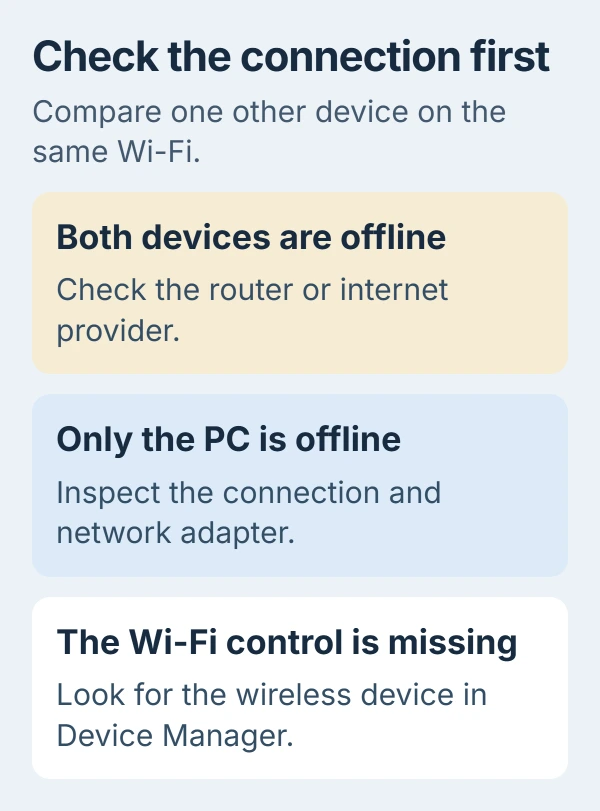
If Ethernet works while Wi-Fi fails, use the cable temporarily to get updates or a replacement wireless driver. Note if both fail, too. Use that comparison to decide whether to check one adapter or settings shared by both connections.
For a connection that was already unreliable before the update, use the connected-but-no-internet tests. This guide focuses on restoring a connection that stopped working after Windows changed.
2. Check the network driver and try its previous version
Open Device Manager from Start's right-click menu. Expand Network adapters and find the Wi-Fi or Ethernet adapter that stopped working. Leave VPN entries and unrelated software-created adapters alone.
Open its Properties > Driver and note Driver Provider, Driver Date and Driver Version. That date comes from the driver package; it isn't necessarily the day Windows installed it.
Microsoft's Device Manager instructions explain how to go back to the earlier driver when a connection fails after an update.
Select Roll Back Driver if it's available. Choose the reason, confirm, and restart when prompted. You'll need administrator access. Test the same connection again before changing anything else.
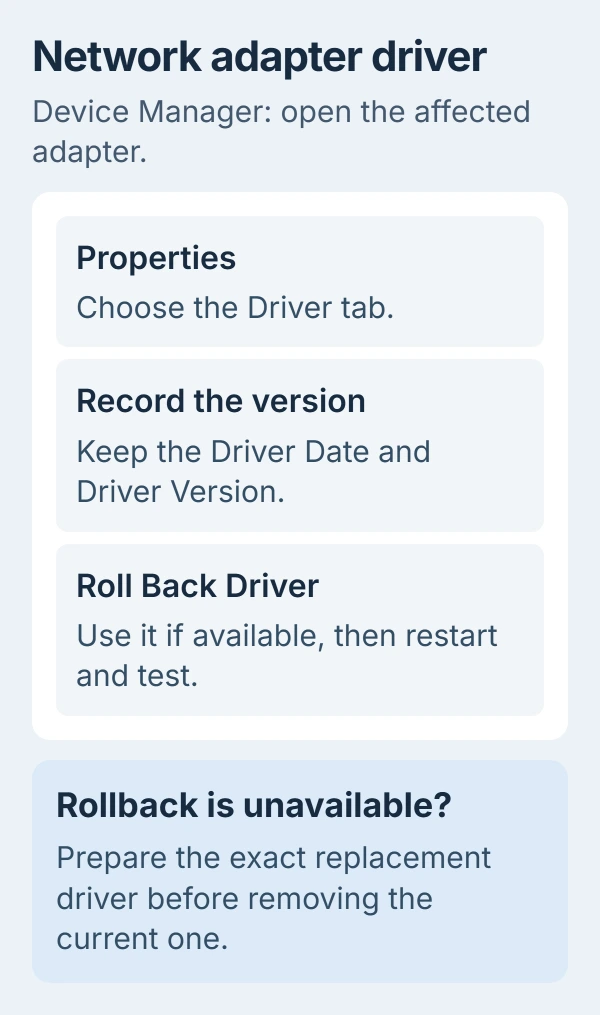
A gray rollback button means you can't use it to restore the earlier driver. Continue to the replacement-driver step; repeatedly pressing Update driver won't bring the old copy back.
I'd try an available driver rollback before removing the whole Windows update. It changes the part that handles your connection. If it works, you can tell support which driver restored internet access.
3. Prepare a replacement before reinstalling the adapter
Get a network-driver package for your exact computer or separately purchased adapter. If the PC has no working connection, follow the offline driver download procedure on another computer.
Keep that package on the affected PC or a USB drive before removing anything. Reinstalling a driver can leave you without Wi-Fi, so have the replacement ready instead of depending on a download afterward.
Run the manufacturer's installer if supplied. For an extracted driver folder, use Update driver > Browse my computer for drivers in Device Manager and choose that folder. Restart and check whether the connection returns.
If the correct package is present but the adapter still fails, right-click that adapter and choose Uninstall device. Confirm the removal and restart. Windows attempts to reinstall its driver when the computer starts again.
If Windows doesn't put it back, install the saved package. Check the adapter's General tab for any device error, then see whether Wi-Fi networks or your Ethernet connection appear. Report an error code if installation fails.
If the adapter never appears, check Other devices for a Network Controller entry with a warning symbol. Your PC maker can use its hardware details to find the right package; you don't need random driver tools.
4. Repair a saved Wi-Fi connection that still rejects you
If the adapter is present and other networks appear, try reconnecting to your own network. When only that saved network fails, open Settings > Network & internet > Wi-Fi > Manage known networks.
Choose Forget beside its name, then reconnect through the available networks list. Have its password ready first, because forgetting removes the saved connection. Check that you're choosing the intended network name.
For a PC that joins Wi-Fi but can't load pages, open Get Help from Start and search for network or internet troubleshooting. Follow the connection checks and test again after any repair it offers.
The Wi-Fi troubleshooting procedure also covers switching between available 2.4 GHz and 5 GHz networks. Try that comparison if one band appears while the other doesn't.
If one band works, tell the computer maker which one failed and which driver is installed. If neither works but Ethernet does, keep checking Wi-Fi instead of resetting every Windows setting.
5. Save Network reset for a connection that still won't work
Open Settings > Network & internet > Advanced network settings > Network reset. Read the screen before choosing Reset now, then confirm and let the PC restart as instructed.
Windows removes the installed adapters along with their settings, then reinstalls them with defaults. Have your Wi-Fi password and work-network details ready. VPN software or virtual networking may need a fresh setup afterward.
Reconnect and test an ordinary webpage before adding those extra connections back. If the page loads, restore your work or VPN setup one part at a time. That makes a returning problem easier to trace.
If internet still fails, keep the reset's result in your notes. Repeating it won't supply a missing manufacturer driver or fix an outage affecting every device in the house.
6. Report the update and adapter details together
Open Settings > Windows Update > Update history and note the latest update's KB number. Press Windows+R and enter winver. Copy the version and build from that dialog.
Give the PC maker or IT your computer model, adapter name, driver version, update number and comparison results. Include whether rollback helped, whether Ethernet works and whether Device Manager reports an error.
Use another device to check for a known issue matching that update and hardware. Follow the recommended repair if one exists. Otherwise, ask support to check those details before removing security updates or reinstalling Windows.
The Short Version
Restart and compare another device. Try the adapter's previous driver, then a prepared replacement. Repair the saved connection before using Network reset. If it still fails, report the update number and adapter details.
Checked November 5, 2026.

Isaac Smith is the founder and editor of PC Glance, a website that covers computers, laptops, and technology. He is a tech enthusiast and a computer geek who loves to share his insights and help his readers make smart choices when buying tech gadgets or laptops. He is always curious and updated about the latest tech trends.