
HDMI No Signal on an ASUS monitor means the selected input isn't getting a video signal it can display. Wake the connected device and select the HDMI socket holding the cable before changing Windows settings or buying another monitor.
The monitor can show its own warning even when the computer hasn't started properly. Checking its input menu, connecting a cable directly and trying another computer or console will help you decide which device needs attention.
1. Select the connected HDMI input with the monitor controls
Wake the PC with its keyboard or mouse. Use the ASUS monitor's joystick or physical buttons to open its menu, then find Input Select or the input shortcut provided on your model.
Check the HDMI socket's printed number. Choose HDMI-1 for HDMI 1, or HDMI-2 for HDMI 2 where both exist. A cable in the first socket won't supply video to the second input.
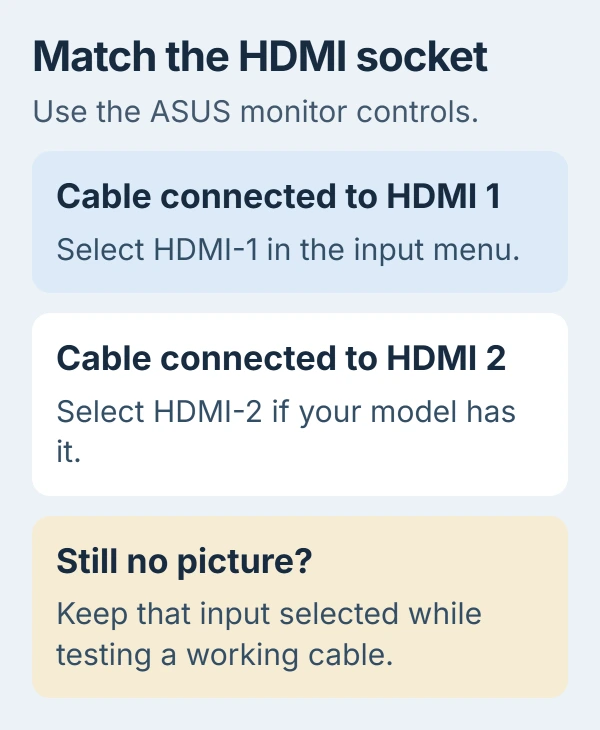
ASUS recommends matching the input to the socket in its no-display troubleshooting. The menu button's position varies, so use your monitor's controls rather than a button number copied from another model.
If the picture appears, you've corrected the input choice. If the warning stays, continue with the connection. If the monitor won't show its own menu either, check its power and model-specific control instructions.
2. Check power without treating every light as a fault
Check that the monitor's power lead and any supplied external adapter are fully connected. Use the original adapter if your model needs one. Another adapter's plug may fit even though its power rating is wrong.
An amber light means standby or no signal on many ASUS desktop monitors. The light alone won't tell you whether to check the computer, cable or input choice. Portable and OLED models can use their lights differently.
Check your exact model's manual to find out what a red or flashing light means. For example, an OLED maintenance light isn't the same as a desktop LCD's ordinary standby light. The model number is on the monitor's label.
If the menu and indicator both stay dark, try a different outlet and reseat the power lead. A monitor showing HDMI No Signal already has enough power to draw that message; move on to the video connection in that case.
3. Compare a direct HDMI cable with the current connection
Turn the monitor and source off, then unplug and reconnect the HDMI cable at both ends. Check for a damaged connector or a plug held partly out by the case. Seat both ends fully without forcing them.
If your computer has an HDMI output, connect it directly without the dock, HDMI switch or adapter. Keep the monitor on the same input so you're testing the connection without changing two things at once.
I'd borrow a cable that carries video between other devices. If it restores the picture, check the original cable. If only direct HDMI works, check the dock's compatibility and power.
If your desktop has a separate video card, connect to that card's outputs. The motherboard's HDMI socket may be inactive, depending on the processor and setup. Check your PC's manual if you can't tell the two groups apart.
4. Test the ASUS with another working video source
Connect another computer or an awake console to the same monitor input using the working cable. Select that HDMI input again, then check whether the second device's picture appears normally.
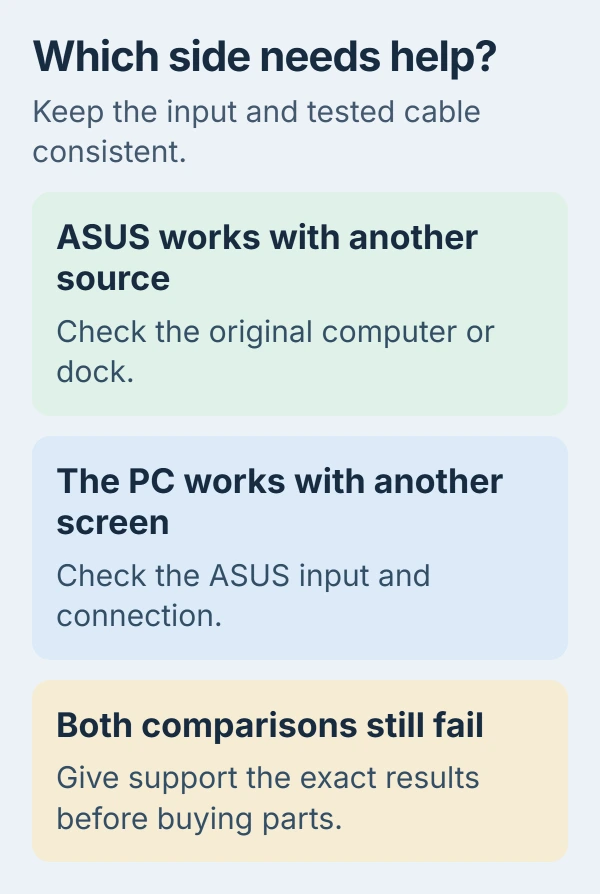
If it works, the monitor can display video through this connection. Go back to checking the original computer's output, dock or startup. Fans and keyboard lights alone don't tell you that a desktop finished starting.
If possible, connect a working spare screen to the original computer too. A picture there lets you use Windows controls. If neither screen shows a startup picture, the computer needs further checks.
For an additional screen that Windows can't find, use the second-monitor detection checks. If the ASUS only loses video after sleeping, the monitor wake-up guide fits that timing.
5. Reset the monitor menu if its controls still open
If the monitor shows its menu but still won't display video from a working source and cable, note any picture adjustments you want to keep. A monitor reset returns those settings to their defaults.
Look for the reset option in the model's on-screen menu. On the TUF Gaming VG249Q1A, the path is System Setup > All Reset > Yes. Its manual names that control.
Other ASUS models can label the command Reset or place it differently. Use the matching manual rather than holding several buttons at once. Select the intended HDMI input again after the reset and retry the source.
This changes the monitor's settings without affecting your computer's files or graphics driver. If it doesn't help, tell support that a working source still gives no picture after resetting the monitor.
6. Repair Windows output when another screen remains usable
While you can see Windows on a different display, press Windows+P and choose Extend. Check whether the ASUS now receives a picture. Windows projection controls matter only once the computer is running Windows.
For a setup that worked previously, try Windows+Ctrl+Shift+B to restart the graphics driver. The external-display repair steps include this shortcut and restarting the PC.
If the picture vanishes only as Windows loads, check the display settings or driver. Use the working screen to select a resolution and refresh rate your ASUS model and its HDMI connection support.
If the failure followed a graphics update, open Device Manager > Display adapters, then the adapter's Properties > Driver. Use Roll Back Driver if available. Restart and test again before making another change.
If the ASUS rejects two tested sources and cables, contact ASUS about service. If it works elsewhere, contact the PC or dock maker instead. Give them the model, selected input and comparison results so they can check the failing connection.
The Short Version
Match the HDMI input to its socket, check a direct working cable and compare another source. Reset the monitor menu only after those checks. Use Windows projection or driver repairs when a second screen lets you see the desktop.
Checked November 5, 2026.

Isaac Smith is the founder and editor of PC Glance, a website that covers computers, laptops, and technology. He is a tech enthusiast and a computer geek who loves to share his insights and help his readers make smart choices when buying tech gadgets or laptops. He is always curious and updated about the latest tech trends.