
Start with the cable and wall adapter when a Samsung Galaxy Tab won't charge. If it keeps stopping at 80% or 85%, check Battery protection before buying another charger.
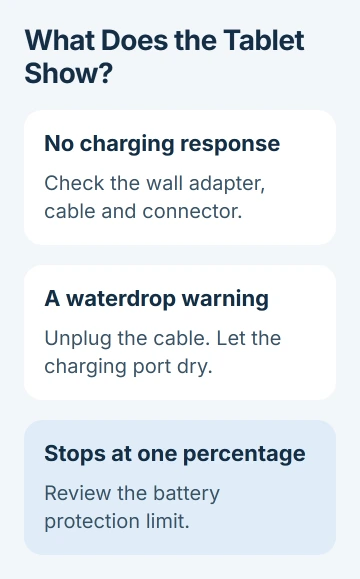
What your tablet shows helps you choose a check: a charging symbol, a waterdrop warning or a battery percentage that won't rise. Start with the symptom you see.
1. Check whether charging stopped or never started
Plug in your tablet and check its battery percentage. Look for a charging symbol or warning, then turn the screen off and see if the battery percentage increases.
A percentage that stays still during a game doesn't mean charging has stopped. Leave the tablet unused and compare. That takes the game's power use out of the check without changing your settings.
For a completely dark tablet that won't start, use the Samsung tablet power checks. That guide covers the longer initial charge and button sequence for a flat or frozen device.
For a tablet that turns on but won't charge properly, continue with these checks. Repeating the startup buttons won't deal with a loose connector, a moisture warning or a charge limit.
2. Test the charger, cable and socket separately
Use an undamaged Samsung-approved charger and cable suitable for your Galaxy Tab. Plug directly into a working wall outlet instead of a computer's USB port or hub. Remove any case that gets in the connector's way.
Samsung's tablet charging instructions recommend trying another charging block and cable. I'd borrow a compatible set first and check whether the tablet starts charging before buying a replacement.
Try the replacement cable and adapter together first. If charging works, swap in your original cable with the working adapter. Then try your original adapter with the working cable, changing one part at a time.
That shows which combination fails. A charger may work with another small device and still fail to charge your tablet properly, so check the result on the Galaxy Tab itself.
Stop using any cable with damaged insulation or an adapter with visible damage. If a working replacement set still won't charge it, check the tablet's port and charging message next.
3. Deal with debris or a waterdrop warning
Turn your tablet off, unplug it and look inside the connector under a light. Check for packed dust, a bent contact or a plug that won't fit fully. Don't put a pin, toothpick or other tool into the port.
Have the port professionally cleaned if debris won't come away easily. A cable that only works when held at an angle also needs a repair check. Keeping pressure on it can damage the socket further.
A waterdrop warning means your tablet has detected moisture and stopped USB charging. Unplug it and let the connector dry naturally before trying again. Repeatedly plugging it back in won't get past the warning.
The moisture instructions explain why charging stops. Their wireless charging advice applies only to supported devices; a phone's wireless pad isn't an option for every Galaxy Tab.
If your tablet is dry but still shows the warning, restart it normally and check again. Have a service center check a warning that won't clear or signs of liquid damage instead of trying to force it to charge.
4. Review the battery's charging limit
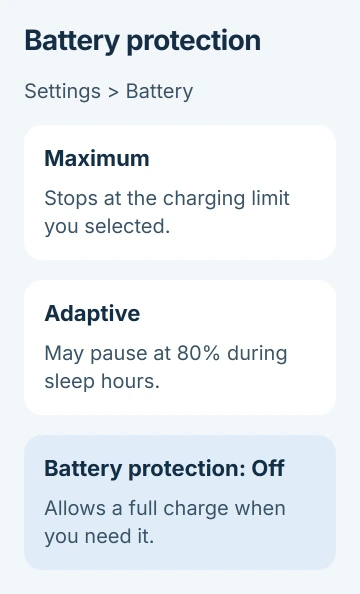
A tablet that charges normally but always stops at the same high percentage may have a charge limit set. Open Settings > Battery > Battery protection and check which option is selected.
Newer software can offer Basic, Adaptive and Maximum. Maximum stops at the selected limit; Adaptive can pause overnight. Older versions may instead have a Protect battery switch and an 85% limit.
For a full charge, choose another suitable option or turn Battery protection off, then reconnect your charger. See whether the percentage passes the old stopping point. Keep the limit if it suits your everyday use.
The charge-limit guidance also describes sleep-time protection, which can pause at 80% before finishing near wake-up time. Check whether that overnight pause matches what your tablet is doing.
This setting can explain a charge cap. It doesn't explain a tablet that stays nearly empty, loses power while idle on a suitable charger, or doesn't respond to a charger at all.
5. Restart and run the charging tests
If your tablet has battery power left, shut it down, connect the charger and turn it on again. Check charging before reopening your usual apps. A normal restart keeps your files.
Next, open Samsung Members. In current versions, look for Diagnostics on Discover or go through Support. Select Phone diagnostics; the app can use that label even on a tablet.
Run Cable charging, USB connection and Battery status if they're available on your model. Follow the prompts to connect your equipment, and save the results or suggested action in case you need support.
The current diagnostic instructions use different menu names from older Members versions. If an older guide tells you to open Interactive checks, your tablet may no longer have that label.
If the tests pass but charging still fails during normal use, try Safe mode next. A failed test gives the service center something specific to check, but you'll need an inspection before deciding to replace the battery.
6. Compare Safe mode, then arrange repair if needed
Switch your tablet off. Turn it on, then hold Volume down during startup until the Home screen appears. Look for Safe mode at the lower left and try charging with the same working equipment.
Safe mode runs without most downloaded apps. If charging works there but fails after a normal restart, an app may be involved. Remove a recent app you suspect, restart normally and compare before removing another.
If charging becomes reliable, follow the Samsung tablet update steps to install an offered software fix. Don't start an update while the battery is nearly empty and the charging connection keeps dropping.
If working equipment, a dry port and Safe mode haven't helped, ask Samsung Support or an authorized repair center to check your tablet. Give them its model code, warnings, test results and the equipment you've tried.
Save a backup of accessible files before handing it over. Ask whether the quote covers the socket, battery or another part, and whether the repair may erase your data. A factory reset won't fix a damaged connector.
The Short Version
Check charging while the tablet is idle, then try a suitable wall adapter and cable. Let a wet port dry if a waterdrop appears. For a repeated stop at a high percentage, check Battery protection. Try diagnostics and Safe mode before repair.
Checked November 5, 2026.

Isaac Smith is the founder and editor of PC Glance, a website that covers computers, laptops, and technology. He is a tech enthusiast and a computer geek who loves to share his insights and help his readers make smart choices when buying tech gadgets or laptops. He is always curious and updated about the latest tech trends.