
For Vanguard crashes in Valorant, start by restarting Windows. If it crashes again, record the exact error before repairing Vanguard: a VAN message, the game closing and a Windows crash need different checks.
If Windows names vgk.sys on a stop screen, keep that detail with the stop code. Vanguard includes a driver that runs inside Windows, so this case needs more than changing the game's graphics settings.
1. Restart Windows and record the failure that returns
Save your work, choose Start > Power > Restart, then launch Valorant again. Restart Windows for this check rather than reopening the game. If a service is waiting for Windows to start, reopening the game won't help it.
Write down the whole message, including whether it starts with VAN or VAL. For a code inside the game, follow the fix for that code. For a Windows stop screen, note its stop code and any file named as having failed.
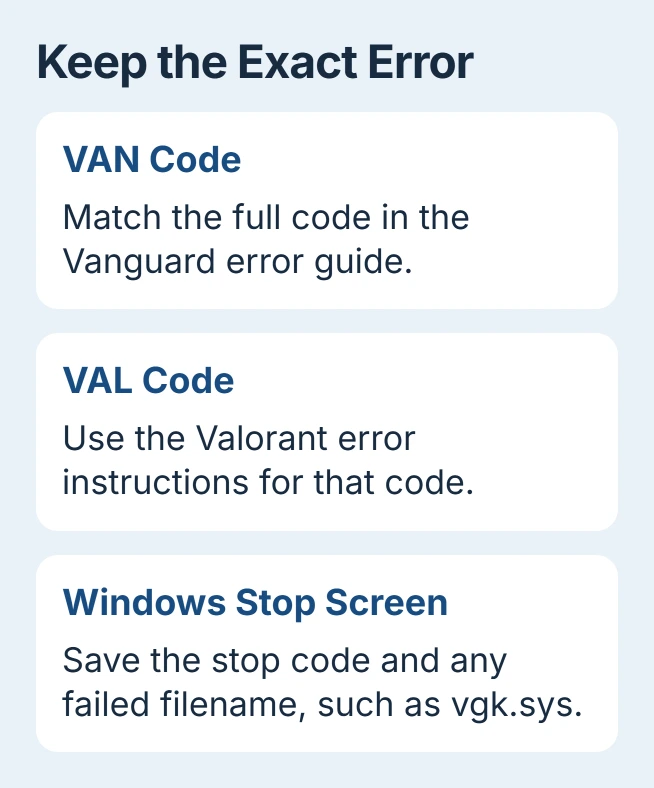
Riot's Vanguard error guide lists VAN errors separately from Valorant's VAL errors. Match every character before following instructions for a security setting or restriction.
If this is a blue or black Windows stop screen, the stop-code guide explains what to save. A plain black display without a stop message needs display troubleshooting instead.
After restarting, return to the part of Valorant that crashed. If it happens again, note whether it's at Play, during loading or after a few minutes in a match. Use that same point to check each fix.
2. Install Windows updates and check the named driver
Open Settings > Windows Update > Check for updates. Install any updates listed for your PC, restart if asked and try Valorant again. Return to the launch or match that failed to check whether the update helped.
If the crash names another device driver, check for a driver update through your PC maker or Device Manager. Choose one for your exact model and installed Windows version.
The Windows stop-error steps cover drivers, updates and recently added hardware. Use the filename to guide the check, and leave the files in System32 in place.
If the message names a Vanguard security requirement, follow that error's instructions. Keep Secure Boot, TPM and Windows security features enabled rather than switching them off as a general crash fix.
3. Reinstall Vanguard separately from the game
Close Valorant and exit the Riot Client from its icon near the clock. Open the Vanguard icon there too, choose Exit Vanguard and confirm. You'll need an administrator account to uninstall it.
In Windows 11, open Settings > Apps > Installed apps and search for Riot Vanguard. Open its three-dot menu, choose Uninstall, then confirm.
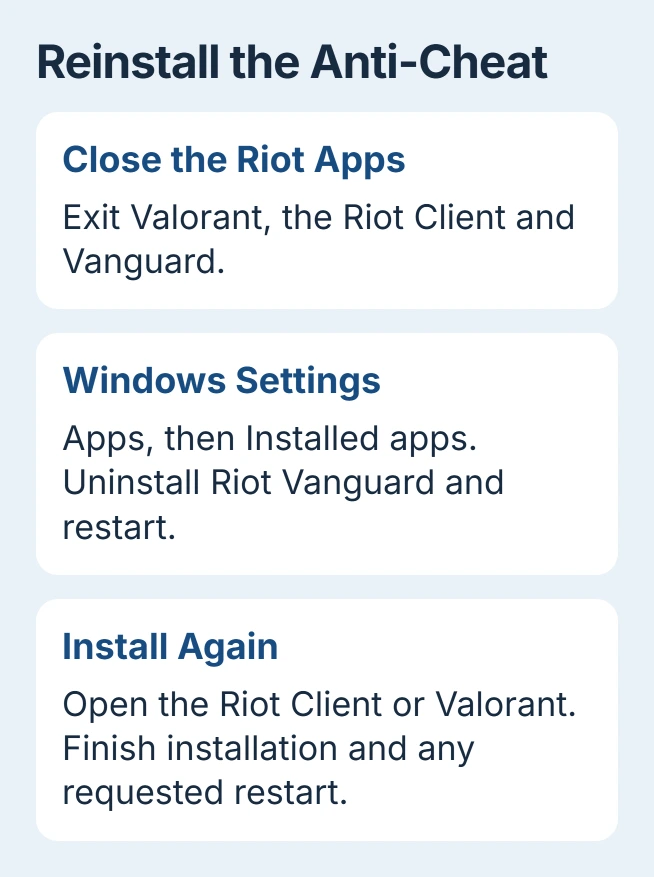
Restart your PC after removing Vanguard. Then open the Riot Client or launch Valorant to install Vanguard again. Let the installation finish and restart if asked before trying the game.
The Vanguard reinstall procedure explains how to remove it separately. Uninstalling a game may leave Vanguard installed if another game on your PC needs it.
Try the same launch or match sequence after reinstalling. If it works, keep that installation. If the crash returns, move on to the Windows checks or collect the details for support instead of reinstalling again.
If the normal uninstall fails, follow the manual section of that guide or ask support for help. Deleting driver files leaves their services installed, so it doesn't complete the uninstall.
4. Repair Windows files when stop errors continue
Open Start, search for Command Prompt, choose Run as administrator and approve the prompt. Make sure your PC is connected to the internet, then enter this command and let it finish:
DISM.exe /Online /Cleanup-image /RestorehealthThis repairs the Windows files that the next tool uses to fix system files. Once it finishes successfully, run:
sfc /scannowLet the scan complete, then save its final result. The System File Checker procedure puts DISM before SFC.
If the scan made repairs, restart and try the game again. A clean scan means it didn't find damage in the Windows system files it checks. Drivers or hardware can still cause crashes.
If the scan says it couldn't repair everything, use the unfinished SFC repair steps. Save that result for support instead of running both commands over and over.
5. Check Memory integrity for the matching Intel case
Riot's Windows blue-screen instructions include steps specifically for vgk.sys errors on 13th- and 14th-generation Intel processors.
Check your processor under Settings > System > About. If yours matches that case, open Windows Security > Device security > Core isolation details and check Memory integrity. Follow the guide to turn it on, then restart.
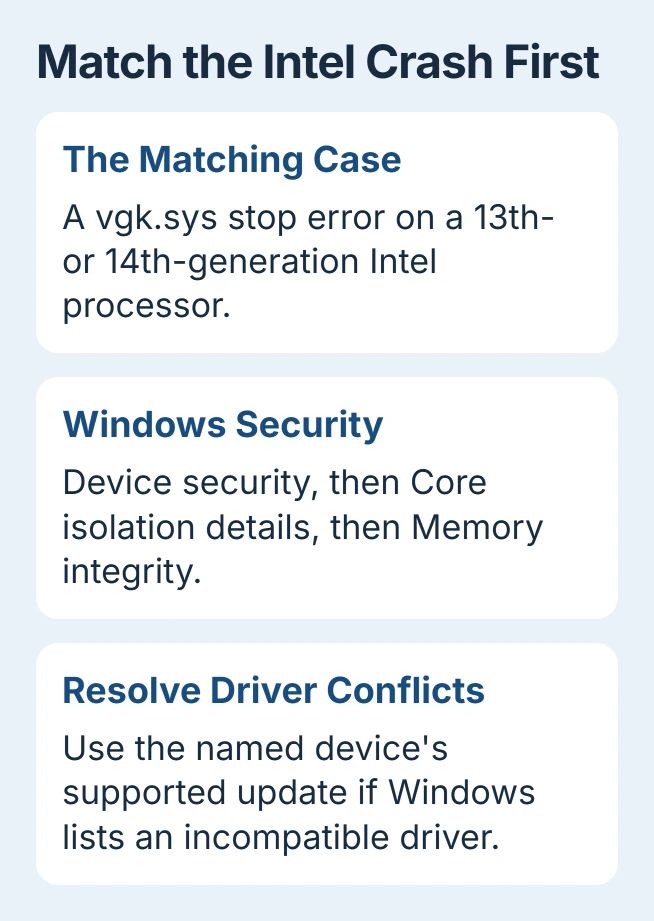
Memory integrity uses your PC's hardware to block unsafe code. If Windows lists incompatible drivers, follow that device maker's update steps rather than forcing the switch or removing unrelated drivers.
If your PC still crashes, ask its maker or the motherboard maker about firmware (the built-in software) and processor stability. I'd do that before copying another PC's CPU multiplier values, which change processor speed.
6. Send the crash evidence before another major repair
Open File Explorer and find C:\Program Files\Riot Vanguard\Logs. Copy the Logs folder somewhere convenient and compress that copy for support, leaving the originals in place.
For Valorant's game logs, use %localappdata%\VALORANT\Saved\Logs. When support asks, include files from the time of the crash. A game that never opens may leave different logs from one that crashes during a match.
The Windows log locations list separate folders for client, game and Vanguard logs. Attach the files to your signed-in support ticket, with the error, processor and reinstall result.
If Windows keeps crashing, save any files in C:\Windows\Minidump too. If it still crashes during other work after you've removed Vanguard, ask your PC maker to check it.
The Short Version
Restart, match the exact error and install updates. Reinstall Vanguard through its own app entry, then check Windows files. Use the Intel steps only for that processor and error, and send support the logs and stop code if crashes continue.
Checked November 5, 2026.

Isaac Smith is the founder and editor of PC Glance, a website that covers computers, laptops, and technology. He is a tech enthusiast and a computer geek who loves to share his insights and help his readers make smart choices when buying tech gadgets or laptops. He is always curious and updated about the latest tech trends.