
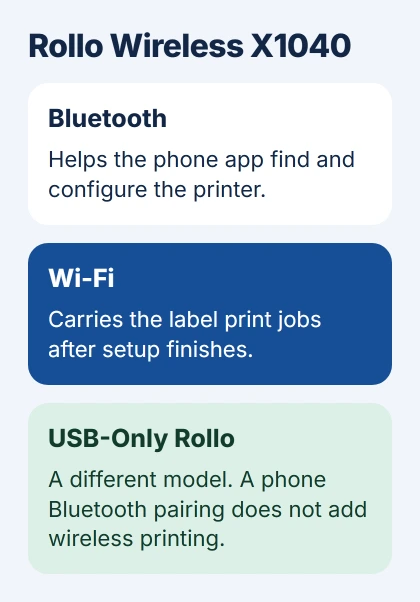
Rollo Wireless uses Bluetooth during phone setup, then prints over Wi-Fi. Start with Rollo app > Menu > Rollo Printer > Setup Printer and follow the Wi-Fi prompts too. Pairing over Bluetooth alone doesn't finish setup.
These steps are for the Rollo Wireless X1040. Check your model first: a USB-only Rollo won't become a wireless phone printer by trying to pair it in your phone's Bluetooth list.
Prepare the wireless model and your phone
Check the model label on your printer. For an X1040, install or update the official Rollo app through your phone's App Store or Google Play, then sign in. Setup starts in that app.
Place the printer near your router and connect your phone to the Wi-Fi network you want the printer to use. Have its password ready. Avoid a guest network that keeps devices from communicating with one another.
Rollo's wireless setup instructions recommend placing the printer 10 to 15 feet from the router, ideally in the same room. Plug its power adapter into a wall outlet and load 4×6 labels.
Leave the printer beside the router until you've finished setup and printed a label. Then move it where you want to use it. If it stops working after the move, you can check the distance instead of starting setup over.
For an existing USB printer with a Windows installation error, use the Rollo driver installation checks. Those cover a different model and connection problem from the X1040's phone setup.
Start setup from the Rollo app
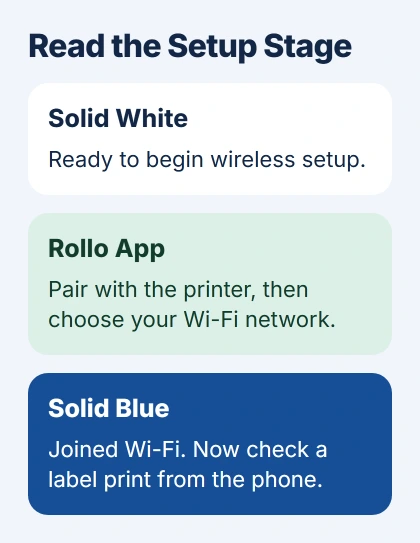
Turn on the X1040 with the rear power switch. Its Wi-Fi light should be solid white for setup. If it's already solid blue and connected to your existing network, check that connection before resetting anything.
If the printer needs setup but its light isn't solid white, reset the X1040's setup by rapidly pressing the slim Wi-Fi LED button 10 times. The light flashes purple and yellow. Wait for solid white before continuing.
Use the small button that clicks beside the Wi-Fi light, rather than the label-feed button. This resets the saved connection, so use it when you're ready to set up the printer again.
Open the app's menu in the upper-left corner and choose Rollo Printer > Setup Printer. Follow the prompts to find your printer, select it and tap Continue. Accept the pairing request when it appears.
Allow Bluetooth access when your phone asks. The app uses it to find and set up the printer. Keep going until it asks for your Wi-Fi network; seeing the printer in a list of paired devices doesn't finish setup.
Android uses the same app menu and setup steps. Allow the permissions your Android version asks for during setup. The wording can differ from the iPhone's pairing prompt.
Clear a failed pairing before trying again
If Bluetooth pairing fails on an iPhone, open Settings > Bluetooth. Tap the information button for Rollo and choose Forget This Device. Its device name may begin with sama--.
Return to the Rollo app and run Setup Printer again. Forgetting the failed pairing lets the app make a fresh connection. Your shipping labels and Rollo account stay in place.
On Android, open the printer's Bluetooth device details and forget the failed pairing, then return to setup. Keep Bluetooth on while the app looks for the printer. Resolve any app sign-in failure before finishing setup.
Update the Rollo app if you haven't done so recently. A login failure stops you before printer setup can finish. Check the app sign-in separately from the printer's Wi-Fi light; they tell you about different stages.
Finish the Wi-Fi connection and read the light
When the app asks, select the Wi-Fi network your other printing devices use and enter its password. Wait for the printer's Wi-Fi light to turn solid blue. That means it's connected, as described in the setup instructions.
An app message about an invalid password can also occur with a weak connection. Bring the X1040 nearer the router, recheck the chosen network and its password, then retry before changing your router's password.
If setup still fails, restart the router, printer and phone, then repeat setup in the app. Tell support whether the app couldn't find the printer before you chose a network, or the printer couldn't join Wi-Fi afterward.
I'd check where it stopped before starting over. If the light is solid blue but Print can't find the printer, check the network and printer discovery. If it hasn't joined Wi-Fi, finish setup first.
Print one label using the phone's supported route
On iPhone or iPad, open an existing 4×6 PDF label in Files. Tap Share > Print, choose the Rollo Wireless and send one copy. Keep the phone and printer on the same Wi-Fi network.
The X1040 supports AirPrint, the built-in Apple printing system. If the printer is absent, use the iPhone printer discovery checks after checking its light and network.
For a label you've already bought in Rollo Ship inside the Rollo app, tap Print and select your wireless printer. This prints the purchased label directly. Use an existing PDF for a test without buying another label.
On Android, print labels through the Rollo app after Wi-Fi setup. Its mobile instructions specify 4×6 labels. For other sizes, use a supported label design or computer printing method; pairing Bluetooth again won't change the size.
Check that your first printed label has readable text and the right size. If it prints at the wrong size, reload the labels so the printer can detect their dimensions. Tell Rollo support your model and label size if the problem continues.
The Short Version
Pair your X1040 through the Rollo app, select Wi-Fi and wait for solid blue. Then print using the phone steps for your label. Finding the printer over Bluetooth, connecting it to Wi-Fi and printing are separate stages.
Checked November 5, 2026.

Isaac Smith is the founder and editor of PC Glance, a website that covers computers, laptops, and technology. He is a tech enthusiast and a computer geek who loves to share his insights and help his readers make smart choices when buying tech gadgets or laptops. He is always curious and updated about the latest tech trends.