
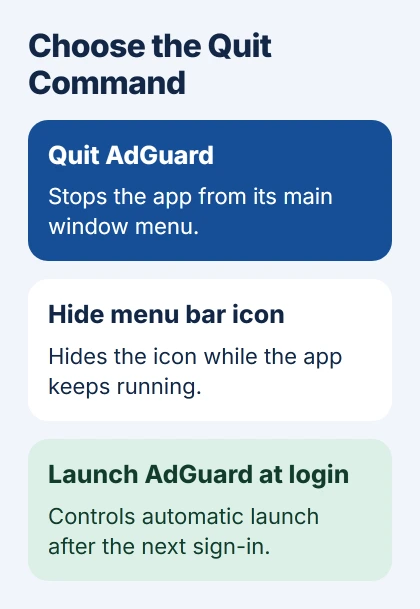
To quit AdGuard for Mac, open the menu in its main window and choose Quit AdGuard. Closing the window or hiding its menu-bar icon leaves the app running.
If AdGuard won't respond, use macOS Force Quit or Activity Monitor. For an app that returns after a restart, check its own Launch AdGuard at login preference before removing anything from the Mac.
Open the app and use its own Quit command
Select AdGuard's menu-bar icon to reveal its controls. If the icon is missing, open Finder > Applications > AdGuard. The app can keep running with its menu-bar icon hidden.
In the main window's menu, select Quit AdGuard, the command in its General preferences guide for stopping the app completely. Clicking the red close button only closes the window.
After quitting, try the page or task you were checking. Reload the page so your browser requests it again. A page that's already open won't change just because AdGuard has stopped filtering.
If AdGuard closes normally, you don't need Force Quit. Leave its settings and files in place if you'll use it again. Open it from Applications when you're ready to start it again.
I'd try normal Quit before stopping background processes. It gives the app time to close itself, and you won't have to guess which of its similarly named entries to stop.
Force quit an unresponsive AdGuard window
Press Option + Command + Esc together. The macOS Force Quit window appears. If AdGuard is listed, select it and click Force Quit, then confirm the action if macOS asks.
Apple's Force Quit instructions recommend it when the app won't quit normally. Save any changes in AdGuard's open settings first, since forcing it to stop can lose those changes.
Wait for the app's window to close. If you're checking a browser problem with AdGuard stopped, finish that check before opening it again. Opening AdGuard starts it running again.
If AdGuard isn't in the Force Quit list, check Activity Monitor. Related background processes can still be running even when the app isn't listed here. Activity Monitor lets you see those processes.
If several Mac apps stop responding at the same time, use the broader Mac Force Quit procedure. Follow its restart steps when other apps are frozen too.
Use Activity Monitor when the app isn't listed
Open Finder > Applications > Utilities > Activity Monitor. Choose View > All Processes, then search for AdGuard. Check the names of the running processes so you select the app entry you want to stop.
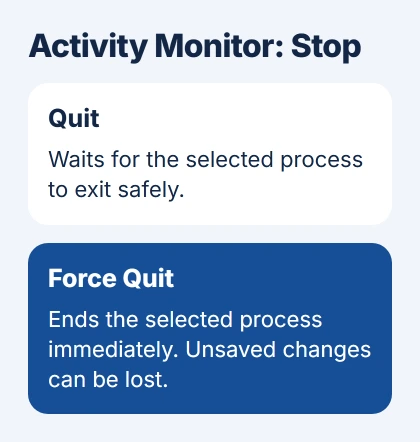
Select that process, click the stop button in Activity Monitor's toolbar and choose Quit first. If it won't stop, try again with Force Quit, which ends the selected process immediately.
Leave unrelated or unfamiliar processes alone. A helper process may handle another part of AdGuard. If a process belongs to another user, macOS may ask for administrator approval before you can stop it.
Check whether the entry disappears. If it returns immediately, note its full name and use the app's own Quit command once it responds. Stopping the same helper repeatedly won't change the settings that keep it running.
If Activity Monitor won't respond either, save your work in any apps that still work and choose Apple menu > Restart. Check whether AdGuard opens after the restart, then review its login setting in the next section.
Turn off automatic launch for the next sign-in
Open AdGuard, click the gear in the upper-right corner of its main window and choose Preferences. In General, turn off Launch AdGuard at login. Then use Quit AdGuard to end the current session.
Turning off this setting stops AdGuard from opening at future sign-ins. The app that's running now stays open until you quit it.
Keep the menu-bar icon visible if it helps you see whether AdGuard is running. Hide menu bar icon only hides that control. Protection and background processes can keep running with the icon hidden.
At your next normal restart or sign-in, check whether AdGuard opens on its own. If it does, review the Mac login-item controls and give support the name of the process that keeps returning.
On current macOS, review System Settings > General > Login Items & Extensions. Change AdGuard's own entry if needed, leaving unrelated background services alone.
Separate quitting from pausing one website's protection
To check one broken website, use AdGuard Browser Assistant's switch for protection on that site. This can be easier than quitting the Mac app each time you want to compare a page with protection on and off.
Browser Assistant can also pause protection for 30 seconds or disable protection through its own controls. When that pause ends, filtering resumes without requiring an app restart.
Use the main app's Quit command when you want to close AdGuard for Mac. Seeing an extension icon doesn't tell you by itself whether the Mac app is running or which protection is on.
Check which AdGuard product you've installed too. The full Mac app, AdGuard Mini and a standalone browser extension have different settings. If you're using another product, a menu missing from these steps doesn't mean it's broken.
When it keeps hanging or returning
If opening AdGuard repeatedly leaves it frozen, tell support your app and macOS versions and the action that triggered the freeze. Include whether normal Quit worked and the name of any process that restarted.
Tell support whether you want to fix the recurring problem or uninstall the app. You don't need to delete its support folders just to quit it or change when it starts. Ask support for a repair before removing more of its files.
The Short Version
Choose Quit AdGuard in the app's menu. Use Force Quit or Activity Monitor for a stuck app, then disable Launch AdGuard at login if it returns at startup. A hidden icon and a timed protection pause do different jobs.
Checked November 5, 2026.

Isaac Smith is the founder and editor of PC Glance, a website that covers computers, laptops, and technology. He is a tech enthusiast and a computer geek who loves to share his insights and help his readers make smart choices when buying tech gadgets or laptops. He is always curious and updated about the latest tech trends.