
Double-tap a word, adjust the selection, and choose Cut to move text on an iPhone. Open the destination, tap where the words should go, and choose Paste. Choose Copy to leave the original words in place.
Cut works on words you can edit, including a draft in Notes or Messages. A regular webpage or a message you've received usually offers copying instead, because those words aren't yours to edit.
Start by selecting exactly the words you want
Open your note, draft or document and switch to editing. Tap in the text so the keyboard appears. Cut needs editing access, so check that the document isn't read-only.
Double-tap a word with one finger. It should become highlighted, with a handle at each end. Drag those handles until the selection includes all the words you want to move.
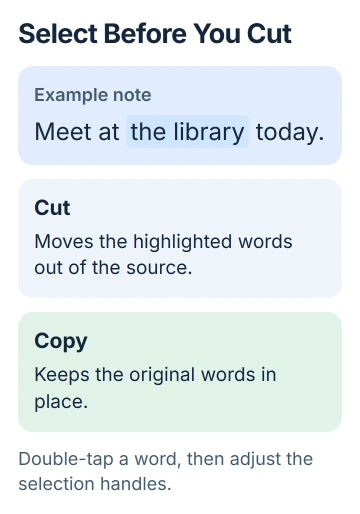
For a complete paragraph, triple-tap it with one finger. For a longer passage, double-tap and hold its first word, then adjust the selection handles. Read the highlighted words before choosing an action.
Apple explains these gestures in its iPhone text-editing instructions. Cut moves everything highlighted, including any spaces or punctuation you selected by accident.
If the edit menu disappears while you adjust a handle, tap the selected text to bring it back. The commands can vary by app, so look for the label you need instead of relying on where it appeared last time.
For a first attempt, I'd practice with a short line in a new note. It's easier to see what moved there than inside a long message you're nearly ready to send.
Cut once, then choose an insertion point
Tap Cut on the selection. The words should disappear from the original text. That's how Cut works: it removes the words and puts them on the clipboard, the temporary place that holds copied or cut content.
Open the app or document where those words belong. Tap inside an area you can edit, then put the blinking cursor where you want the words. Tap that spot again if needed to show Paste.
Choose Paste and read the result. Check where the pasted words meet the existing text on both sides, especially between sentences. Fix any missing spaces or doubled punctuation before you keep typing.
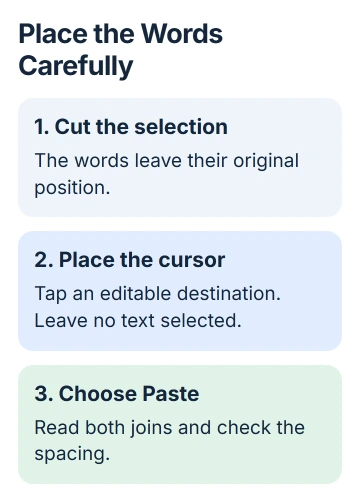
If text is highlighted where you're pasting, Paste replaces those words. To add words between existing text, tap so you see just a blinking cursor. That tells the app to insert the words instead of replacing a selection.
Finish pasting before you copy anything else. Copying another piece of text changes what's on the clipboard, so the words you cut won't be waiting there anymore.
Use the Space bar when the cursor misses its spot
Placing a finger between two small letters can be awkward. Touch and hold the keyboard's Space bar until the letters disappear and the keyboard turns into a trackpad. Keep your finger down.
Slide your finger across that area to move the cursor through the text. Lift your finger when it reaches the gap you need. This gives you finer control than repeatedly tapping the sentence.
You can also use a second finger on that trackpad to select text. For a simple move, keep using the selection handles and use the Space bar gesture to place the cursor where you'll paste.
If the whole keyboard is too narrow to use comfortably, the iPhone keyboard size options explain the available layouts and magnifiers. Enlarging the view is a separate choice from selecting more text.
The cursor needs to be in an editable area. Tapping a page heading, an image or the background around a text field won't create an insertion point, even when the clipboard already contains your words.
Choose Copy for text that should remain in place
For a webpage, received message or reference passage, select the words you need and choose Copy. Open somewhere you can edit and paste them there. Copy leaves the original text in place.
It's normal for some menus to show Copy without Cut. The app may let you read and copy that text without letting you change it. Changing the iPhone's keyboard won't make a published page or someone else's message editable.
Cut and paste also differ from moving a whole file. These steps move selected text between text fields. To send a document to another app, use that document's sharing or file commands instead.
If you're moving text inside the same app, another option is to hold the selected passage until it lifts, then drag it to its new position. Watch the destination before releasing it; dragging is less comfortable in a crowded view.
Try the three-finger gestures or undo a wrong move
With editable text selected, pinch inward with three fingers twice to cut. A single inward pinch copies. At the destination cursor, pinch outward with three fingers to paste.
The menu commands and these gestures perform the same actions. Use whichever is easier on your screen. The labeled commands work without learning the gestures.
If an edit goes wrong, use the app's Undo control. On a current iPhone, you can also swipe left with three fingers to undo. Stay in the app where you made the mistake so you undo the right edit.
Check the restored sentence before trying again. Undo can reverse a paste or a cut, but what it reverses depends on the app and your most recent edit.
When the destination refuses to paste
Copy a harmless short sentence and paste it into a new note. If that works, the iPhone can copy and paste locally. Check the failing app's editing mode and document permissions next.
A field that accepts only numbers may reject words. A document shared for viewing may refuse all changes. Try an ordinary text field before treating either restriction as a fault with the clipboard.
Copying from a Mac or iPad uses an extra feature. If local pasting works but content from another device never arrives, use the Universal Clipboard checks for that connection.
If pasting fails in one app, tell its developer the app version and where you're copying from and pasting to. If it fails in a new note too, tell Apple support your iOS release and what happens during the failed paste.
The Short Version
Select the words, choose Cut, place a cursor in an editable destination and paste. Copy preserves the source. Adjust the cursor with the Space bar trackpad, and reverse an unwanted move with Undo.
Checked November 5, 2026.

Isaac Smith is the founder and editor of PC Glance, a website that covers computers, laptops, and technology. He is a tech enthusiast and a computer geek who loves to share his insights and help his readers make smart choices when buying tech gadgets or laptops. He is always curious and updated about the latest tech trends.