
Android phones shut down when you choose Power off from the power menu. Hold Power + Volume Up on recent Pixels, or Side + Volume Down on many Galaxy phones. Let go when the menu opens, then confirm Power off.
If holding Power opens an assistant, the button may be set that way; it doesn't mean the button is broken. A short press only locks the screen. Use your phone's shutdown shortcut instead of holding the button longer.
Use the Pixel power menu for the model you have
On Pixel 6 and later, including Pixel Fold models, press and hold Power and Volume Up together for a few seconds. When the menu appears, release both buttons and tap Power off.
On Pixel 5a and earlier, hold Power alone for a few seconds, then tap Power off. These older models use a different shortcut. You don't need to add Volume Up for a normal shutdown.
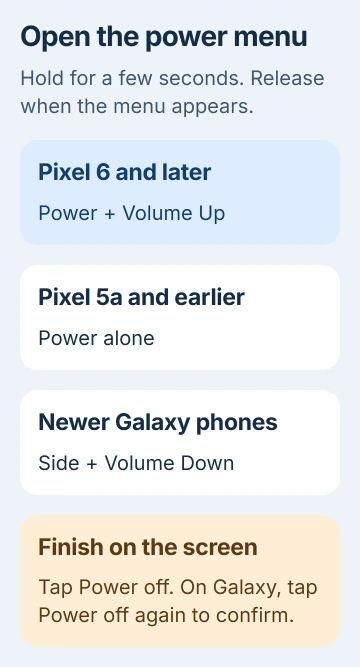
Google's Pixel power instructions give different shortcuts for these model groups. Choose Power off in the menu. Restart turns the phone back on automatically.
Let your phone finish shutting down before putting it away. If the startup logo appears without you turning it on again, the phone has restarted. Once it finishes starting, use the normal power menu again to switch it off.
A normal shutdown keeps your photos, apps and accounts. Erasing the phone is a separate task. You don't need to open recovery just to turn off a phone that's responding.
Turn off a Galaxy with its Side and volume buttons
On a newer Galaxy with a combined Side button, hold Side + Volume Down together. Release them when the power menu appears. Tap Power off, then tap Power off again to confirm.
If your Galaxy has a separate Power button, hold it to display the menu and select Power off. The button's location, and whether Bixby has its own key, depend on your model.
Samsung describes both button designs in its Galaxy shutdown instructions. Holding Side alone may open the assistant you've set up. That's why the button can seem to ignore your attempt to shut down.
Let go of both buttons when the menu appears. On Galaxy models that use this shortcut to restart a frozen phone, holding them longer can restart it instead of leaving it off.
If your case makes both buttons hard to press together, try Quick Settings next. As long as the touchscreen works, you have another way to choose Power off.
Open the Galaxy power menu from Quick Settings
Open Quick Settings and look for the Power icon, usually near Settings. If notifications and Quick Settings share one panel, swipe down from the top with two fingers to expand it.
On newer Galaxy layouts with separate panels for notifications and Quick Settings, swipe down from the upper-right corner. If your first swipe shows only notifications, use the Quick Settings side of the screen.
Tap the Power icon to open the power controls, choose Power off, then confirm Power off. Turning off Wi-Fi or choosing Airplane mode in Quick Settings won't shut down your phone.
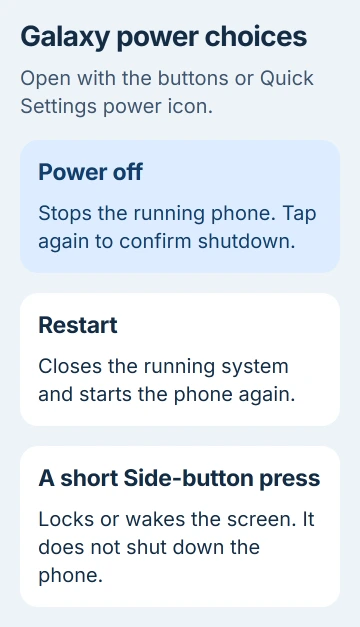
The Galaxy power-key troubleshooting page also explains this panel shortcut. If your touchscreen works but a button doesn't, use it to shut down while you arrange a button repair.
Before turning off a phone with a broken Power or Side button, work out how you'll turn it back on. The screen menu helps you shut down, but it won't fix the button you need for startup.
Change a Pixel's long press from assistant to Power menu
On Pixel 6 and later, open Settings > System > Gestures and select the option for holding the Power button. Choose Power menu. Holding Power alone will now open the shutdown choices instead of the assistant.
Try the setting while your phone is on: hold Power, check that the menu appears, then close it if you don't want to shut down yet. This changes what a long press does while the phone is on, not how you turn it back on.
The Pixel gesture controls explain the assistant setting and model differences. On older Pixel software, you may see a Hold for Assistant switch instead of the two choices.
Other Android brands put button settings in different places. If your menu doesn't match, use your model's manual. Motorola and Xiaomi phones don't necessarily use the Pixel settings path.
Keep a frozen phone separate from a normal shutdown
If the menu opens but won't respond to taps, the phone's controls have frozen. A force restart can get them working again so you can choose Power off normally. The restart itself won't leave your phone off.
For a Pixel, follow the current frozen-phone restart procedure for your model. For a Galaxy, the power-key guide explains holding Side and Volume Down longer if the menu won't appear.
After the phone restarts, check whether touch and the power menu work. If it freezes again, note which app you're using and check for app updates. The Android app-crash checks cover that problem.
If your phone won't start after a normal shutdown, use the Android no-power checks. A black screen with no response at startup needs charging or hardware checks, rather than more taps where the menu should be.
I'd contact the manufacturer if a button is stuck, the menu keeps failing or the phone restarts after every confirmed shutdown. Include your model, software version and whether you could shut down through the touchscreen.
The Short Version
Use Power plus Volume Up on recent Pixels, or Side plus Volume Down on many Galaxy phones. Release at the menu and choose Power off. Galaxy also offers a Quick Settings power control; Pixel can reassign a long press to the power menu.
Checked November 5, 2026.

Isaac Smith is the founder and editor of PC Glance, a website that covers computers, laptops, and technology. He is a tech enthusiast and a computer geek who loves to share his insights and help his readers make smart choices when buying tech gadgets or laptops. He is always curious and updated about the latest tech trends.