
Sound on an HP laptop can disappear when Windows chooses a monitor, dock or headset for playback. Choose the speakers in Windows first, then run HP Support Assistant's Audio Check if they stay silent.
That check can repair sound settings and driver problems before you consider a Windows reset. Play the same familiar sound through the speakers and another audio device so you can tell support which connection still fails.
1. Select the laptop speakers and clear mute
Open Settings > System > Sound. Under Output, select the built-in speakers. Their full name depends on the laptop's audio hardware, so don't assume every Pavilion, Envy, Victus or EliteBook uses the same audio device.
Raise the volume to a comfortable level and turn mute off. Check the keyboard's marked speaker-mute key too. Use Fn with it if your model needs that combination; HP keyboards don't all use the same shortcut.
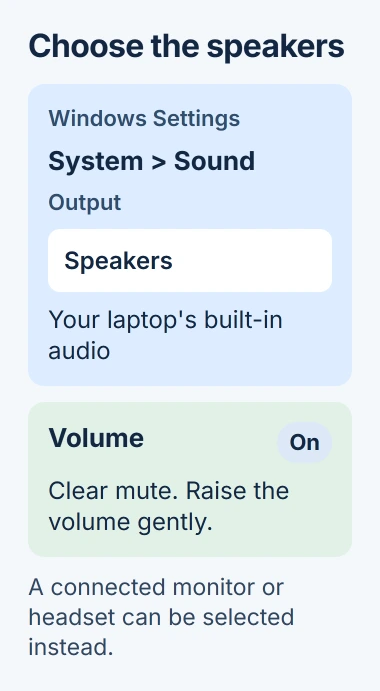
Unplug wired headphones, disconnect the dock or display and switch off a paired headset for this test. Play a familiar video or audio file saved on your laptop so a failed streaming connection won't affect the result.
A monitor can appear as an output even when it has no speakers. If choosing the laptop speakers restores sound, reconnect each accessory separately and watch which playback device Windows selects.
For silence in just one app, open Sound > Volume mixer in Windows 11 and check that app's volume and output. On Windows 10, open Volume mixer by right-clicking the taskbar's speaker control. Try the same file in another app too.
2. Run Audio Check inside HP Support Assistant
Search Start for HP Support Assistant and open it. Select your laptop if several devices are listed, then find Fixes & Diagnostics and choose Audio Check. Follow the prompts and let it finish checking the audio setup.
HP's Support Assistant technical guide lists repairs for volume, microphones, the selected audio device and drivers. The tool checks more than the speaker slider.
When the tool offers a playback test, answer based on what you hear through the speakers you selected. A moving volume indicator doesn't mean the speakers are playing. Keep the result or exact message if the tool can't finish its repair.
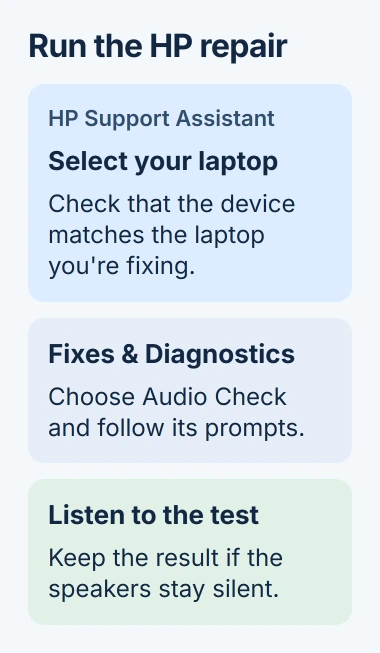
The app's layout can vary by release. Older versions put these tools under Troubleshooting and fixes. Choose the audio repair for your laptop, rather than a printer repair or a microphone-only check.
After you hear the tool's test sound, reopen the app that was quiet and check its own audio settings if it's still silent. If you can't hear the tool's test either, compare another audio connection next.
3. Restart and compare headphones with the speakers
Save your work, then choose Start > Power > Restart. After signing in, play the same short section of audio through the laptop speakers. Closing the lid may only put the laptop to sleep.
Next, connect headphones that work with another device. Select them as the output in Sound settings and replay the same passage. Set a sensible volume before putting them on, especially if you raised it while testing the speakers.
If headphones play while the speakers don't, note that result. It points to the speaker output, its settings or the speakers themselves. A working headset doesn't automatically mean your built-in speakers need replacing.
If only wired headphones are silent, use the laptop headphone-jack checks. When the laptop fails to detect a plug, work through the connection checks instead of repeatedly changing its speaker volume.
Bluetooth and USB headsets handle sound differently from the built-in speakers. Tell support which connection worked. Knowing that your USB headset plays helps them more than hearing that headphones work without knowing the type.
I'd compare the connections before changing any drivers. You may also get a working way to hear a meeting while you arrange a speaker repair.
4. Check the HP updates for this laptop
Return to your laptop in HP Support Assistant and open its Updates card. Check for an audio driver or related update offered for that laptop. Follow the selected package's instructions and restart when requested.
Check the product shown in the app before installing. Two HP models can need different packages despite both using Realtek audio. Use the supported update for your laptop instead of choosing by the audio chip's name alone.
If sound stopped directly after an audio-driver update, open Device Manager > Sound, video and game controllers. Open the affected device's Properties > Driver and select Roll Back Driver if it's available.
This restores the device's previous driver. A dimmed button means Windows has no older driver to restore through that control. Don't remove an unfamiliar system device just to make the rollback button appear.
After the restart, test the speakers before reconnecting the dock. If they still don't work, note the driver version and whether the update or rollback changed anything. Include that information when you contact support.
5. Use Windows repair and HP's hardware diagnostics
Run the Windows audio troubleshooter through Get Help, or open Settings > System > Troubleshoot > Other troubleshooters and run Audio. The Windows sound-repair instructions describe the current routes.
If sound is still missing, open HP PC Hardware Diagnostics Windows from Start if installed. Run an available audio test and follow its prompts. This hardware tool is separate from Support Assistant's automatic Audio Check.
If the app isn't installed, search its exact name in the Microsoft Store and choose HP's listing. Some models need a product-specific version; ask HP support if the standard tool doesn't support your laptop.
Keep the test name, result and any 24-digit Failure ID to give support when arranging service. If the test passes but you still can't hear ordinary playback, report both results so they can continue checking the problem.
If the laptop passes its checks, the other Windows audio repairs cover enhancements, playback formats and services. Try those settings after finishing the HP-specific checks.
For further help, give HP your product number, Windows version, test result and working outputs. Ask which repair comes next before agreeing to a reset. Back up your files before starting the recovery HP recommends.
The Short Version
Select the internal speakers, clear mute and run Audio Check. Restart, compare another audio connection and review HP's driver updates. Save the hardware-test result and Failure ID for support if the speakers remain silent.
Checked November 5, 2026.

Isaac Smith is the founder and editor of PC Glance, a website that covers computers, laptops, and technology. He is a tech enthusiast and a computer geek who loves to share his insights and help his readers make smart choices when buying tech gadgets or laptops. He is always curious and updated about the latest tech trends.