
Yes, Samsung describes a permanent lock after 13 failed unlock attempts under its One UI 9 policy. If a retry countdown appears, stop guessing and wait; a permanent lock requires a factory reset before the phone can be used again.
The One UI product page says the policy starts with new models released with One UI 9. An older Galaxy upgraded to that version may have different limits.
1. Read the lock screen before trying another code
Check whether the screen shows a countdown, a warning about attempts left or a permanent-lock message. A countdown means you have to wait before entering another code. A permanent lock needs a different recovery step.
Samsung says its new lock-screen security policy makes you wait longer after repeated failed attempts. These are its published stages:
| Failed attempts | Wait before another attempt |
|---|---|
| 5 | 1 minute |
| 6 | 5 minutes |
| 7 | 15 minutes |
| 8 | 30 minutes |
| 9 | 90 minutes |
| 10 | 4 hours |
| 11 | 12 hours |
| 12 | 24 hours |
| 13 | Permanent lock; factory reset required |
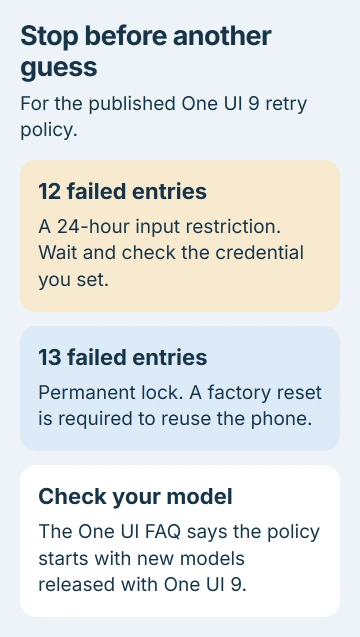
The count includes failed PIN, pattern or password entries. Don't try a different guessed code just to see whether the displayed warning changes. I'd stop while there are attempts left and check the PIN, pattern or password you set.
The support page also describes warnings that show how many attempts are left. Read your phone's warning instead of counting guesses from memory, especially if someone else has handled it.
2. Check which device and policy you're dealing with
If the phone still unlocks, open Settings > About phone > Software information and read One UI version. Write down its model too. On a tablet, start under About tablet instead.
The One UI 9 product FAQ says the enhanced retry policy starts with new models released with One UI 9. Its support article uses broader wording and notes that behavior can vary by device and software.
Because those pages describe the policy differently, check which rules apply to your exact model. If the phone is already locked, give support the model from your purchase details and the exact message on screen.
Waiting longer won't unlock a phone that reports a permanent lock. Follow the message on your screen to choose the recovery step.
If the problem is a Samsung account sign-in, use the Samsung account password-recovery guide. That password belongs to the online account, while the lock-screen PIN is stored on the device.
3. Use the previous screen lock only when offered
If you recently changed the screen lock, check whether you can use the old one. Supported devices on One UI 6.1 and later can keep the old PIN, password or pattern for 72 hours after a change, unless you deleted it during setup.
If Forgot PIN, Forgot password or Forgot pattern is already offered, open it. Enter the previous screen lock you remember, then follow the prompt to set a new one.
The previous-screen-lock procedure lists those conditions. It describes the option appearing after unsuccessful entries, but don't spend attempts just to make that button appear.
If the option isn't there, or the earlier lock was deleted, contact support before continuing. This isn't a way to recover a phone that already reports a permanent lock.
The two 72-hour rules mean different things. One lets you use an old screen lock after changing it. The other makes you enter your PIN, pattern or password periodically, even if you normally use a fingerprint or face.
4. Separate a missing keyboard from a forgotten password
A missing password keyboard can stop you entering a password you know. Focus on getting the keyboard back instead of trying another password or assuming you've reached the retry limit.
The Galaxy unlock troubleshooter has Safe Mode steps to restore the Samsung keyboard when a different keyboard is missing from the lock screen. Use them for a missing password keyboard.
You still need the correct PIN, pattern or password. Safe Mode doesn't supply a forgotten PIN or reverse a permanent lock. If the screen already says the phone is permanently locked, contact support about the required reset.
The message Locked for security reasons can have a different cause and need different steps. Give support the full wording so they can tell whether you're dealing with the failed-unlock policy.
5. Prepare the accounts before a necessary reset
A permanent lock under this policy requires a factory reset, which erases data stored on the phone. Before agreeing to a reset, check that you know its Google and Samsung accounts and can use their account-recovery options.
Setup can ask for that phone's existing Google or Samsung account. This helps protect a stolen phone from someone trying to reset it. Removing the screen lock doesn't make someone else's account yours.
Use the Android factory-reset guide to compare resetting through Settings with resetting a locked phone through recovery. Ask Samsung to confirm which buttons to use for your exact model.
If the phone still unlocks, check the Android backup options before making changes. Check which data your backup contains and can restore; an enabled Backup switch doesn't tell you that.
An already locked phone may not let you make a new complete backup. From another device, check the backups and synced copies you already have, then tell support which data you need to keep.
6. Get model-specific help before the last attempt
Tell Samsung your model, exact lock message, last known One UI version and whether you changed the lock recently. If a secondhand phone asks for someone else's account, contact the seller and keep your proof of purchase.
If you get back in, choose a PIN, pattern or password you can remember and review the Android backup coverage. Remembering that code and keeping a current backup help you handle another lockout, even if you use a fingerprint.
The Short Version
The published One UI 9 policy reaches a permanent lock at 13 failures and requires a factory reset. Read the device's own warning, stop guessing, check any eligible previous-lock option, and prepare the original accounts before a reset.
Checked November 5, 2026.

Isaac Smith is the founder and editor of PC Glance, a website that covers computers, laptops, and technology. He is a tech enthusiast and a computer geek who loves to share his insights and help his readers make smart choices when buying tech gadgets or laptops. He is always curious and updated about the latest tech trends.