
Press Num Lock to make a computer's number pad type numbers again. If its keys move the mouse pointer instead, turn off Mouse Keys in Windows Accessibility settings; Num Lock alone may not change that behavior.
These steps cover a keyboard's number pad, including laptop keypads. If letters and numbers both fail, check the whole keyboard. To unlock Windows at sign-in, you'll need your account credentials rather than a keypad shortcut.
Match the behavior before changing a setting
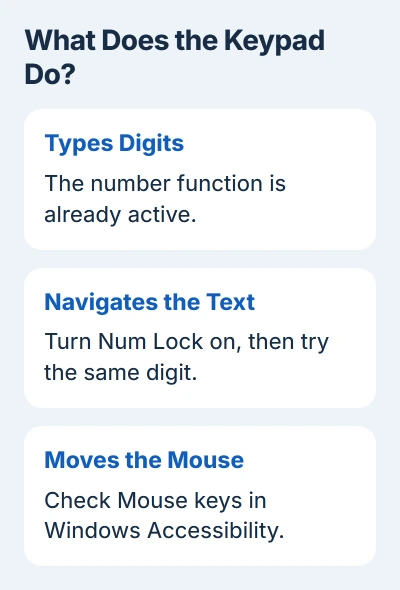
Open Notepad and click inside the document. Press a number from the top row, then the same number on the keypad. Watch whether the second press types a digit, moves the text cursor, moves the mouse pointer or does nothing.
The result helps you choose the right check. Num Lock makes the pad type numbers, Mouse Keys can make it move the pointer, and a lost connection can stop it sending anything.
Test in a blank document rather than a password box. Hidden password characters make it harder to see what the keypad entered, and a number entered incorrectly can look like an account problem.
If the top-row numbers work, you can use those while restoring the keypad. A number pad is convenient, but it isn't required to type ordinary digits into a Windows PIN field or a document.
Turn on Num Lock for the numeric pad
Look for a key labeled Num Lock, NumLk or a similar abbreviation, usually near the keypad's upper corner. After one press, check the pad's output in Notepad. Some keyboards have a light showing its state; others don't.
Dell's number-pad troubleshooting starts with enabling Num Lock. Check the typed digits even if your keyboard has a status light.
With Num Lock off, keys with navigation labels can act as Home, End, Page Up, Page Down or direction keys. If one press of Num Lock changes that behavior to typing digits, your keypad was working in its other mode.
On a compact laptop, look for small numbers printed on letter keys. That's an embedded keypad, and its manual will give the Num Lock combination. Some models use Fn with a labeled key; others have no embedded keypad.
There isn't one Fn combination that unlocks every laptop. Use the labels on your keyboard instead of guessing shortcuts from another brand. If the physical Num Lock key is missing, use the screen keypad in the next section.
Use the Windows screen keypad when the key is missing
In Windows 11, open Settings > Accessibility > Keyboard and turn on On-Screen Keyboard. Windows 10 puts that switch under Settings > Ease of Access > Keyboard. Use the mouse to reach it if typing is unavailable.
If the screen keyboard shows only navigation controls, select General for its full layout. It remembers your last layout, which can explain why the letter keys seem to be missing.
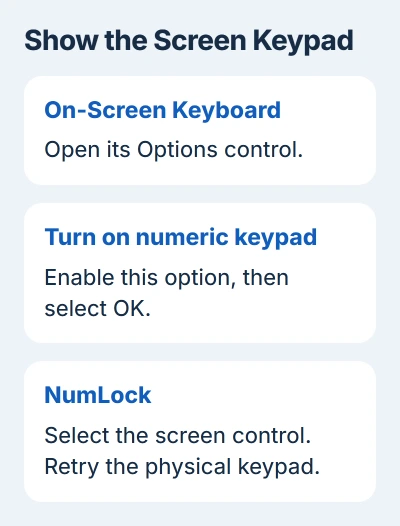
On the full On-Screen Keyboard, select Options, enable Turn on numeric keypad, and select OK. Microsoft's screen-keyboard options describe that expansion.
Select NumLock on the screen keyboard and try your physical keypad again. You can also click the screen's number keys to type. That gives you a temporary number pad without installing an app or changing your account settings.
At the Windows sign-in screen, open the Accessibility button and choose the screen keyboard. Enter your PIN using its number keys or the physical top row. Unlocking a keypad doesn't reset or reveal a forgotten PIN.
If numbers work after signing in but Num Lock switches off at every startup, follow the Num Lock sign-in checks. Switching it on now and keeping it on at startup are separate problems.
Stop Mouse Keys when the keypad moves the pointer
Open Settings > Accessibility > Mouse in Windows 11. Turn Mouse keys off if you want the keypad for typing. Windows 10 uses Settings > Ease of Access > Mouse, with Control your mouse with a keypad.
Mouse Keys uses keypad numbers to move the pointer: 8 moves it up and 2 moves it down. If that happened during your Notepad check, the keys were controlling the mouse rather than failing to type.
Return to your document after changing the switch. Check Num Lock and type several keypad numbers. You should see digits appear while the pointer stays still.
If you rely on Mouse Keys to control the computer, keep it enabled and type numbers with the top row. Have another mouse or pointing device ready before switching it off.
Check a separate keypad's connection
A separate USB number pad can lose its connection even when the main keyboard works. Plug the pad directly into your PC, leaving out the hub. Check Num Lock, then try the same digits again.
For a wireless pad, check its power switch, battery and selected computer channel. A pad that uses a USB receiver needs that receiver connected; a Bluetooth pad needs to be paired. Check the connection your pad actually uses.
If another suitable USB port restores input, check the original port or hub. If the number pad also fails on another compatible computer, ask its manufacturer about repair or replacement.
I'd check the connection before changing drivers. A pad that won't power on needs its power or hardware checked. If it reliably moves the text cursor, it's already sending key presses.
When the whole keyboard remains unresponsive
Save your documents using the mouse, then restart Windows. If both the top row and the keypad still fail, use the complete keyboard input checks for screen-keyboard comparison, filtering and device detection.
Give support the keyboard or laptop model, Windows version and the exact response from your keypad. Mention whether the screen keypad works and whether a spare keyboard behaves normally on the same computer.
On a managed work computer, ask IT about settings you can't change. There isn't a universal keyboard-unlock password, and resetting Windows isn't the usual answer to a number pad that's switched off.
The Short Version
Enable Num Lock, or use the Windows screen keypad to reach its control. Turn off Mouse Keys if numbers move the pointer. Check power and connection for a separate pad, and treat a repeated sign-in failure as its own problem.
Checked November 5, 2026.

Isaac Smith is the founder and editor of PC Glance, a website that covers computers, laptops, and technology. He is a tech enthusiast and a computer geek who loves to share his insights and help his readers make smart choices when buying tech gadgets or laptops. He is always curious and updated about the latest tech trends.