
An iPhone that returns to Hello during a data transfer needs different checks from one whose progress bar starts again. Keep your old phone intact while you check whether the new one is back at setup or still updating and moving data.
If the transfer freezes on the Apple logo, check whether the progress bar has stayed still for more than an hour. If it has, try updating the new phone through a computer before erasing it.
1. Identify what is actually starting over
Look at your new phone's screen. Is the progress bar starting again, did an update finish and the phone restart, or has Hello returned? Note which one you're seeing before interrupting the phone.
Apple explains that the progress bar can complete and begin again during an update or restore. That alone doesn't mean the transfer has failed, even if it looks like the phone has started over.
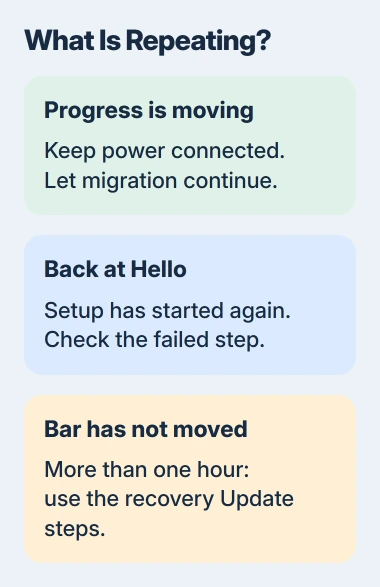
Keep both phones plugged in and close together while they transfer data directly. Let the transfer finish on both devices. The amount of data and your network connection affect how long it takes.
If you used iCloud and reached the Home Screen, apps and other content can continue downloading afterward. Missing app icons at that stage need the post-transfer app checks.
Don't erase or trade in the old phone until you've checked the content you need on the new one. It remains your source if another transfer attempt or a fresh backup is needed.
2. Restart a failed Quick Start attempt
If setup has returned to the beginning and the pairing prompt has disappeared, restart both phones. The Quick Start procedure includes this restart; you can leave the old phone's data in place.
Before trying again, connect the old phone to Wi-Fi and turn Bluetooth on. Unlock the old phone and leave its Home Screen showing. Turn on the new phone nearby and follow the pairing prompt when it appears.
Check for software updates on the old phone first. If the new phone asks to install an update during setup, allow that update and its restart to finish before deciding that setup has looped again.
Keep both phones plugged in and leave the old phone free for the direct transfer, so you can follow its progress.
If the screen specifically says to move the devices closer, use the Quick Start connection checks. A repeated Hello screen after a restart and that proximity message need different checks.
If another attempt fails at the same screen, note the wording and both iPhone models. Use the matching update or recovery section rather than starting the same transfer again.
3. Update first when the backup needs newer iOS
Your new phone may need an iOS update to restore a backup from a newer version. With an iCloud backup, setup can offer that update and continue the restore after it installs.
If your computer backup says the phone needs newer iOS, use the set up, update and erase sequence. These steps address that version mismatch; use them when you see that message.
On the new phone's Transfer Your Apps & Data screen, choose Don't Transfer Apps & Data. Finish the basic setup, then open Settings > General > Software Update and install the available compatible update.
Let the new phone complete its update and restart. Only then open Settings > General > Transfer or Reset iPhone > Erase All Content and Settings to return that phone to setup for the backup restore.
This erases the new phone. Before confirming, check that you still have the old phone or backup, and save anything you've created on the new one.
Start setup again and select your backup. The update brings the phone to the iOS version the backup needs. If an error remains, check its exact wording before erasing the phone again.
4. Use recovery Update for a genuinely frozen migration
If the Apple logo and transfer progress bar are showing, check whether the bar has stayed still for more than one hour. Count the time it hasn't moved, rather than the total time since you opened the box.
Apple's stalled migration instructions then call for connecting the iPhone to a computer and choosing Update in recovery mode. Choosing Restore instead erases the iPhone.
Use Finder on a Mac with macOS Catalina or a newer release. On Windows, use the current Apple Devices app, or the supported iTunes installation described in those instructions. Connect your new iPhone with a USB cable.
Use the button sequence for the new phone while it remains connected:
| iPhone model | Hold until the recovery screen appears |
|---|---|
| iPhone 8 or later, including SE 2nd/3rd generation | Quickly press Volume Up, then Volume Down; hold Side |
| iPhone 7 or 7 Plus | Hold Volume Down along with Side |
| iPhone 6s or earlier, including SE 1st generation | Hold Side or Top along with Home |
Continue holding until the cable-and-computer recovery screen appears. Releasing at the Apple logo restarts the phone before it reaches the screen the computer needs.
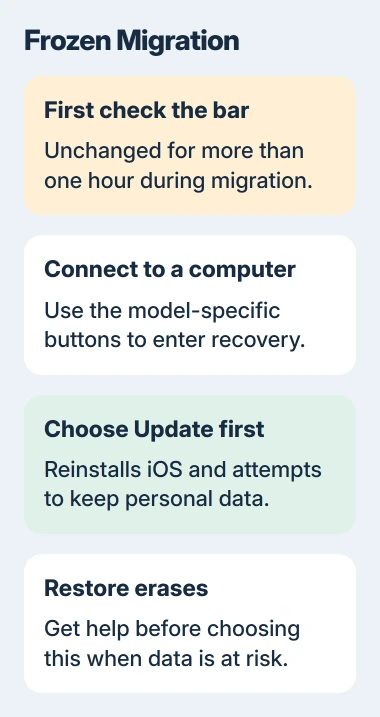
When the computer offers Update or Restore, choose Update first and let the installation finish. This tries to reinstall iOS while keeping your personal data.
If the software takes over 15 minutes to download, the iPhone can leave recovery mode. Let the download finish, then repeat the button sequence to put the phone back in recovery so the computer can continue.
5. Choose another supported transfer route if setup works
Once the phone can finish setup normally, you can try a wired transfer or restore an existing iCloud or computer backup. Pick whichever method matches the backup or equipment you have.
Check the date and size when choosing an iCloud backup. After its setup progress finishes, keep the new phone on Wi-Fi and power while photos, apps and other content finish downloading.
For a computer backup, open the iPhone's page in Finder or Apple Devices, then choose Restore Backup. A backup saved with encryption asks for the password set for that backup, which may differ from your Apple Account password.
If recovery Update fails, setup keeps restarting or the computer shows an error, give Apple Support the error and say when the transfer stops. Ask for help before choosing an option that erases and restores the phone.
I'd take both phones and the cable to a service appointment if possible. Knowing which phone restarts and whether the old one still works helps support decide what to check.
The Short Version
If Hello keeps returning, retry pairing; if the backup needs newer iOS, update first; if the transfer bar freezes, follow the recovery Update steps. Check your data on the new phone before erasing the old one.
Checked November 5, 2026.

Isaac Smith is the founder and editor of PC Glance, a website that covers computers, laptops, and technology. He is a tech enthusiast and a computer geek who loves to share his insights and help his readers make smart choices when buying tech gadgets or laptops. He is always curious and updated about the latest tech trends.