
A taskbar that disappeared in Windows 11 may be hidden, on another display or waiting for Windows Explorer to recover. Check the screen edges first; if it stays missing, restart Windows Explorer through Task Manager.
These checks are for the whole bar, including Start and the clock. If you can see the bar but its app icons are blank, use the taskbar icon repair instead.
1. Check whether the taskbar is hiding normally
Pause your pointer at the screen's bottom edge. Check the other edges too if you've moved the taskbar on a Windows version that supports it. A bar that slides into view is hidden, rather than missing.
Press Windows+I to open Settings without using Start. Go to Personalization > Taskbar, expand Taskbar behaviors and clear Automatically hide the taskbar.
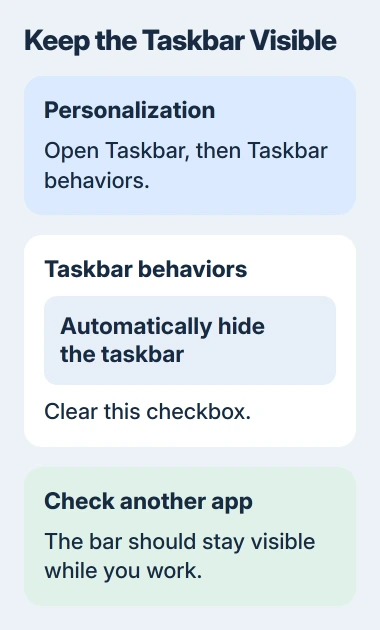
Microsoft's taskbar settings guide describes this control. After clearing it, select an open app window and confirm the bar stays visible.
If it's missing only during a full-screen video or presentation, exit that mode using the app's controls. In a browser, F11 switches full-screen mode; some laptop keyboards also need Fn.
On a supported 2-in-1, the taskbar can collapse for touch use when you fold back or disconnect the keyboard. Swipe up from the bottom to expand it. In that case, the bar has loaded; it's using the tablet layout.
If the bar appears after these checks, stop there. If you can see the desktop but Start and the clock never return, restart Windows Explorer, which draws the desktop and taskbar.
2. Restart Windows Explorer without the taskbar
Press Ctrl+Shift+Esc to open Task Manager. If that doesn't open it, press Ctrl+Alt+Delete and choose Task Manager from the security screen.
In Processes, find Windows Explorer. Right-click it and choose Restart. Some Task Manager layouts also show a Restart task control when you select the process.
Your desktop and taskbar may disappear briefly while Explorer restarts. Wait for them to reappear, then try Start and an app button. Your open apps normally stay running during this restart.
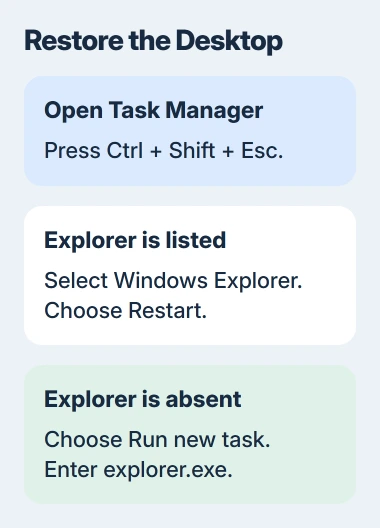
If Windows Explorer isn't listed, select Run new task, type explorer.exe and press Enter. Older Task Manager layouts put Run new task in the File menu.
The blank-screen troubleshooting steps use this method too. It works without the taskbar as long as Task Manager still opens.
If the bar returns and stays responsive, carry on using the PC. If it vanishes again immediately, note whether the desktop icons disappear too and continue with a normal Windows restart.
3. Restart Windows and check the first sign-in
Save your documents in every open app. Press Ctrl+Alt+Delete, select the power control and choose Restart. This lets you restart without using the missing Start menu.
Let the desktop finish loading after sign-in, before opening your usual apps. Check whether the taskbar appears at that point or disappears only after a particular program starts.
A normal restart can finish pending Windows changes and reload the desktop. If the taskbar is missing before you open anything, start by checking Windows rather than one of those apps.
I'd keep a note of that timing before changing settings. A bar that disappears when one app enters full screen needs different attention from one that never appears after sign-in.
If the whole desktop is black, follow the Windows black-screen checks. You'll also need to check which screen Windows is using and whether the graphics are working.
4. Check the other display and tablet layout
Look at every connected monitor, including your laptop's screen when it's docked. If the taskbar appears on one screen but not another, check the multiple-display settings.
Open Settings > Personalization > Taskbar > Taskbar behaviors. If you want it on each connected screen, enable Show my taskbar on all displays.
Use Settings > System > Display > Identify to match the display numbers to the physical screens. Select the screen you want as the main display, expand Multiple displays and check Make this my main display if needed.
If the problem started after docking, disconnect the extra display once and check the laptop on its own. If its taskbar works normally, check how the displays are arranged when you reconnect.
On supported devices, Taskbar behaviors can also offer a setting to optimize the bar for tablet use. Check it if the problem starts when you fold back or remove the keyboard.
Display settings won't fix Windows Explorer if it keeps crashing. If the bar disappears from every screen at once, move on to the software checks rather than changing the main display again.
5. Update Windows and review taskbar add-ons
Open Settings > Windows Update, select Check for updates and install the available updates for this PC. Restart when requested, then check the taskbar before launching other apps.
If you use a program that changes Start, the taskbar or Explorer, check that it supports your Windows build. Follow the program's instructions to temporarily remove the customization, then restart.
Note the program name and Windows build first. Tell the add-on's developer if the taskbar vanished straight after a Windows update, so they can check that change instead of just hearing about missing icons.
Ask IT before removing desktop software supplied by your employer or school. They may need to update the customization or change how it's installed on that Windows version.
If the taskbar still fails without the add-on, try repairing Windows system files next. Reinstalling the same customization won't tell you whether Windows itself needs repair.
6. Repair Windows files when the desktop keeps failing
Open Task Manager, choose Run new task, enter cmd and select the option to create the task with administrative privileges. Approve the prompt with an administrator account.
Run these commands one at a time, letting the first finish successfully before starting the second:
DISM.exe /Online /Cleanup-image /Restorehealth
sfc /scannow
The system-file repair instructions use this order. DISM repairs the parts of Windows that System File Checker needs to do its checks.
System File Checker then scans Windows' protected system files. Save the result if either command fails or says it couldn't repair files.
Don't close a repair window simply because it pauses at one percentage. Restart after the checks finish, then test your taskbar again.
If it still disappears, give Microsoft Support or IT your build number, repair results and whether it affects every sign-in. Those details help them choose account or recovery checks without guessing which registry settings to change.
The Short Version
Disable automatic hiding, restart Explorer and check other screens. If the bar disappears again, restart Windows, update it and review desktop add-ons. Repair system files for a continuing failure and share the results with support.
Checked November 5, 2026.

Isaac Smith is the founder and editor of PC Glance, a website that covers computers, laptops, and technology. He is a tech enthusiast and a computer geek who loves to share his insights and help his readers make smart choices when buying tech gadgets or laptops. He is always curious and updated about the latest tech trends.