
Both phones are sitting on the table, touching each other, and the new one is still telling you to move it closer.
You have probably picked them up and put them down four times by now, and I know how daft that instruction feels when they are already an inch apart.
Nothing has gone wrong with your data. The old phone still holds everything it held this morning.
What has stalled is the wireless link between the two. Work down these seven and stop when it moves.
Before anything: you can start this over as often as you like
You can start this over as many times as you like.
A direct transfer copies from the old phone to the new one. Apple never asks you to erase the old phone as part of it, and it does not empty as it goes.
That part is my reading rather than a sentence Apple prints, but it is what the process does, and it is why nobody in this situation is one wrong tap from disaster.
So the worst outcome is twenty minutes of your evening. That changes how to approach the next few steps: stop being careful, start being decisive.
Fix 1: Check Bluetooth and Wi-Fi on the old phone
Two radios have to work at once, and Apple says which.
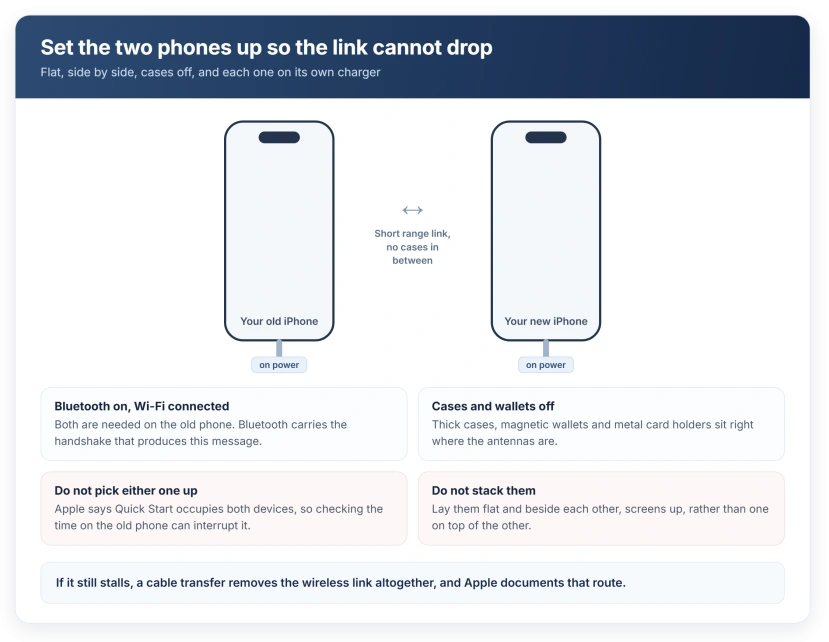
Apple, on Quick Start: "Make sure that your current device is connected to Wi-Fi and Bluetooth is on."
Bluetooth is the short-range part, and it is what puts those words on your screen. Wi-Fi carries the data afterwards.
So a phone with Bluetooth switched off, or one on a network the other cannot reach, produces this stall even while both handsets sit in the same hand.
Check the old phone: Bluetooth on, connected to Wi-Fi, Airplane Mode off. That alone clears a good share of these.
Fix 2: Cases off, both plugged in, and hands off
Apple: "Keep your devices near each other and plugged in to power until the data migration process is complete."
Plugged in to power. Both of them. A transfer of a full phone can run for a long time and a new iPhone often arrives with a low charge.
Then take both cases off. Thick cases, magnetic wallets and metal plates all sit exactly where the antennas are. This is a short-range link with no margin to spare.
Lay them flat, side by side, screens up, not stacked and not back to back. Then leave them alone.
Apple: "Quick Start occupies both devices, so make sure that you choose a time when you won't need to use your current device for several minutes."
That last one matters more than it sounds. Picking the old phone up to check the time is enough to interrupt the pairing on some attempts.
Fix 3: Restart both phones, which is Apple's own step
A restart usually gets treated as a last resort here. Apple puts it inside the setup steps themselves.
Apple: "If the prompt to set up your new device disappears from your current device, restart both devices."
So restart the old phone and the new one, then start again from the Hello screen. That is a normal restart on each, not a force restart and not a reset.
If the new phone has already got past Hello and is stuck mid-transfer, you can still restart it and begin again. It will offer you the transfer options once more.
Fix 4: Toggle both radios, then cancel and start the whole thing again
This one comes from owners rather than from Apple, and it is the step people report actually clearing it.
On Apple Community threads about this exact screen, posters report cancelling on the new phone, restarting both devices and starting the process over, and describe the transfer then running normally.
One writes about being afraid to cancel at all, because there is no obvious way off the Move Closer screen.
So let me settle that fear first, because it is the thing stopping people. Cancelling costs you nothing. The old phone is untouched, and you are simply back at the beginning of a setup you have not finished.
Before you start again, turn Bluetooth and Wi-Fi off and back on on the old phone. Give each a couple of seconds.
This is user-reported rather than documented, but it is free, it reverses instantly, and it matches Apple's own instruction to restart both devices when the prompt misbehaves.
Fix 5: Let the old phone cool down and charge before you retry
The one people never think of, and it explains a transfer that keeps failing at the same point.
A long transfer works your old phone hard. If it is warm, it throttles, and a throttled phone holds a short-range link badly.
Check the old phone's battery level too: a source phone under about half charge, working hard and warm, is the worst possible state to attempt this in, which is why Apple asks for both devices to be plugged in.
Give it ten minutes off the charger and out of any case, somewhere cool, then plug both in and try again.
Our page on an iPhone showing a temperature warning covers what the phone does when it gets genuinely hot.
Fix 6: Use a cable, which removes the failing link
This one removes the wireless link altogether, so there is nothing left to drop.
Apple supports a wired migration outright.
Apple, on a wired transfer, describes it as migrating data from your current iPhone to a new iPhone "by connecting the devices directly with a cable".
Which cable depends on your pair. For iPhone 15 or later at both ends, Apple says to use "a USB-C Charge Cable" between the two charging ports. Coming from an iPhone 14 or earlier, you need a USB-C to Lightning cable instead.
Then turn both on and follow the same onscreen steps. Apple's instruction is unchanged from there: "You'll need to wait for the transfer to complete on both devices before you can use them."
A cable is also faster on a big library. And it does not care about your Wi-Fi at all, so in a shop or a hotel, go straight to it.
Our page on what an iPhone USB-C port is actually wired for helps if you have a mixed pair of phones and are unsure which cable you need.
Fix 7: Download from iCloud instead and get a usable phone now
You do not have to transfer directly at all. Choosing iCloud changes the whole shape of the afternoon.
Apple: "If you download from iCloud, your apps and data download in the background so that you can start using your new device right away."
Compare that with the direct route, where Apple says "you'll need to wait for the transfer to complete on both devices before you can use them".
So the wireless transfer that is failing is also the one that leaves you holding two unusable phones. Downloading from iCloud hands you a working phone in minutes and fills itself in afterwards.
It does need a recent iCloud backup to exist, mind you. Our page on an empty backup list at setup covers what to do if that screen turns out to be empty too.
If none of the seven help, check the phone is yours to set up
If none of that helps, check whether the new phone is really yours to set up.
Apple: "If your new device is enrolled in Apple School Manager or Apple Business, you can't use Quick Start to transfer data from your current device."
A work or school phone will refuse this no matter how close you hold it, and no amount of restarting changes that. Your IT department sets up those devices a different way.
What does not work
- Holding them closer. They are already close enough. The message names distance because that is the commonest cause, not the only one.
- Reset Network Settings on the old phone. It clears saved Wi-Fi passwords for a link that is mostly Bluetooth, and you will need those passwords again in a minute.
- Erasing the new phone from scratch. It arrives at the same screen. Restarting is enough.
- A third-party transfer app. It cannot move the things you actually want, because app data, settings and Home Screen layout only travel through Apple's own migration or a backup.
- Turning the old phone off to save it. The transfer needs it awake and running. Off is the one state that guarantees failure.
Status: iOS 26.6, checked 17 August 2026. Apple documents the wireless and wired routes on two separate pages, 102659 and 117383, and neither names this message.
Why does my new iPhone keep saying move device closer?
Because the short-range link between the two phones has dropped.
That link runs over Bluetooth for the handshake, so it fails when Bluetooth is off on the old phone, when a thick case or a metal wallet sits between them, or when one phone gets picked up mid-transfer.
Distance is only one of the reasons the message appears.
Can I use a cable instead of Quick Start?
Yes, and Apple supports it directly. Connect the two phones with a USB-C cable, or a USB-C to Lightning cable if the older phone has a Lightning port, then follow the same onscreen steps.
It removes the wireless link that is failing, and it is usually faster on a large photo library.
Will I lose data if the transfer fails halfway?
Your old phone keeps everything. A direct transfer copies rather than moves, and nothing asks you to erase the old device as part of setting up the new one. If it stalls, restart both and start again, or switch to the cable or to iCloud.
The Short Version
- The old phone is not being emptied, so cancelling and starting over costs you nothing.
- The link needs Bluetooth on and Wi-Fi connected on the old phone. Check both before anything else.
- Cases off, screens up, side by side, and both plugged in to power.
- Do not pick either phone up. Apple says Quick Start occupies both devices.
- Apple's own step is to restart both devices, and owners report that plus a fresh start is what clears it.
- Let the old phone cool down and charge before retrying, because a warm phone holds the link badly.
- The cable route is documented and skips the wireless link entirely. USB-C to USB-C, or USB-C to Lightning for an older phone.
- Downloading from iCloud instead gives you a usable phone straight away, if a backup exists.
Where to Next
Two phones an inch apart, being told to move closer, is a genuinely maddening way to spend an evening, and the instruction sends you looking in the one place where the answer is not.
Check Bluetooth, take the cases off, plug both in, then stop retrying and reach for a cable. That order finishes it in most cases.
Where the switch that will not move is Stolen Device Protection, the delay behind it is deliberate.
If the cable transfer refuses as well, tell me which two iPhone models you are moving between and I will help you work out whether it is the cable or the pairing.

Isaac Smith is the founder and editor of PC Glance, a website that covers computers, laptops, and technology. He is a tech enthusiast and a computer geek who loves to share his insights and help his readers make smart choices when buying tech gadgets or laptops. He is always curious and updated about the latest tech trends.