
Download Google Maps areas for your whole drive and useful detours before leaving Wi-Fi. Saved maps keep driving directions working through reception gaps; live traffic, alternate routes and streaming still need internet access.
An offline map isn't an offline version of every Android Auto feature. Set up and check the phone's car connection before the trip, then prepare navigation and entertainment separately.
Download the full driving area on your phone
While you have an internet connection, sign in to the full Google Maps app. Open the account menu by tapping your profile image, choose Offline maps, then tap Select your own map.
Move and zoom the selection to include the roads you'll use, then tap Download. Wait for completion before leaving Wi-Fi. Saving a destination in a list doesn't download the roads you'll need to reach it.
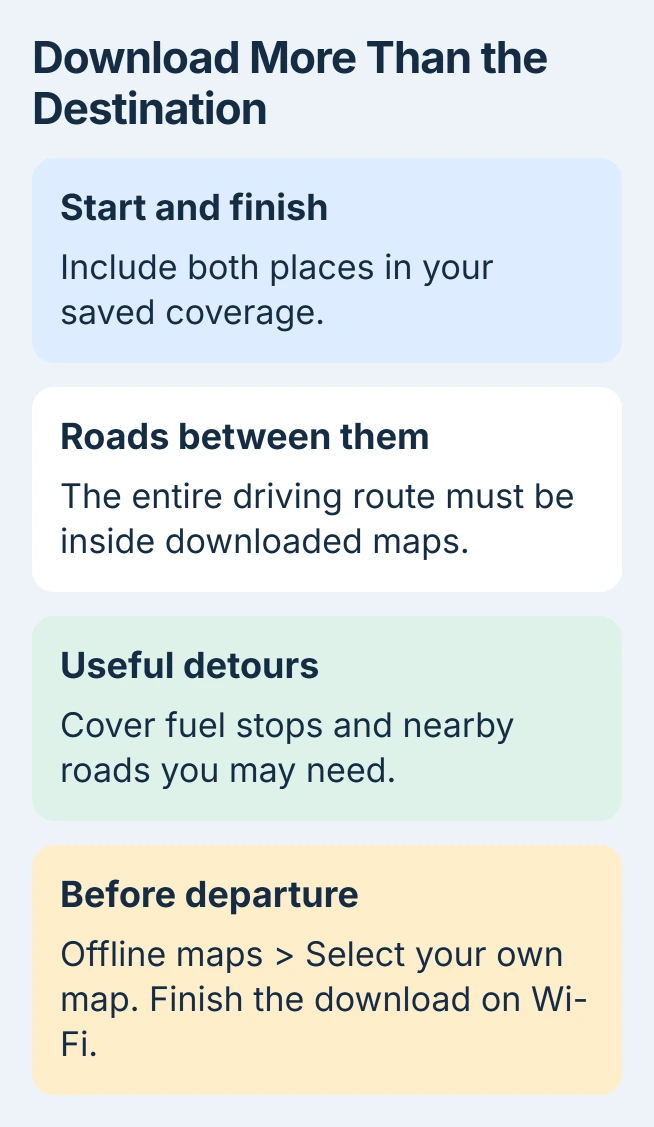
Google's offline map instructions say the entire route must be inside the downloaded area for offline directions. Cover the journey between cities, rather than downloading only each city center.
For a long trip, use several downloaded areas if one selection won't cover it. Check that the roads between those areas are covered too. A gap in a rural area could leave you without a downloaded map just as your phone loses reception.
Include enough surrounding roads for fuel stops, overnight stays and a change of route. I'd download the area around the route as well as the direct line, since an unexpected road closure can push you off the planned road.
Some countries and regions don't allow downloads. If Maps won't download your trip area, check availability before relying on it. Google Maps Go also lacks offline map downloads; use the full app.
Verify the downloads and their update dates
Return to profile picture > Offline maps and open each area you'll need. Check its coverage and download status. If it's still waiting for Wi-Fi, that map isn't ready to use offline.
Update an expired area before the journey. In the list, open the area and choose Update when available. Automatic updating is useful, but it can't complete a large replacement download after you've already lost the connection.
Offline maps need updating before they expire. When a map expires in 15 days or less and Wi-Fi is available, Maps tries to update it automatically. Check it yourself before the trip rather than relying on that attempt.
Give downloaded areas recognizable names if you're keeping several. Open an area, use its edit control, enter the new name and save. Naming it after the trip region helps you recognize the right map later.
If storage is tight, remove old offline areas that you don't need. Open the unwanted map and choose Delete. Keep the current trip's maps on the phone; deleting a downloaded area removes its offline coverage.
If your phone supports a portable SD card, Maps can save offline areas there. Changing where Maps stores them means downloading them again. Finish that download before leaving if you change storage.
Connect Android Auto while you're still parked
Connect the phone to your compatible car or receiver and open Maps on the car display. Check that your phone connects and you can select the planned destination. A loss of reception isn't the only thing that can interrupt navigation.
If the car never opens Android Auto, follow the Android Auto cable and setup checks. A downloaded map won't repair a cable that only charges, an unsupported receiver or unfinished pairing.
For a wireless connection, leave Bluetooth and Wi-Fi on as required by the car setup. The Wi-Fi connection between phone and car isn't the same thing as an internet connection from your carrier.
For a wired connection, use the correct data-capable USB port and cable. Keep the phone powered for the journey. A phone with offline maps but an empty battery can't provide navigation to the car.
The current Android Auto requirements include a compatible phone and car plus an active data plan. You'll still need to meet those setup requirements when preparing for gaps in reception.
While parked, briefly turn cellular data off and try driving directions inside a saved area. Leave the car's Wi-Fi link and Bluetooth connection on. Check that navigation appears, then restore cellular data.
This checks the downloaded maps and the car connection together. Searching for destinations and using voice commands can still need service. Keep the destination's street address on your phone too.
Know what changes when the signal disappears
Saved maps support driving navigation inside their covered area during poor reception. They don't include current traffic, so your journey time won't reflect congestion the phone hasn't received an update about.
Alternate-route information isn't available offline either. Downloaded maps don't provide transit, cycling or walking directions offline. Plan those parts of the trip separately.
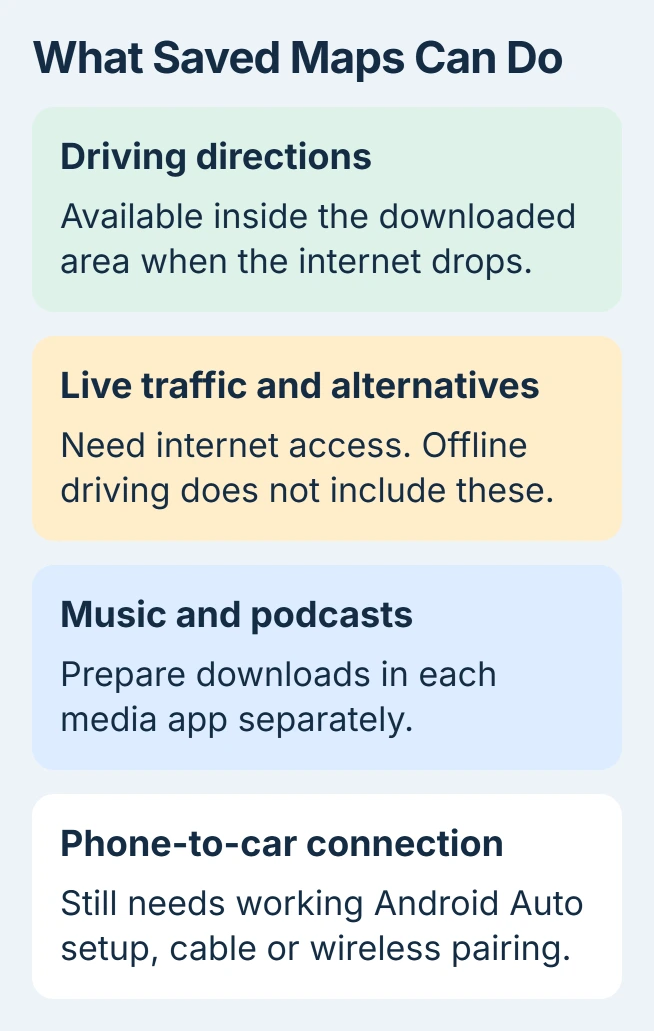
If Maps gives directions on your phone but not the car display, check the Android Auto connection while parked. Downloading the same region again won't fix a disconnected phone-to-car link.
If the trip leaves your saved area, reconnect somewhere safe and download the missing coverage. Seeing an address pin or a map from earlier use doesn't mean you've downloaded that area.
For a phone that won't reconnect to ordinary Wi-Fi at a stop, use the Android Wi-Fi checks. Get Wi-Fi working before deciding the download has failed in Maps.
Prepare music separately and keep a backup route
Download music or podcasts if your app and account support offline listening, then check the downloads are complete. A playlist saved to your library can still contain tracks that need streaming.
While parked, try the downloaded items with cellular data off, then restore it. Check playback in the media app itself. Downloading a map doesn't download music or podcasts from another app.
Write down the destination address and keep a simple copy of the route for places with unreliable service. Save accommodation and meeting details where you can read them without reopening an online booking page.
If a download fails, tell Maps support the region, available storage and error you see. If the car disconnects while directions still work on the phone, give the receiver maker your phone model and how you connect it.
The Short Version
Download and update Maps areas covering the whole drive, then check them in the parked car. Keep wireless connection settings on, prepare media separately and expect traffic and other online features to disappear when data does.
Checked November 6, 2026.

Isaac Smith is the founder and editor of PC Glance, a website that covers computers, laptops, and technology. He is a tech enthusiast and a computer geek who loves to share his insights and help his readers make smart choices when buying tech gadgets or laptops. He is always curious and updated about the latest tech trends.