
Chromebooks can feel limiting when your work needs Windows software, an unsupported Android app, or files that aren't ready offline. Check what's stopping you: some limits have a workaround, while others call for a different computer.
A slow or broken Chromebook is a separate problem. First, check whether this model supports the apps and files you need for your work.
Start with the app that the job requires
Write down the exact app and feature you need, rather than a broad task such as schoolwork. Reading a document in a browser is different from running a Windows-only program required by your course.
ChromeOS doesn't install Windows software as ordinary local apps. The manufacturer's Windows-app answer makes that limit clear. Downloading the Windows installer again doesn't change which operating system it requires.
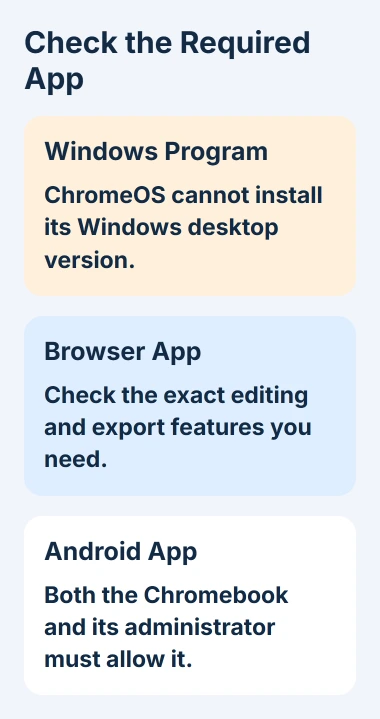
Check whether the software maker has a browser version with the feature you need. An app with a similar name might let you view a file but lack the editing or export option your work requires.
For school or work, ask which apps and file formats are accepted before choosing a substitute. Being able to open a document doesn't mean the app has every feature needed to prepare it for submission.
If the task needs the Windows desktop program itself, use an approved Windows computer. I'd make that decision before trying resets or unofficial installers, since neither changes what software the job requires.
Use the supported Office version and check its features
Microsoft says Chromebook users can access Microsoft 365 through the web. Its Windows and Mac desktop Office applications can't be installed on ChromeOS.
Android versions of Office, Outlook, OneNote, and OneDrive aren't supported on Chromebook. An old Android Office download isn't a supported substitute for the desktop program.
Sign in to Microsoft 365 in Chrome with your work or subscription account. Open a copy of a document like the ones you work on, then try the task you need, such as changing its layout or exporting the required format.
A Microsoft account gives you basic viewing and editing, while some advanced web features need a subscription. Paying for a subscription won't turn the browser app into the Windows desktop version, so check the feature you need.
For an assignment, keep your original file while checking the result. Reopen the exported copy and check its text, tables, and layout before handing it in.
Prepare offline files before the connection disappears
A Chromebook can work offline, but a cloud file listed on screen isn't always ready to open without a connection. Prepare the files you need while you're still online.
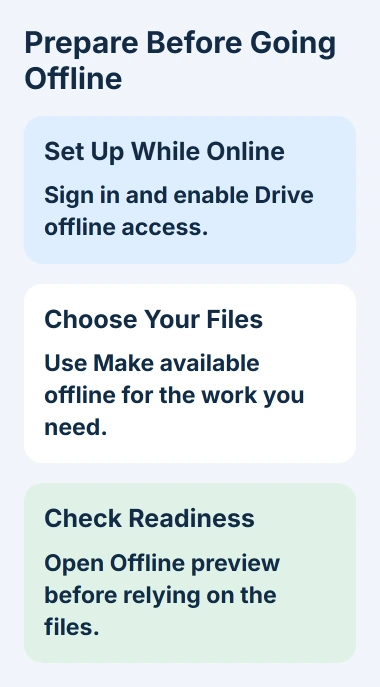
For Docs, Sheets, and Slides, follow the Drive offline setup with the account that holds your files. In Drive settings, turn on offline access for recent documents, spreadsheets, and presentations.
Complete the Google Docs Offline extension setup if requested. Then right-click each file you need and choose Make available offline. Keep a normal Chrome window open for this setup; private browsing doesn't support it.
Use Offline preview from Drive's offline-status control to see which files are ready. Try opening the document before relying on it during a trip or somewhere with unreliable Wi-Fi.
Your offline changes sync when the connection returns. Let that finish before switching devices and editing the same document, so you start with the version you expect.
You can open a local image or downloaded file through Files without loading a website. But a web service that needs its server won't work offline just because other Chromebook apps do.
Find out why an Android app is missing
Open Settings > Apps > Manage Google Play preferences. That's the current Android-app setup route. Only supported Chromebooks have the Play Store, and individual apps can have their own compatibility limits.
An app that works on your phone might not be available for your Chromebook. Installing it on one device doesn't make it supported on the other.
An administrator at your school or workplace can block app installation. Ask whether the app is allowed and supported on that Chromebook. Trying the download again won't change their restriction.
If an app installs but looks cramped, check its window-sizing options. Supported Android apps can offer Phone, Tablet, or Resizable layouts. These change how the app fits the screen, not which features it has.
If the Chromebook previously had Android apps, check its update status too. Some older models lose Android support when their owner opts into extended updates, as described in the final section.
Separate cramped storage from a software limit
Open Settings > System preferences > Storage management. Review Downloads, offline files, Android storage, and other users. The storage guidance lists these categories and the problems low space can cause.
Storage holds your files and apps; memory gives apps room to work while they're running. A warning about disk space needs different checks from a slowdown with lots of tasks open.
Before deleting important local files, save copies elsewhere and open them to check that they work. Then remove files or apps you no longer need and retry the task that failed.
For slowdowns, crashes, or repeated tab reloads, use the Chromebook freezing checks. Those checks address faults; freeing space won't make an unsupported Windows installer work.
If your machine gets unusually hot during the slowdown, the Chromebook heat checks help decide whether workload or cooling needs attention. If a hardware test fails, contact the manufacturer or a repair team.
Check the support date before judging an older machine
Open Settings > About ChromeOS > Additional details and read Update schedule. That date tells you how long the model gets updates. Buying it used doesn't start a new support period.
The update-schedule page describes ten years of updates, with special arrangements for some older devices. A final-update notice means ChromeOS and its browser stop receiving those updates.
Eligible older models can offer extended updates. Opting in removes Android apps, their data on the Chromebook, and the Play Store. You can't reverse that choice, so check what you'll lose before accepting it.
For a managed Chromebook, ask the administrator about its support and app plans. Contact the maker about faults you can't fix, or use another supported computer if this one can't run the app or get the updates you need.
The Short Version
Check required apps, offline preparation, Android compatibility, storage, and the model's update date. Repair an actual fault, but use another computer when the job requires software ChromeOS doesn't support.
Checked November 6, 2026.

Isaac Smith is the founder and editor of PC Glance, a website that covers computers, laptops, and technology. He is a tech enthusiast and a computer geek who loves to share his insights and help his readers make smart choices when buying tech gadgets or laptops. He is always curious and updated about the latest tech trends.