
Chrome's built-in setting blocks certain intrusive ads, but it doesn't remove every advertisement. For ordinary website ads on a computer, install a supported blocker such as uBlock Origin Lite, then reload the page.
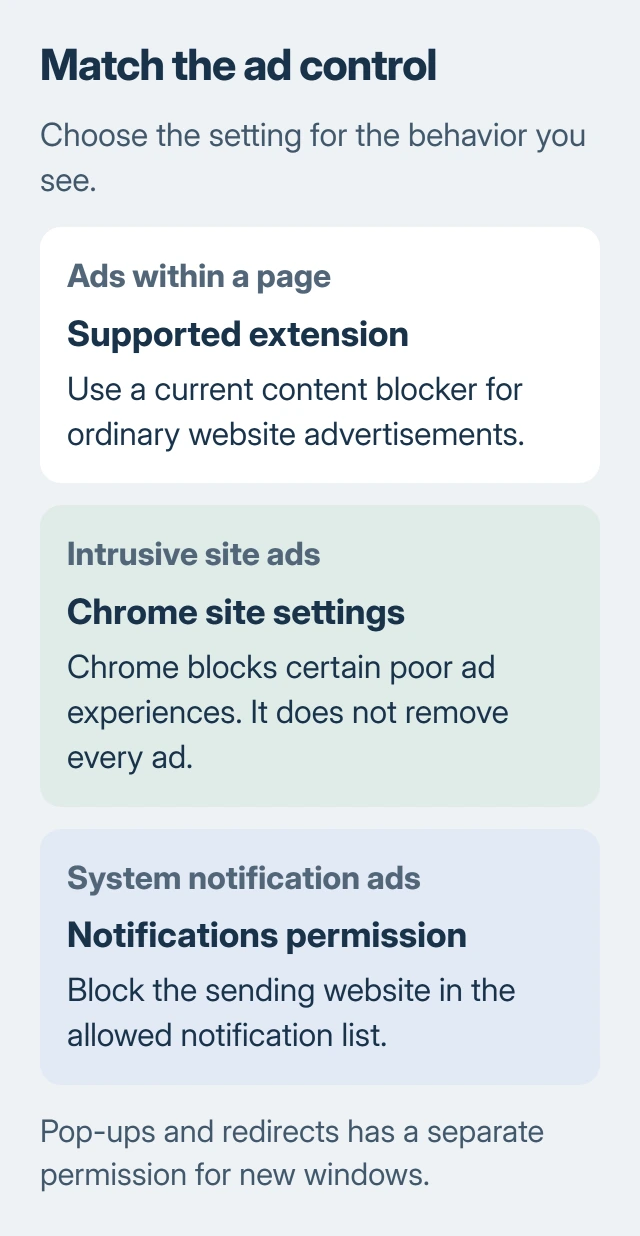
Choose the setting that matches what you're seeing. Ads inside a page, new pop-up windows, and desktop notification ads use different controls. Changing one won't necessarily stop the others.
Choose a blocker that current Chrome supports
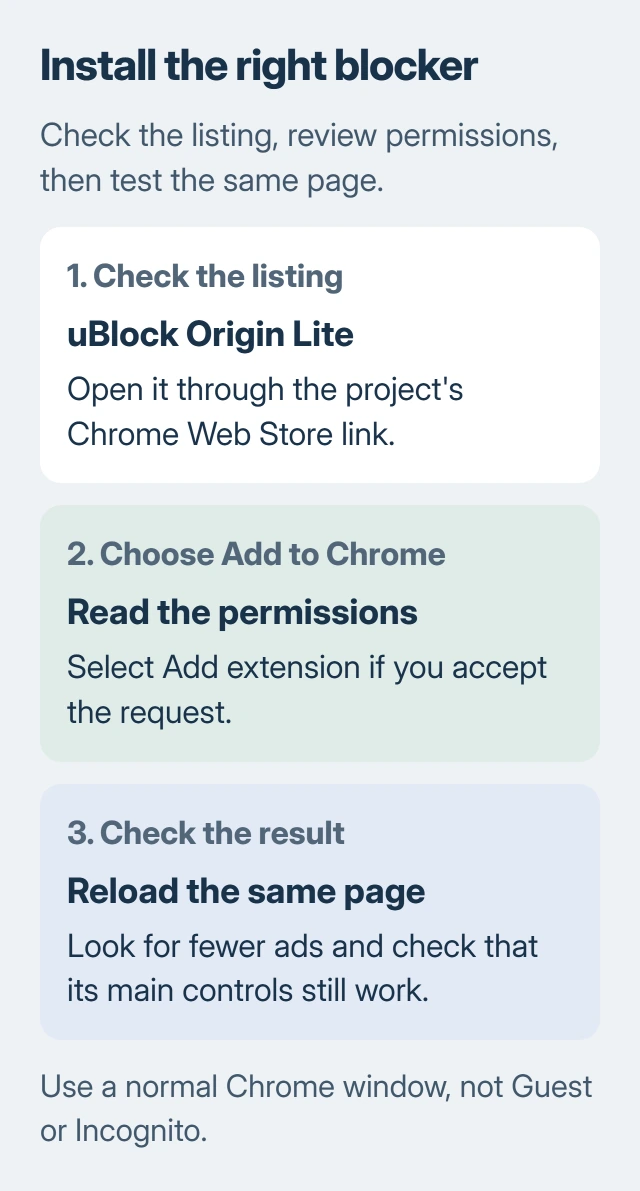
On Windows, Mac, or a Chromebook, open the uBlock Origin Lite project and follow its Chrome Web Store installation link. This leads to the extension's own listing rather than a similarly named search result.
Check that the listing is uBlock Origin Lite. The original uBlock Origin and Lite are different extensions. You'll need to install Lite separately; your old extension won't automatically turn into it.
Lite uses Chrome's current extension system, called Manifest V3. It matters when Chrome has disabled your old blocker because it no longer supports it. Keeping an old Chrome version to run that extension isn't a useful long-term fix.
Use one content blocker while setting this up. The developer's FAQ advises against running others alongside Lite. Several blockers can interfere with each other, making it harder to tell why a page breaks.
If you have another blocker installed, switch it off before checking the result. Leave unrelated extensions on for now, so you're only changing the ad blocker during this first check.
Install it and check the same page again
Select Add to Chrome, read the permission request, and choose Add extension if you accept it. Google's extension installation steps explain this confirmation and how to manage the extension afterward.
Use a normal Chrome window; you can't add extensions in Guest mode or Incognito. If your company or school manages Chrome, it can block installation. Ask your administrator for approval if installation is blocked.
Open Chrome's Extensions menu beside the address bar and select the blocker. Pin its icon if you want quick access. Then return to a website you already had open and reload it so the new filtering can take effect.
Check the same page after reloading. Different pages show different ads, and an old tab may still show content from before installation. Look for fewer ads and check that the page's main controls still work.
If the icon is missing, open Extensions > Manage extensions and confirm Lite is installed and enabled. Installing it in another Chrome profile doesn't automatically carry it over to the one you're using now.
Adjust filtering only when the page needs it
Open Lite's popup while you're on the affected site and check its filtering mode. This controls how much it can filter. Changing the mode can also prompt Chrome to ask for permission to read or change the site's content.
I'd start with the settings it comes with and check the websites you actually use. Before granting more access, read Chrome's permission request; a stronger-sounding setting isn't a reason on its own to accept it.
If ad spaces remain, Lite's Complete mode adds generic cosmetic filtering: it hides matching parts of the page. That differs from stopping the request that loads an ad. The FAQ explains how the two work.
After changing a mode, reload the site and try what you came to do. Check its player, sign-in, or checkout. More filtering can change how a page works as well as how it looks.
If a page breaks, reduce its filtering and reload. If the missing control returns, keep the exception just for that site. The Chrome ad-blocker controls let you pause the extension when needed.
Keep Chrome's intrusive-ad protection enabled
Open Settings > Privacy and security > Site settings > Additional content settings > Intrusive ads. Choose the option that blocks ads on sites known to show intrusive or misleading ads.
That setting can help alongside a regular blocker, but it only targets certain ads. An ordinary ad still showing on a page doesn't mean Chrome's built-in protection has failed; it isn't designed to remove all advertising.
If one website behaves differently from your default setting, check its saved exceptions. A permission you changed for that site earlier can explain why its ads still appear.
On Android, the route is Chrome > three-dot menu > Settings > Site settings > Intrusive ads. Read the switch's description and leave intrusive ads blocked. Desktop Chrome extensions don't install into Android Chrome as phone extensions.
The unwanted-ad guidance also covers unwanted software, which needs different checks from ad permissions. Ignore programs advertised by a webpage claiming your PC is infected.
Stop pop-up and notification ads at their own controls
For new windows or tabs, open Site settings > Pop-ups and redirects in desktop Chrome. Keep unwanted pop-ups blocked and check which sites you've allowed. This controls new windows, rather than ads inside a page.
A document or sign-in you need may require an exception. Follow the single-site pop-up instructions to allow that window without allowing pop-ups on every website.
For ads appearing as system notifications, open Site settings > Notifications. Find the sending website in the allowed list and block it. Removing an ad extension doesn't take away a site's permission to send notifications.
If your homepage changes by itself or an unwanted extension returns, check your installed apps and extensions for unwanted software. Save a browser reset for that problem; installing a blocker doesn't require one.
If one site still shows ads or breaks, use the blocker's support control to report the page and what doesn't work. For a locked browser setting or blocked installation, contact your organization's administrator.
The Short Version
Use a supported extension for ordinary website ads. Keep intrusive ads blocked separately, and change pop-up or notification permissions when those are the source. Reload and check the same page after each change.
Checked November 6, 2026.

Isaac Smith is the founder and editor of PC Glance, a website that covers computers, laptops, and technology. He is a tech enthusiast and a computer geek who loves to share his insights and help his readers make smart choices when buying tech gadgets or laptops. He is always curious and updated about the latest tech trends.