
A disabled touchpad can look like an HP EliteBook hardware fault. Check the switch first: on supported models, double-tap the upper-left corner to turn the pad on. Other EliteBooks use Windows settings.
A pointer that moves but won't tap or scroll needs different checks from a pad that doesn't respond at all. Test movement, clicking, and two-finger scrolling separately before changing drivers.
1. Check the corner control and remove the mouse receiver
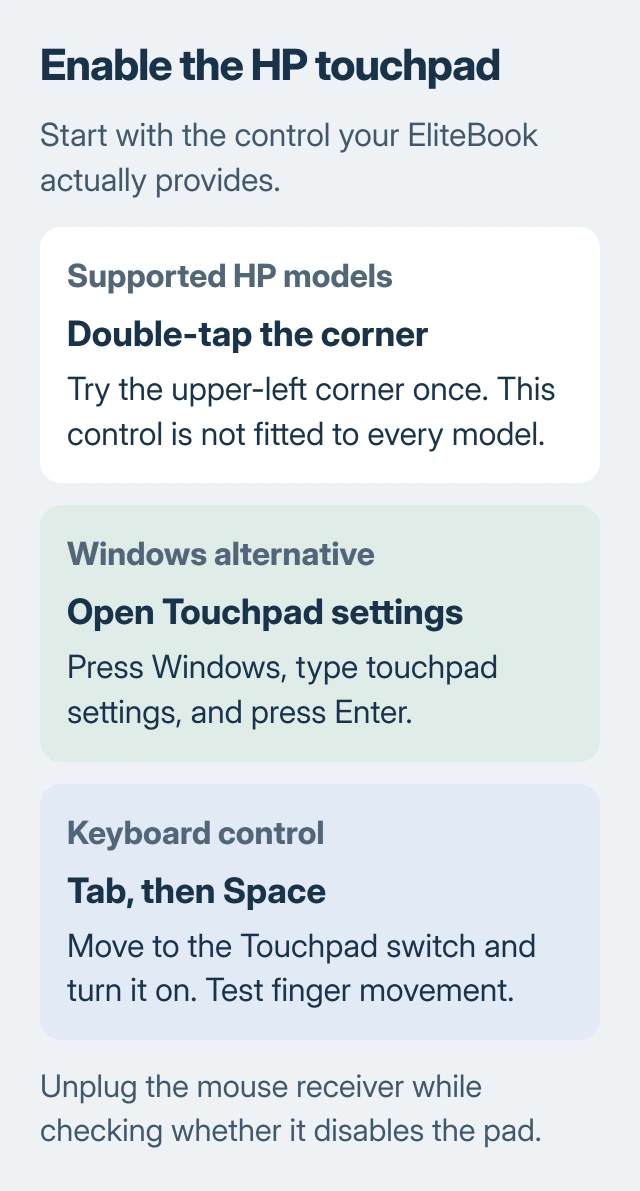
Double-tap the upper-left corner once if your model has that touchpad control. Some HP pads show a small light when disabled. If nothing changes, don't keep tapping: not every EliteBook has this feature.
HP's touchpad control guide describes the corner control on supported models and the separate Windows switch. A shortcut listed for another HP laptop isn't a universal EliteBook key combination.
If a key has a touchpad symbol, use the shortcut shown in your EliteBook's manual. Some keyboards also need Fn. An unmarked function key isn't a reliable touchpad shortcut.
Unplug any wireless mouse receiver and disconnect your external mouse for now. The receiver can make the laptop turn off its touchpad automatically, even when the wireless mouse itself is off.
Try moving the pointer with your finger again. If removing the receiver brings it back, check the mouse-connected option in the next section. Otherwise, leave the receiver out while you check the Windows touchpad switch.
2. Enable the touchpad from the keyboard
Press the Windows key, type touchpad settings, and press Enter. Windows 11 places the page under Settings > Bluetooth & devices > Touchpad. Windows 10 uses Settings > Devices > Touchpad.
Use Tab to highlight the Touchpad switch, then press Space to turn it on. A USB mouse can make this easier, but the keyboard lets you reach the setting even when your pointer won't move.
Check Leave touchpad on when a mouse is connected to keep both devices available. On Windows 11, expand the Touchpad control if needed to see that option. Test the pad before reconnecting the receiver.
If this fixes it, reconnect your mouse and check that both work. If Touchpad is already turned on, or you can't find its settings page, try the restart and device checks next.
The general touchpad repair guide covers what happens when a mouse is connected to other laptops. For your EliteBook, continue with the HP controls and tests in this guide.
3. Restart without the dock and clean the pad
Save open work and select Start > Power > Restart. If the laptop normally sits on a dock, test it away from that dock with its proper power adapter connected. Leave unnecessary USB devices disconnected for this comparison.
After signing in, test movement and clicks with accessories still disconnected. Reconnect them one at a time. If one dock or accessory makes the pad stop working again, tell support; its connection needs checking.
Wipe the touchpad with a soft, lint-free cloth and use it with dry fingers. Moisture or residue can make tracking erratic. Check again after the surface is dry, especially if the pointer skips rather than stopping completely.
If the pad is lifted or the case is separating, stop using the laptop and arrange service. Don't press the pad back into place or open a work-issued EliteBook yourself.
4. Change gesture settings only if movement works
If one finger moves the pointer normally, open Touchpad settings and expand Taps. Turn on the tap action you want. For two-finger scrolling, check Scroll & zoom; failed scrolling doesn't mean the whole pad has stopped working.
Try a physical click separately from a light tap. Clicking can still work when tapping is turned off. If the pointer moves but the pad won't physically click, tell the repair team exactly that.
On a Windows Precision Touchpad, the settings page may have a Reset control for settings and gestures. Note your custom gestures before using it to fix mixed-up settings. Test each action afterward.
For a Dell laptop on the same desk, use its separate touchpad driver and test instructions. The Dell downloads and SupportAssist test aren't for your HP EliteBook.
5. Update or reinstall the identified touchpad device
Let Windows install its available updates, then restart when asked. In Windows 11, open Settings > Windows Update. Windows 10 uses Settings > Update & Security > Windows Update. Test the pad again after restarting.
Microsoft's touchpad troubleshooting steps recommend Windows Update and Device Manager. A touchpad can appear under either Human Interface Devices or Mice and other pointing devices.
Right-click Start, open Device Manager, and check both groups. Open your touchpad's Properties and note any error in Device status. A missing device needs different follow-up from one that appears with an error.
Use HP Support Assistant, if installed, to get updates for your model. For a work laptop, ask IT to check its approved drivers. A touchpad driver for a similar EliteBook isn't automatically the right one for yours.
If updates don't help and you can identify the touchpad, right-click it, select Uninstall device, and restart. Windows then tries to restore its driver. Keep another way to control your laptop available during this step.
6. Send HP or IT the model and the test results
If the driver returns but the pad stays dead, contact HP or your workplace repair team. Give them your EliteBook's full model, Windows version, and Device Manager error. Explain which checks changed how it behaved.
Report movement and physical clicking separately. Say whether the pad works after restarting, fails after sleep, or stops only with the dock attached. Those details help the repair team see the same problem you do.
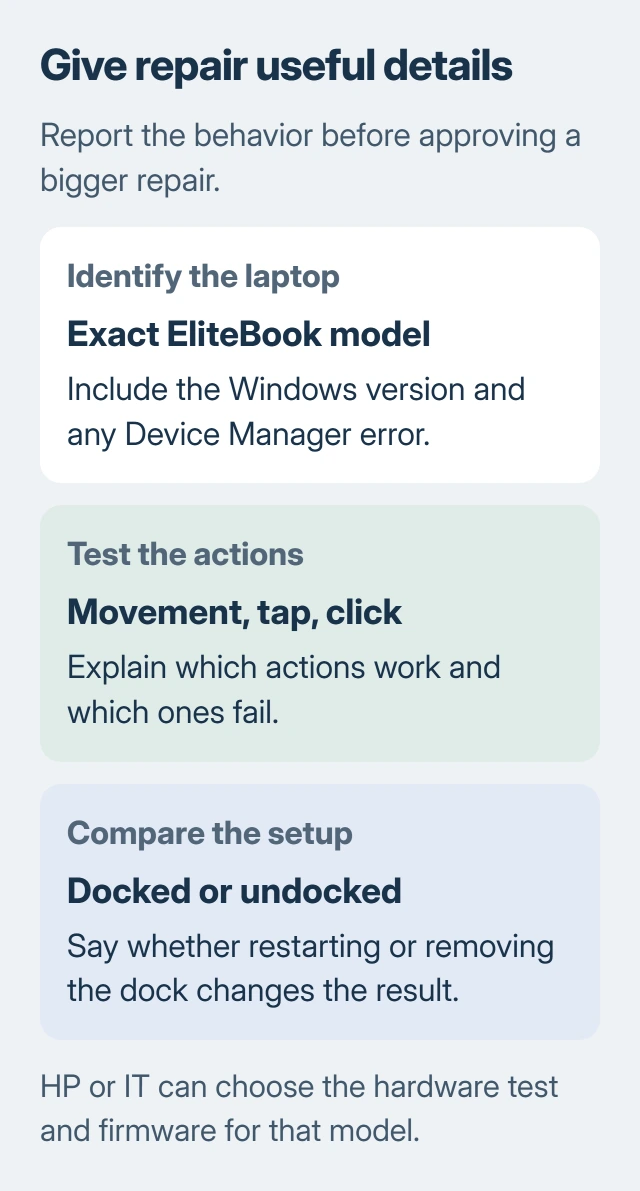
Ask for the hardware test and any firmware package for your exact model. Firmware is software stored in the device itself. Like a driver, it needs to match your laptop.
I'd give the repair team these details before saying yes to a Windows reset. They help the team choose a software repair, the right hardware test, or service for the pad and its connection.
The Short Version
Try the supported HP corner control and Windows switch, then remove the receiver or dock for comparison. Check gestures separately from movement, repair the matching driver, and report the exact results to HP or IT.
Checked November 6, 2026.

Isaac Smith is the founder and editor of PC Glance, a website that covers computers, laptops, and technology. He is a tech enthusiast and a computer geek who loves to share his insights and help his readers make smart choices when buying tech gadgets or laptops. He is always curious and updated about the latest tech trends.