

For an HP Windows laptop, choose Start > Power > Shut down after saving your work. Wait for it to finish turning off. Closing the lid or briefly pressing the power button can put it to sleep instead.
Pavilion, Envy, Spectre, Victus, and EliteBook models running Windows use Windows controls. An HP Chromebook uses ChromeOS. For a frozen laptop, try a normal keyboard shutdown before holding the power button.
In this guide
Shut down a working Windows laptop from Start
Save open documents and finish any file transfers. Close an app if it still has an unsaved-work prompt. Windows can then close your session without stopping to ask whether to save a document.
On Windows 11, select Start, select Power, then select Shut down. The Start button is usually near the center of the taskbar, although Windows can place it at the left.
On Windows 10, select Start on the taskbar's left side, choose Power, then Shut down. Microsoft says its shutdown instructions cover both versions.
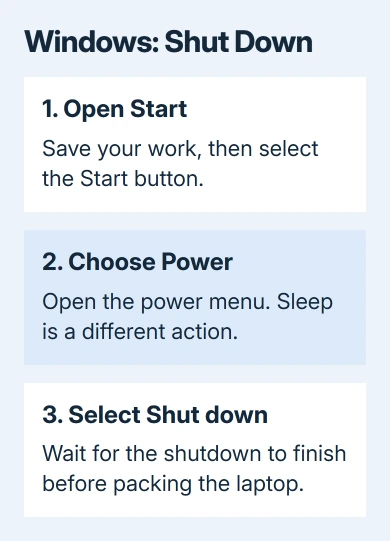
Wait for the shutdown screen to finish and the power indicator to go out. A charging light may remain on while the charger is connected. That light shows charging, so you don't need to force the laptop off because it stays lit.
The laptop may still be running even with a dark screen. Windows can turn the display off while keeping the session running. Let the normal shutdown finish before closing the lid and packing the laptop away.
Use the keyboard when the touchpad isn't available
Press Windows + X, then use the keyboard to select Shut down or sign out > Shut down. This opens Windows' shortcut menu without the touchpad. Check the selected command before pressing Enter.
Another route is Ctrl + Alt + Delete. On the security screen, use Tab to reach the Power control, press Enter, and select Shut down. This can help when the desktop or Start menu isn't responding normally.
If the desktop still works, press Windows + D to show it, then Alt + F4. In Shut Down Windows, choose Shut down and confirm. Make sure the desktop is selected: Alt + F4 inside an app closes that app instead.
Some HP keyboards use the top row for brightness, sound, and other action keys. If F4 doesn't behave as a function key, try Fn + Alt + F4 while the desktop is selected. The Windows + X route avoids that top-row difference.
All of these keyboard routes start a normal Windows shutdown. They don't cut power immediately. If a save prompt appears, handle it rather than assuming the keyboard command failed.
For an HP with a failing pointer, use the appropriate HP EliteBook touchpad checks after restarting. A pointer problem doesn't require forcing power off when Windows still accepts keyboard commands.
Check what a short power-button press does
Your Windows power settings decide what happens when you briefly press the physical button. It can put the laptop to sleep, hibernate, shut down, or do nothing. It isn't a universal shutdown shortcut across HP laptops.
To choose its behavior, search Start for Control Panel. In category view, open System and Security > Power Options, then select Choose what the power buttons do.
Beside When I press the power button, choose Shut down for On battery and Plugged in, as wanted. Select Save changes. If you can't change the control, use the unavailable-settings link if one appears.
The lid has a separate setting on that page. Changing the button's action doesn't automatically change When I close the lid. Leave the lid setting alone unless you also want closing the laptop to request a shutdown.
Before pressing a key, find your model's power symbol. Depending on the HP model, the button can be on the keyboard or along an edge. A fingerprint reader and a power control aren't always the same part.
I'd use the Start menu for everyday shutdowns until you're sure how your button is configured. The menu names the action before you choose it, which is useful on a borrowed or newly purchased laptop.
Give updates and unsaved apps time to finish
If the menu offers Update and shut down, Windows has updates ready to install. Choose that option when the charger can stay connected throughout the update.
Don't interrupt a screen that says an update or firmware installation is in progress. A firmware update changes the laptop's built-in software and can have its own restart sequence, separate from an ordinary Windows shutdown.
If Windows says an app is preventing shutdown, read the app's name. Cancel the shutdown, save the affected work, close that app, and request shutdown again. Forcing past it can discard changes that haven't been saved.
For a computer that still misbehaves after turning off, try Restart. Windows Fast Startup can save part of your system's running setup during shutdown; the restart and shutdown comparison explains that difference.
Shut down an HP Chromebook using ChromeOS
For an HP Chromebook, click the bottom-right time display. Select Power, then Shut down in the menu. This is ChromeOS, so Windows Start-menu commands don't apply.
The Chromebook power controls also support holding the power key for three seconds, or holding it until the power-off menu appears. Choose Power off when that menu is shown.
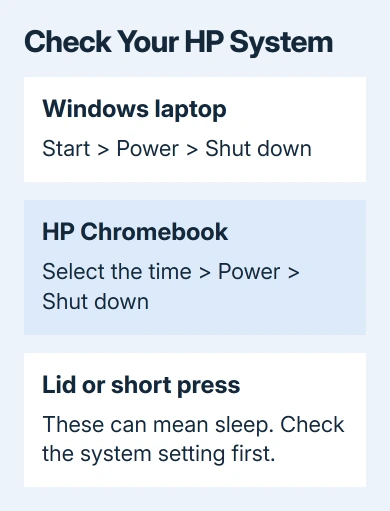
A Chromebook normally sleeps after you close its lid. Choose shutdown to switch it fully off. If your organization manages the Chromebook, its administrator can explain power controls that look unfamiliar.
Force power off only when the laptop is frozen
If Windows won't respond to the normal menu or keyboard routes, keep the laptop's power button held down until it switches off. This is an emergency action and can lose unsaved work.
The hold time varies by model. The HP 15 Notebook PC service guide specifies at least five seconds when Windows shutdown procedures don't work. Check your model's guide, since that time doesn't apply to every HP laptop.
After it turns off, release the button. Turn it on normally when you're ready, then check whether the freeze returns. Don't remove an internal battery or open the case just to perform a routine shutdown.
For repeated freezes or failed shutdowns, open your product's HP Support page and choose power or startup help. Provide the product number, Windows version, and which parts stay active: screen, fan, or power light.
The Short Version
Use Start > Power > Shut down on Windows, or the time > Power > Shut down controls on an HP Chromebook. A short button press and closing the lid can mean sleep. Hold the physical power button only for an unresponsive laptop.
Checked November 13, 2026.






