

Motorola phones can stay black when frozen or too flat to start. Try a Power-button hold of up to 30 seconds, then check charging. If the handset rings with a black screen, check the display instead of changing cables.
The timing depends on your model and whether it's frozen or won't start. The moto g23 uses Power alone for these restarts, rather than Power + Volume Down.
1. Hold Power long enough for a forced restart
Press and hold Power without repeatedly releasing it. For a moto g23 that won't start, the manual gives 5-7 seconds, or up to 30 seconds. For its frozen or blank-screen procedure, hold it for about 30 seconds.
Watch for the Motorola logo or a restart. Release the button when the phone begins restarting, then let it reach the lock screen before trying your usual apps.
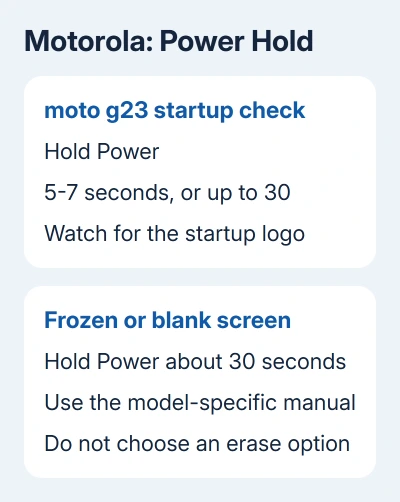
These timings come from the moto g23 startup instructions. For a different Moto G, Edge, or Razr, check that model's manual if its button instructions differ.
A volume-button combination can open a startup menu on a Motorola phone. If a menu appears, don't choose an erase option while trying to restart. Use the normal Start option when available, or check the model's instructions.
2. Give a depleted battery a working power source
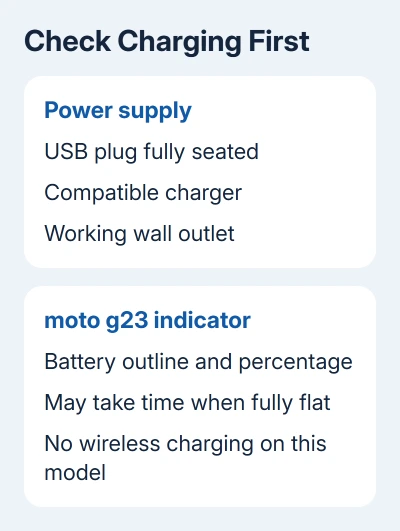
Connect the phone to its supplied charger or a compatible replacement, then use a working wall outlet. Check that the USB plug sits firmly in the port. Remove a case that obstructs the charging connector.
For a completely depleted moto g23, the charging instructions say to wait about 10 minutes before pressing Power. The battery needs enough voltage before it can show normal charging behavior.
When that phone is off and charging, it shows a battery outline and percentage. With a fully discharged battery, the indicator may not appear immediately. Give it time before judging by the screen alone.
Try another compatible cable and charger if the phone remains unresponsive. Inspect the cable and plug for damage, and compare a second outlet if the first is switched off or loose.
Google recommends trying another cable, charger, and outlet in its Android power checks. Its general depleted-battery advice recommends a charging period of 30 minutes or longer before restarting.
Follow your model's charging time; ten minutes isn't a deadline for every Motorola. The g23's frozen-screen procedure says to charge at least five minutes, then repeat the Power hold while connected.
3. Match the charger to the phone's actual features
Use USB for a model without wireless charging. The moto g23 doesn't support wireless charging, so putting it on a charging pad can't revive its battery.
Charging features vary across Motorola models. Check yours before using a pad, a particular fast-charging mode, or a charger borrowed from another device.
I'd check the cable and outlet before attempting a software recovery. Those checks are quick, and software repair can't give a flat battery the power it needs to start.
If charging itself is the problem, the Android charging checks cover that path. Stop charging a phone with a swollen battery or visible liquid damage and arrange service.
4. Call the phone to check a black display
From another phone, call its number after charging and attempting the restart. Listen for ringing or a notification from the Motorola itself, rather than relying on the ringback tone heard by the caller.
If the Motorola rings but shows no picture, it's running and its display needs attention. Ask for a screen check when arranging service.
Silence doesn't tell you the battery has failed. The phone could be muted, out of coverage, or unable to receive calls. Also note any logo, vibration, or charging indicator.
If the screen comes back after the forced restart but freezes again, check the phone's available storage and app and system updates.
5. Treat a repeating logo as a startup failure
A phone that repeatedly shows the Motorola logo is receiving power but isn't finishing startup. Record whether that began after an update, a drop, or liquid exposure, and give that information to support.
The model's startup help may offer an external reset or Motorola Software Fix on Windows. Before trying either, finish the power and display checks and decide what data you need to keep.
An external factory reset erases local data. Before choosing it, read the Motorola reset procedure and check which account will be required during setup.
For files without a backup, ask Motorola Support about repair and data options before approving an erase or reinstall. A phone that stays unresponsive despite working charging equipment needs a battery, port, and hardware check.
Ask for service for your exact Moto G, Edge, or Razr model. Include the charging time, charger comparison, Power-hold result, and whether the phone rang with a black screen.
The Short Version
Try the model's Power-only restart, then check a compatible charger and allow time for a depleted battery. Ring the phone to check for a running handset with a failed display. Discuss data before a factory reset or software reinstall.
Checked November 7, 2026.

Isaac Smith is the founder and editor of PC Glance, a website that covers computers, laptops, and technology. He is a tech enthusiast and a computer geek who loves to share his insights and help his readers make smart choices when buying tech gadgets or laptops. He is always curious and updated about the latest tech trends.