
ARC Raiders crashing on PC can point to damaged installation files, graphics drivers or Easy Anti-Cheat. Start with Steam's file verification for an ordinary crash, but use the exit code when the game gives you one.
An exit code of 0 or 0x1 needs a different repair from 0x3. A PC that restarts during play needs different checks from a game that closes to the desktop.
1. Verify the installation and check Raider Voice
In Steam, open Library, right-click ARC Raiders, and choose Properties > Installed Files > Verify integrity of game files. Let the scan finish before starting the game again.
Verification replaces damaged or missing installation files. Retry whatever crashed: opening the menu, loading a raid or entering play. If it crashes again, save the full error text so you can match it to a repair.
If you can reach the settings and have Raider Voice (Beta) enabled, disable it before another launch. Embark's PC crash guidance lists this beta feature as a possible cause for some players.
I'd check the files and voice setting before spending time on a full reinstall.
2. Update the graphics driver and Windows
Press Windows + R and enter dxdiag. Select Display to identify your graphics card. Use the matching NVIDIA, AMD or Intel update app to install the driver for that hardware, then restart.
On a laptop with two graphics processors, write down both names for support if the crash continues. The first tab may show only the integrated graphics chip.
For Windows 11, open Settings > Windows Update > Check for updates. On Windows 10, use Settings > Update & Security > Windows Update. Restart when prompted, then retry the game.
Modern DirectX updates come through Windows Update.
If the entire PC restarts and the timing matches a Windows update, compare the documented Windows game-crash problem. It covers a separate driver fault, so check whether its symptoms match yours.
3. Remove administrator mode for exit code 0 or 0x1
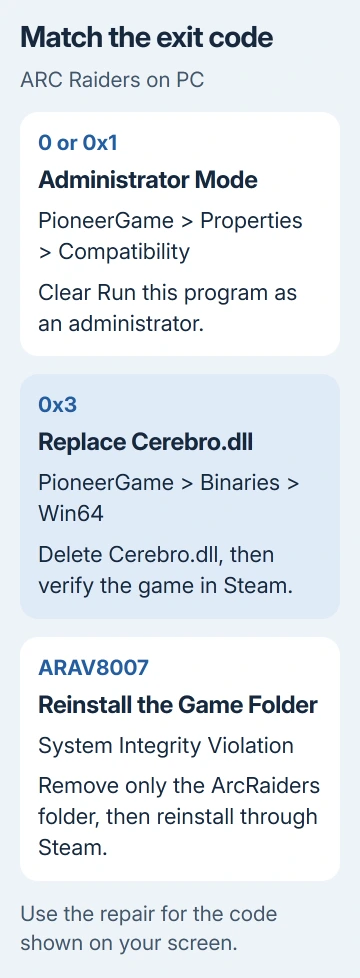
For these two codes, the developer recommends turning administrator mode off. Running the game as an administrator can keep this launch error going.
Open the game's installation directory. For exit code 0, look in PioneerGame > Binaries > Win64. For 0x1, check the main ArcRaiders folder instead.
Find the PioneerGame application, right-click it, then choose Properties > Compatibility. Clear Run this program as an administrator, select Apply, and launch through Steam again.
If you installed the game on another drive, use that installation folder. If the same code returns, send support the code and the application's folder path.
4. Replace Cerebro.dll only for exit code 0x3
Close the game. In its installation directory, open PioneerGame > Binaries > Win64 and find Cerebro.dll. This is the file identified for the 0x3 repair, so check the filename carefully.
Delete that file, then return to Steam and run the verification from step 1. Verification downloads a replacement. Launch again after it finishes and check whether the exit code has gone.
If Windows hides file endings, enable View > Show > File name extensions in Windows 11 File Explorer. In Windows 10, select File name extensions on the View tab.
Don't replace this DLL with a file from a download site. The repair depends on restoring the game's own file. If 0x3 remains after verification, report that the replacement didn't clear it.
5. Restart for Easy Anti-Cheat launch errors
For 30005, restart the PC first. This error can occur when Easy Anti-Cheat can't start because another program has locked one of its files. A restart releases the stuck process or file.
For Maximum Simultaneous Game Instances Reached, press Ctrl + Shift + Esc and look for the ARC Raiders process in Task Manager. End that process and launch again.
If the process isn't listed, restart the PC to clear the remaining anti-cheat state. If the error returns immediately, use the Easy Anti-Cheat support link in the developer's crash page for that exact message.
6. Reinstall for ARAV8007, then report persistent crashes
System Integrity Violation - ARAV8007 means the game detected unexpected changes to its file structure. Close it, remove its ArcRaiders installation folder, and reinstall through Steam, as the developer directs for this code.
Remove only the game's folder, not the containing common folder or your Steam library. If you're unsure which folder belongs to the game, use Steam's local-file browser before deleting anything.
For an ordinary crash that survives these checks, close overlays and other third-party tools before another attempt. If the crashes stop, enable each tool separately and retry the game to spot the conflict.
If it still crashes, submit a request through the ARC Raiders Help Center. Include the exact message, Windows version, graphics card and driver, when the crash happens, and what you've already tried.
The Short Version
Verify the installation for ordinary crashes. Match 0/0x1 to administrator mode, 0x3 to Cerebro.dll, and ARAV8007 to reinstalling the game folder. Restart for a stuck anti-cheat instance; report repeated failures with the full code.
Checked November 7, 2026.

Isaac Smith is the founder and editor of PC Glance, a website that covers computers, laptops, and technology. He is a tech enthusiast and a computer geek who loves to share his insights and help his readers make smart choices when buying tech gadgets or laptops. He is always curious and updated about the latest tech trends.