

An ant stuck inside a monitor is a physical obstruction that software can't remove. Owners who removed dead insects between screen layers had to open the panel. Ask a repair shop about cleaning it, and don't press on the spot.
First check whether the insect is on the outside surface or behind it. A moving insect and a fixed speck need different decisions.
1. Check the surface without pushing on the panel
Switch the monitor off and look at the spot in ordinary room light. Check the front surface from an angle. If the insect is outside, remove it gently without crushing it against the display.
For a mark rather than a moving insect, use a clean microfiber cloth with very light pressure. Stop when the speck remains fixed behind the surface. Harder rubbing can't reach something trapped inside.
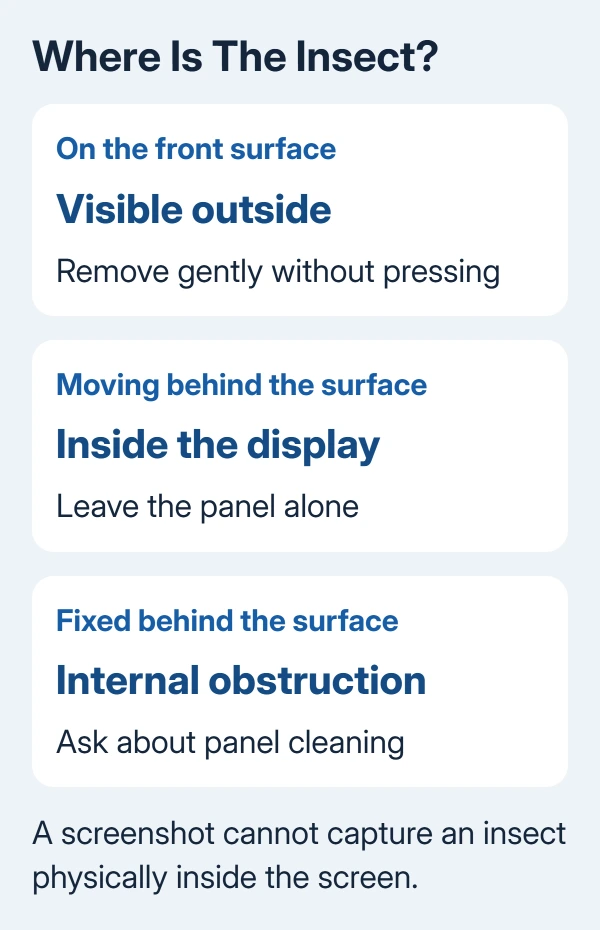
The monitor panel care instructions warn against pressure and unsuitable cleaning products. If the spot is surface dirt, follow the computer monitor cleaning steps for that display.
Watch for movement before deciding that a tiny dark shape is an ant. A dead insect, dust and damaged pixels can all look like small dark marks during normal use. Its shape alone doesn't identify what layer it's in.
If the object moves behind a surface you can't touch, stop cleaning. Ask a repair shop about removing it from inside the panel.
2. Separate a screen obstruction from an image fault
Open the monitor's own menu with its physical controls. Compare the spot against a different background or the monitor's no-signal display after disconnecting the video cable.
If the spot stays after the computer's picture disappears, the problem is in the monitor. It doesn't tell you exactly where the object sits, but it rules out a mark drawn by that particular app or desktop image.
Take a screenshot on the computer and view the file on another device. If the same mark is in that file, it was part of the picture. An insect physically inside the monitor won't appear in the screenshot.
Take a phone photo of the screen for support. A clean screenshot won't show them the object you're seeing.
If changing the signal removes the mark and the picture has resolution or connection trouble, use the monitor connection checks to check the signal.
3. Leave a moving insect alone and avoid forced removal
Turn the monitor off while you arrange help. A live insect may move on its own while you wait, but it may remain trapped.
Don't press on the insect, spray insecticide into the vents, insert a tool through the case or push a vibrating tool against the display.
I'd leave the front surface alone rather than try a suction cup. In the confirmed removal discussion, the original asker returned to say the suction method hadn't worked.
That thread also suggests vibration and leaving the screen off, without confirmed results for those steps. Internal removal depends on the panel and where the insect sits.
4. Ask about panel cleaning when the insect stays
Owners report removing insects by disassembling their monitors in that discussion. One found them between the LCD and a light-spreading sheet called the diffuser. Other owners described successful cleaning on different monitor models.
Opening the panel worked for those owners, but the steps depend on the monitor. A guide for an Acer panel isn't a safe set of opening steps for an unrelated Dell, Samsung or LG display.
Contact the maker or a display repair shop with the model number and phone photo. Say whether the insect is moving, whether the mark survives with the video cable disconnected, and whether it sits behind the front surface.
Ask about cleaning that panel layer, coverage and the repair price compared with replacement. The seller or manufacturer decides whether the repair is covered; an insect inside doesn't automatically qualify for a free panel.
If the panel is sealed or cleaning costs too much, replacement may be the practical answer.
The Short Version
Check the ant's location before attempting removal. Photograph the obstruction and ask about panel cleaning if it stays inside. Confirmed internal removals involved disassembly; pressing the screen can damage it.
Checked November 7, 2026.

Isaac Smith is the founder and editor of PC Glance, a website that covers computers, laptops, and technology. He is a tech enthusiast and a computer geek who loves to share his insights and help his readers make smart choices when buying tech gadgets or laptops. He is always curious and updated about the latest tech trends.