

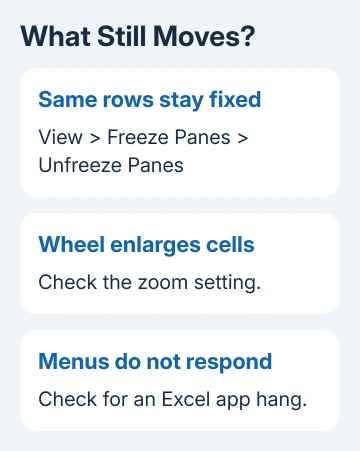
Excel that won't scroll past the same rows often has too much of the sheet frozen. Open View > Freeze Panes > Unfreeze Panes first. If the wheel changes the zoom instead, check the wheel option rather than the frozen rows.
Missing scroll bars, arrow keys that move the wrong thing and an app that has stopped responding are different problems. What still moves on screen tells you which setting to change.
1. Unfreeze a sheet that stops at the same place
Select the affected worksheet, open View, then Freeze Panes, and choose Unfreeze Panes when it appears. Try scrolling again and watch the row numbers at the left.
A frozen area stays in place while the remaining part of the worksheet moves. If the frozen part fills the visible window, the whole worksheet can seem stuck.
Microsoft describes this oversized frozen-pane problem. Selecting another cell can still work while the frozen area keeps the view stuck.
Once scrolling works, freeze only the headers you need. The top-row and first-column setup explains how the selected cell determines which rows and columns stay fixed.
If the sheet has separate movable panes instead, check View > Split. Turn Split off to return to one view. A split and a frozen area aren't the same feature.
2. Stop the wheel from changing the zoom
Roll the wheel while watching Excel's zoom percentage. If the cells grow or shrink instead of the row numbers changing, Excel is receiving a zoom action.
Release Ctrl and try again. Holding Ctrl while rolling the wheel zooms a worksheet. Check that the key isn't being held down by something on the desk.
In Windows Excel, open File > Options > Advanced. Under Editing options, clear Zoom on roll with IntelliMouse, then select OK and try the wheel again.
The Advanced options reference describes that switch as making the wheel zoom instead of scroll. It doesn't change the wheel's speed or sensitivity.
If dragging the vertical scroll bar works but the wheel still doesn't, try the wheel in another app. If it fails there too, check your mouse or touchpad.

3. Restore a missing scroll bar
When the worksheet moves with Page Down but has no visible bar to drag, open File > Options > Advanced. Find Display options for this workbook and check that the named workbook is the one you're using.
Enable Show horizontal scroll bar and Show vertical scroll bar, then select OK. These settings apply to the selected workbook, so another file can behave differently.
On a Mac, open System Settings > Appearance > Show scroll bars and choose Always. Older macOS versions put that system preference under System Preferences > General.
If the bars still don't appear, use the missing Excel scroll-bar checks. Those steps cover window size and workbook display options that can hide the bars.
4. Match the arrow-key behavior to Scroll Lock
Watch the active cell's outline while pressing an arrow key. Normally it moves between cells. With Scroll Lock enabled, the keys scroll the worksheet while the active cell stays selected.
Press ScrLk on a keyboard that has it to turn that mode off. In Windows, search Start for On-Screen Keyboard, open it, then select ScrLk if your physical keyboard lacks the key.
This setting fixes keys that scroll instead of changing cells. It isn't the usual repair for a mouse wheel that won't move the sheet. The worksheet navigation instructions explain that distinction.
If you're editing inside a cell, finish or cancel the edit first. While the cursor is inside cell text, arrow keys move through that text instead of selecting neighboring cells.
5. Check whether Excel itself has stopped responding
Try opening a ribbon menu and switching to another worksheet. Then try a blank workbook. If only one sheet is stuck, check its view or workbook. If the menus won't respond in any file, check Excel itself.
If Excel is calculating or processing a large operation, let it finish. Check the status bar for a busy message before closing Excel.
Save anything you can before restarting Excel. Forcing it closed can lose unsaved changes. Reopen the affected file and compare scrolling with the blank workbook again.
If Excel keeps freezing across files, follow the Excel hang troubleshooting. Its Windows steps cover updating Excel and checking add-ins.
If it persists, send Microsoft support your Excel edition and build, operating system, whether one file is affected, and which controls still work. A sample workbook helps when only one sheet refuses to move.
The Short Version
Unfreeze an oversized frozen area first. Check the zoom option for a wheel that enlarges cells, workbook options for missing bars, and Scroll Lock for unusual arrow-key behavior. Treat unresponsive menus as an app problem.
Checked November 7, 2026.

Isaac Smith is the founder and editor of PC Glance, a website that covers computers, laptops, and technology. He is a tech enthusiast and a computer geek who loves to share his insights and help his readers make smart choices when buying tech gadgets or laptops. He is always curious and updated about the latest tech trends.