
Freeing up storage on an iPad starts in Settings > General > iPad Storage. Check which apps and content use the space, then remove replaceable downloads, offload an unused app or optimize photos.
Buying more iCloud storage doesn't increase the iPad's built-in capacity. It helps only when you use a feature that moves full-size content to the cloud and keeps smaller or fewer local copies.
Read the storage list before removing anything
Open Settings > General > iPad Storage and let the list finish loading. Check the space used, the largest categories and the apps near the top. A large game needs a different cleanup from downloaded movies or photos.
Tap Show All if it appears beside recommendations. Read each suggestion before enabling it. Some offer a review screen, while others switch on an automatic cleanup feature.
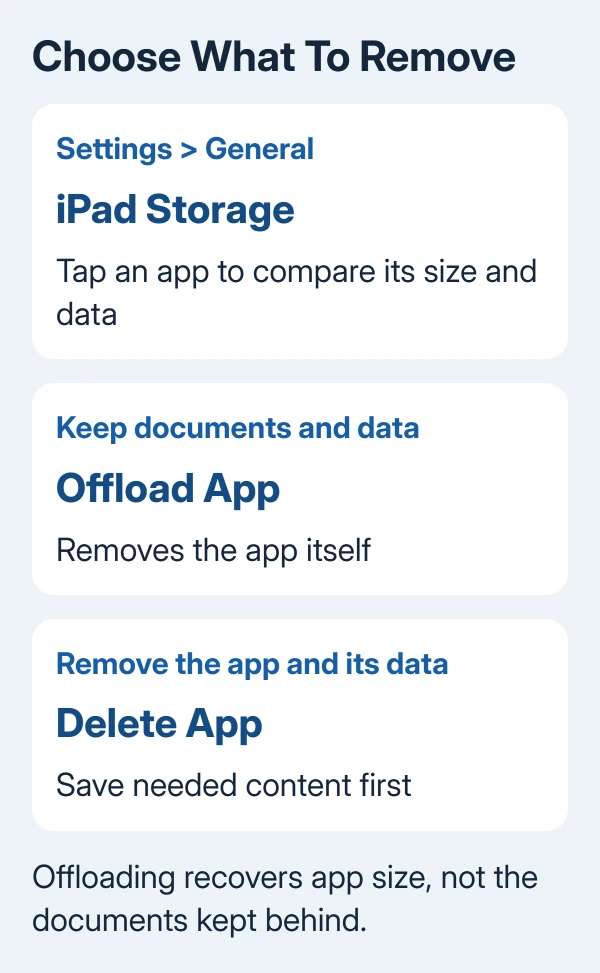
Apple's storage instructions distinguish app size from its documents and data. Tap a large app to see both amounts. If the app itself takes little space but its saved content takes a lot, open the app to manage that content.
I'd start with downloaded entertainment before personal documents. It's usually easier to choose a film to download again than decide which project file you can lose.
Remove downloaded files while keeping cloud copies
Open Files, then Browse or the sidebar, and select iCloud Drive. For a file you want to keep in iCloud, touch and hold it, then select Remove Download when available.
The file stays in iCloud Drive; only its downloaded copy is removed. You'll need a connection to download it again. For several files, use Select, pick them, open More, then choose Remove Download.
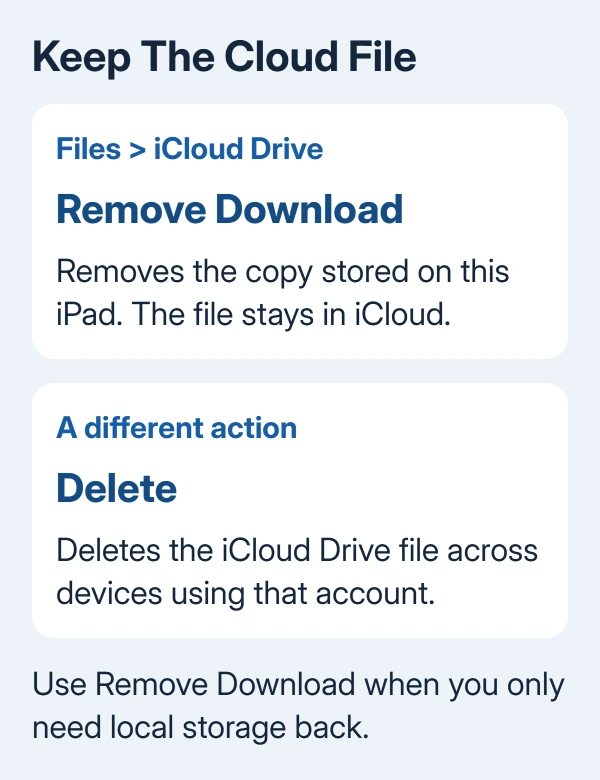
With the Files storage controls, Delete removes an iCloud Drive file across devices using that account. Use Remove Download when your aim is only to clear this iPad.
Files under On My iPad are local storage. Save needed files elsewhere before deleting those local copies.
For movies, music and podcasts, open the app that downloaded them and review its downloads. Remove the items you no longer need offline, then return to iPad Storage to check the space recovered.
If Files freezes before you can manage those downloads, use the iPad Files app fixes.
Offload an unused app or delete it completely
In iPad Storage, choose an app you rarely use and tap Offload App if available. Offloading clears the app installation, leaving its documents and data for when you reinstall it.
Check the two size figures before choosing it. If documents account for nearly all the space, offloading only removes the smaller app installation. Open the app to manage its stored content when that is the larger amount.
Choose Delete App only when you also want its related data removed. Save needed projects or check that they're synced before deleting. Signing into a cloud account doesn't mean every file in the app is synced.
If the storage page offers Offload Unused Apps, you can turn on automatic offloading. Read the description there and enable it only if you're happy to reinstall an offloaded app before using it.
Keep smaller photo copies on the iPad
For a large photo library, open Settings > your name > iCloud > Photos. Check that Sync this iPad is on and that storage optimization is selected. Some versions put that choice inside an iPad Storage submenu.
Choose Optimize iPad Storage, rather than Download and Keep Originals, when you want to reduce local use. Full-resolution photos and videos stay in iCloud, with space-saving versions on the iPad as needed.
Your iCloud plan needs enough space for the library. If you're using a shared plan, the family iCloud storage steps explain how to check that the iPad's account can use it.
Leave time for the library to upload and optimize; the storage figure may not drop immediately. Check the Photos account or sync status if uploading is paused instead of repeatedly changing the storage choice.
Deleting from iCloud Photos removes the picture across the synced library. Use optimization to keep your photos while freeing local space.
Check the result and handle space that won't shrink
Return to iPad Storage after cleanup. Compare the free space and the largest apps with your first check. Reopen the task that needed room, such as saving a file or downloading an update.
System storage contains the operating system; other categories include caches and system files. Focus on removable content. A cleaner app can't remove the operating system.
If iPad Storage still shows the same usage after you've deleted large files, send Apple Support the storage screen and details of what you removed. Ask why that content is still counted before discussing a reset.
The Short Version
Check iPad Storage, then remove replaceable downloads, offload unused apps or optimize photos. Use Remove Download to keep an iCloud Drive file in the cloud. Check the space again before deleting anything else.
Checked November 7, 2026.

Isaac Smith is the founder and editor of PC Glance, a website that covers computers, laptops, and technology. He is a tech enthusiast and a computer geek who loves to share his insights and help his readers make smart choices when buying tech gadgets or laptops. He is always curious and updated about the latest tech trends.