
Hidden apps on Android can be missing shortcuts, launcher-hidden apps, disabled apps or apps in a locked space. Start with Settings > Apps for ordinary installed apps, then check your phone's hiding controls.
Private space and Samsung Secure Folder need a separate check. Their protected apps aren't necessarily visible in the normal app list while the space is locked, so an empty search doesn't mean the app was deleted.
Check the installed app list first
Open Settings > Apps. On a Pixel and many other Android phones, tap See all apps to open the full list. Galaxy phones normally show the list under Apps. Search for the app's name, or scroll through the list.
Tap a matching entry to open App info. This confirms the app is installed in the part of the phone you're checking. It can also show an Open, Enable, Disable or Uninstall control, depending on the app and device.
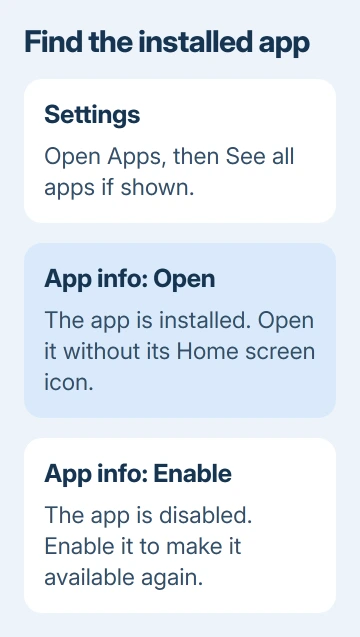
An Open button lets you launch the installed app without finding its icon. Enable means the app has been disabled. Tap Enable if you want to restore it, then look in the app drawer again.
Some system components don't have a screen you can open, so a missing Open button doesn't mean Android has hidden the app. Check the app name and purpose before changing a system entry.
I'd start with this list rather than install a hidden-app finder. It gives you a useful answer without giving another app access to your phone.
Look beyond the Home screen
Swipe up from the Home screen to open All Apps, also called the app drawer. Use its search box if one appears. Google's app-opening instructions describe this route on supported Android phones.
Home screen icons act as shortcuts. Removing an icon from it doesn't necessarily uninstall the app. An app that's still in All Apps can be opened there, even when you can't find it on any Home screen page.
To put a shortcut back, touch and hold the app in All Apps and drag it to a Home screen. Some launchers show Add to Home instead. Release it in an available space and check that tapping it opens the expected app.
A phone using a different launcher may have its own hidden-app settings. Check that launcher's settings menu for Hidden apps or Hide apps. Android doesn't provide one universal hiding menu that every launcher must use.
Check Samsung's hidden-app selection
On a supported Galaxy, open Settings > Home screen, then Hide apps on Home and Apps screens. The selected apps appear in the hidden group. Remove the app from the hidden selection and confirm with Done.
Look in Apps again for the restored icon. This makes the app's icon visible in the launcher again. It doesn't move the app into a separate account or restore data that was deleted.
Older Galaxy models use different wording, including Hide apps and Apply. The Galaxy S10 hiding controls cover those older screens and opening an app while its icon stays hidden.
Don't confuse this selection with Secure Folder. An app hidden by the launcher can still be in your phone's regular app list. An app inside Secure Folder has its own protected location and can have separate sign-in details.
Unlock Private space on supported Android phones
On devices that support Private space, open Settings > Security & privacy > Private space, under the Privacy section. Unlock it with the space's lock, or your device lock if you didn't set a separate one.
Return to All Apps and look for the unlocked Private space container. Once it's unlocked, you can open the apps kept there. If the container was set to hide when locked, scrolling through All Apps before unlocking won't reveal it.
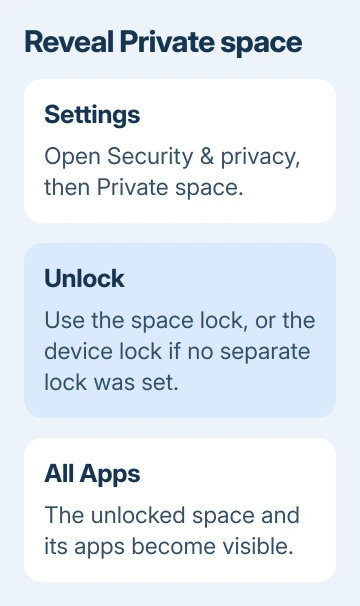
Private space requires Android 15 or later and a device that supports the feature. Work-managed devices and some account setups don't support it. The menu won't appear on every Android phone.
An app installed inside the space is a separate copy. Opening the same app outside it can show a different account or no saved data. The Private space guide explains those separate copies and the hiding switch.
Don't choose Delete private space while trying to reveal an app. That removes the space and its local data. Unlocking is the action that brings its apps back into view.
Open a hidden Samsung Secure Folder
On a supported Galaxy, try Settings > Security and privacy > More security settings > Secure Folder. Use its saved unlock method. The apps inside can then be opened from within the folder.
On older software, Secure Folder can be under Biometrics and security instead. Searching Settings for Secure Folder is useful when the menu names differ from your model's instructions.
The folder's icon can be hidden from the Home and Apps screens without deleting the folder. Some versions also let its name and icon be changed, so scanning for one familiar blue icon can miss it.
After opening it through Settings, check whether the missing app is inside. You don't have to restore the folder's shortcut. The protected copy of the app can stay inside the folder while you use it.
Check for removal when the app still isn't there
Open Play Store, tap your profile picture, then Manage apps & device > Manage. Change This device to Not installed when that filter is available. Use the Google Account that originally downloaded the app.
A match here can help you reinstall an app that was removed. It doesn't show every app installed from another store, and reinstalling won't necessarily restore your app's locally saved data.
For work-managed apps, look at the Work tab in All Apps and whether that profile is paused. A work app can depend on your organization's profile and access rules.
If the app remains missing, give the phone maker your model, Android version and the app's exact name. Ask which hiding or protected-space feature your model uses before resetting anything.
The Short Version
Check Settings > Apps, then All Apps and the launcher's hidden-app selection. Unlock Private space or Secure Folder separately. If the app was removed, use the correct Play Store account to look for it again.
Checked November 8, 2026.

Isaac Smith is the founder and editor of PC Glance, a website that covers computers, laptops, and technology. He is a tech enthusiast and a computer geek who loves to share his insights and help his readers make smart choices when buying tech gadgets or laptops. He is always curious and updated about the latest tech trends.