
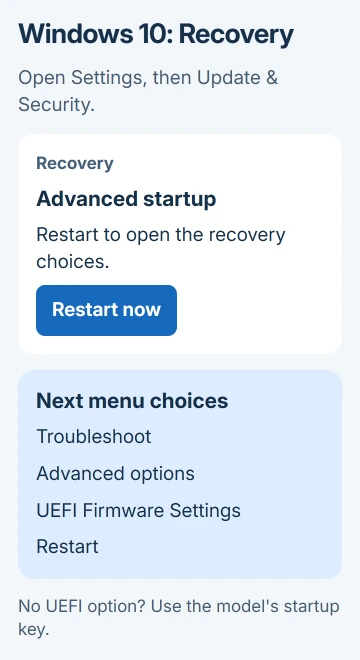
Windows 10 can open BIOS without a perfectly timed key press: use Settings > Update & Security > Recovery > Advanced startup > Restart now. Then choose Troubleshoot > Advanced options > UEFI Firmware Settings > Restart.
That route works when Windows can restart directly into UEFI setup. On an older PC using Legacy BIOS, use the manufacturer's startup key instead. A missing UEFI button doesn't mean the computer has no BIOS.
Open Advanced startup from the Windows 10 desktop
Save your work, close anything that needs to finish and plug in the laptop's charger. Press Windows + I, open Update & Security, then select Recovery in the left menu.
Under Advanced startup, select Restart now. Choose the control in that section, rather than Get started under Reset this PC. The computer should restart into a blue menu instead of returning to the desktop.
Microsoft explains this Windows 10 route in its recovery instructions. From the recovery menu, you can leave Windows and open the computer's firmware settings.
Firmware is the software built into the computer that starts its hardware before Windows loads. Modern firmware is called UEFI, though many manufacturers still label its setup screen BIOS.
I'd use this route while you can still reach the desktop. It saves repeated attempts at pressing a key during a very short startup screen, particularly on a laptop with a fast SSD.
If the desktop won't open but the sign-in screen does, the next section offers another way into the same menu. If neither screen appears, go to the startup-key instructions.
Follow the recovery menus into firmware setup
On the Choose an option screen, select Troubleshoot, followed by Advanced options. Select UEFI Firmware Settings, then choose Restart on the next screen.
The second restart should open the manufacturer's setup screen. Look for the computer model, a BIOS version, hardware information or tabs for boot and security settings. The layout won't resemble Windows Settings.
Some firmware screens support a mouse or touchpad. Others use the keyboard, with the available keys shown along an edge. Read those controls before trying to change anything.
Startup Settings is a different recovery option. It changes how Windows starts, including Safe Mode; it doesn't open BIOS. Return to Advanced options if you selected it by mistake.
Opening setup doesn't install a BIOS update. If an update is the reason for your visit, the BIOS update decision guide helps you decide whether that extra job is necessary.
If UEFI Firmware Settings isn't listed, don't choose a reset or reinstall option in its place. Check the startup mode in the section about a missing UEFI button, or use the correct startup key.
Use Shift and Restart from the sign-in screen
At the Windows sign-in screen, select the Power icon. Hold Shift, select Restart, and keep Shift held until the recovery choices appear. The Power control inside Start offers the same shortcut.
Select Troubleshoot > Advanced options > UEFI Firmware Settings > Restart. This shortcut also restarts into firmware setup, without opening the Settings app first.
Use it when you can't sign in or Settings won't open. It doesn't bypass a firmware password. Get any password setup requests from the owner or administrator.
A BitLocker recovery prompt is separate from the Windows sign-in password. Retrieve the recovery key before adjusting security or startup options on an encrypted PC. A work or school device may have its key held by IT.
If Shift and Restart returns to an ordinary startup, use the manufacturer's key. Repeated forced shutdowns aren't needed just to reach BIOS.
Press the right startup key when Windows won't load
Use the instructions for the computer's exact manufacturer and model. A boot-device menu and the full setup screen can have different keys, even on the same machine.
On a Dell desktop or laptop, restart or switch on the computer and begin tapping F2 when the Dell logo appears. If a laptop treats F2 as a brightness control, try Fn + F2.
Dell also offers F12 for its one-time boot menu. Where BIOS Setup appears in that menu, select it. Choosing a USB drive there would start from that drive instead of opening setup.
For an ASUS notebook, start with the device shut down. Keep F2 pressed as you switch the notebook on, then release it once the firmware screen opens.
For a supported ASUS desktop motherboard, press Delete at the ASUS logo. Use the instructions for your type of ASUS device: holding F2 is for the notebook, while Delete is for a supported desktop motherboard.
For HP, Lenovo, Acer or another make, check the model's manual for its setup key and timing. Don't assume that a key mentioned for a different brand applies to your computer.
Use the laptop's built-in keyboard when possible. On a desktop, a wired keyboard connected directly to the PC avoids depending on a wireless keyboard that isn't ready during startup.
If Windows loads before the key works, select Restart and try again. On Dell systems, Fast Startup can shorten the key-press window after Shut down; Restart avoids that particular startup behavior.
Check BIOS Mode when the UEFI button is missing
When Windows still runs, press Windows + R, type msinfo32, then press Enter. In System Summary, find BIOS Mode. Note whether the value is UEFI or Legacy.
Legacy startup explains why the Windows recovery menu may lack UEFI Firmware Settings. The firmware setup screen can still open through the manufacturer's startup key.
Don't change Legacy to UEFI simply to get a button in Windows. That changes how the computer finds its operating system and can stop the existing installation from starting.
If BIOS Mode says UEFI but the recovery button is missing, use the startup key. Give the manufacturer both details. You don't need to reinstall Windows just to read a firmware setting because that button is missing.
Leave setup safely or ask for model-specific help
When you've finished checking the version or reading a setting, choose the firmware's discard-changes option to leave setup. Check the confirmation wording so you don't accidentally save a setting you touched.
Before changing a storage setting, read the RAID-to-AHCI instructions. Windows may need preparation before the firmware's storage mode changes.
If the correct startup key never opens setup, give the manufacturer's support team the exact model, whether Windows loads and whether the startup logo appears. Ask for that model's BIOS-entry procedure and keyboard requirements.
For a company computer with locked settings, ask IT to make the required change. A firmware password needs the organization's help, rather than another Windows recovery option.
The Short Version
Open UEFI Firmware Settings through Windows 10's Recovery page or Shift and Restart. Use the model's startup key for Legacy BIOS or when Windows won't load. Keep the existing boot mode unless a separate procedure calls for changing it.
Checked November 8, 2026.

Isaac Smith is the founder and editor of PC Glance, a website that covers computers, laptops, and technology. He is a tech enthusiast and a computer geek who loves to share his insights and help his readers make smart choices when buying tech gadgets or laptops. He is always curious and updated about the latest tech trends.