
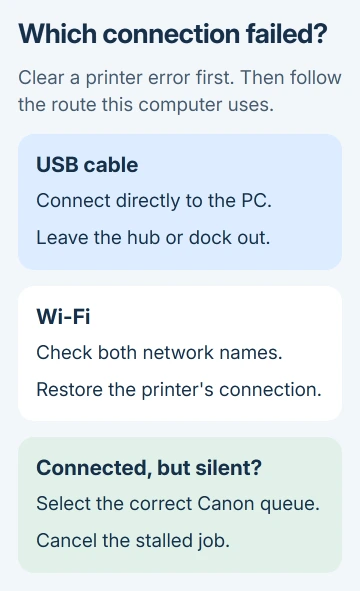
A Canon printer that isn't responding usually has a connection or print-queue problem. Connect the USB cable straight to the PC, or check that both devices use the same Wi-Fi network, then choose the correct Canon queue in Print.
If the printer shows an error code, start there. Clear that specific paper, cover or cartridge error first. These steps focus on a printer that is powered on but won't accept a print job from Windows.
1. Check the printer itself before changing Windows
Press the printer's ON button if it isn't already running. Look at its screen or lamps and allow startup to finish. A printer waiting for paper or showing an error needs that problem cleared before it can print.
Use the model's manual to interpret an error code. A PIXMA with a small character display won't show the same instructions as a touchscreen MAXIFY, so copying another model's button sequence can send you to the wrong setting.
If the model supports copying, try one local copy from its glass. A successful copy shows that it can feed paper and put an image on the page without receiving anything from the computer.
It doesn't check the Windows driver or network connection. If copying works, follow the USB or Wi-Fi steps that match how your computer prints. If copying fails too, resolve the printer's displayed error first.
I'd try a copy before removing software. It keeps a paper or cartridge problem from turning into an unnecessary driver reinstall.
2. Reconnect USB without a hub or dock
For a USB-connected printer, unplug its cable at both ends, then plug it back into the printer and PC. Plug it into one of the computer's own USB sockets, without a hub, monitor USB port or dock.
Select the Canon printer again in your app and send one small page. If it prints directly, the removed hub or dock is part of the problem. Keep the direct connection while checking that accessory.
Canon says to bypass a USB hub and replace a suspect cable in its TS3500 printing checks. Those checks are useful before changing the printer's own settings.
If the printer still doesn't respond, try another suitable USB cable, then a different computer port. Make a single change before each attempt; when a page prints, you can tell which change helped.
Don't leave several identical jobs waiting while swapping cables. Once communication returns, they can all reach the printer. Clear the old queue before sending another test page.
If your computer normally uses Wi-Fi, printing over USB only checks the cable connection. The wireless connection still needs the next section's checks before you return to cable-free printing.
3. Restore Wi-Fi after a router or network change
Check the computer's Wi-Fi network name and the printer's network information. A new router, changed Wi-Fi password or printer moved to another network can leave the old Windows queue pointing at an unreachable device.
Connect both devices to the intended network. A guest network can prevent devices from communicating even when both have internet access, so try the main household network instead.
To restore the printer's saved Wi-Fi settings, follow the Canon Wi-Fi connection procedure for its exact model. Easy Wireless Connect is available on some models, not a button sequence shared by every Canon printer.
Wireless Direct is another connection type. If your computer joins the printer's own network, it connects directly rather than through your home router. Choose whether you want a direct connection or one through the router.
For supported models, IJ Network Device Setup Utility can check and repair network status. Open the installed utility from Windows search and follow its diagnosis for the detected printer.
The TS3500 manual points to this utility; other models may provide different software. Use the utility offered for your printer rather than downloading a similarly named tool from a driver site.
When the connection is restored, send one small page. If the printer is reachable but that page stays in Windows, check the selected queue next instead of resetting the network again.
4. Select the right Canon queue and clear stalled jobs
Open your app's print dialog and inspect Printer. Choose the Canon model that's connected now. An old installation, another printer or a saved PDF destination can remain selected from an earlier job.
In Windows 11, open Settings > Bluetooth & devices > Printers & scanners, select the printer, then open its print queue. In Windows 10, use Settings > Devices > Printers & scanners > the printer > Open queue.
Cancel jobs that won't finish. On the Windows 10 queue's Printer menu, clear Pause Printing or Use Printer Offline if either is selected. Newer Windows 11 queue layouts may not show those menu items.
If the printer still says Offline after the queue is cleared, the Windows offline-printer checks cover that specific status. A paused queue and a disconnected printer need different corrections.
Return to the app and send a short document. A completed page confirms that both the chosen queue and the current connection work. If only a large photo job stalls, try another small file before reinstalling anything.
Large print files can take longer to start. With a short text page, you can check whether printing works without waiting for the same complicated document each time.
5. Restart the print service when Windows holds every job
The Print Spooler is the Windows service that manages waiting print jobs. If several apps can't print through an otherwise connected printer, restarting it can clear a stalled service.
Press Windows + R, type services.msc and press Enter. Find Print Spooler, right-click it and choose Restart. An administrator may need to approve the action.
Try printing again after the service is running. Microsoft's printing troubleshooting instructions also cover stuck jobs, connection checks and driver installation.
If Restart is unavailable or the service stops again, use the printer troubleshooter in Get Help. On a managed computer, tell IT that the Print Spooler won't stay running, rather than reporting only that the Canon is silent.
Restart the computer if the printer remains unresponsive. This is especially useful after driver installation or a service problem, when the connection is correct but the app hasn't picked up the change.
6. Reinstall the exact model only after the connection works
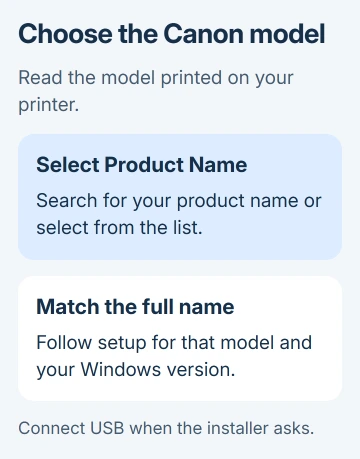
Open Canon's product selector and enter the model printed on the printer. Follow the setup offered for that model and your version of Windows. Connect USB when the installer asks for it.
Before removing an existing installation, note whether it uses USB or the network. Choosing the wrong connection type during setup can add another queue without fixing the connection you need.
After installation, choose the newly added printer and send a small page. If it still fails, contact Canon support through the model's support page with the error code, Windows version and results of the direct-USB or network check.
Ask for help with communication or driver setup if local copying works. Ask for printer service if local operations fail with a persistent device error. Support can then focus on receiving the job or repairing the printer itself.
The Short Version
Clear device errors, check USB or Wi-Fi, then select the right Canon queue. Cancel stalled jobs and restart Print Spooler when Windows holds them. Check the connection before reinstalling the model's software.
Checked November 8, 2026.

Isaac Smith is the founder and editor of PC Glance, a website that covers computers, laptops, and technology. He is a tech enthusiast and a computer geek who loves to share his insights and help his readers make smart choices when buying tech gadgets or laptops. He is always curious and updated about the latest tech trends.