
A downloaded DEB file installs inside your Chromebook's Linux environment with sudo apt install ./package.deb. Copy the installer into Linux files first, then run the command from that folder.
APT handles the extra packages the app needs, provided they're available for your Linux version.
These steps use ChromeOS's built-in Linux development environment. It doesn't require Developer Mode or replacing ChromeOS, and a DEB built for the wrong processor still needs a different download.
1. Open the Chromebook's Linux terminal
Open Settings > About ChromeOS > Developers. Beside Linux development environment, select Set up and finish the prompts. When setup finishes, a Terminal window opens with a Debian Linux environment.
Google's Linux setup instructions describe this feature and its restrictions. An organization managing your Chromebook may prevent Linux setup.
On a managed Chromebook without this option, ask your administrator whether Linux apps are allowed.
If Linux is already installed, open Terminal from the launcher and choose your Linux environment. Run these commands in that Terminal window. The ChromeOS browser console and the crosh prompt can't run the same Debian commands.
I'd check that Terminal opens before hunting for another installer. A file can't solve a Linux environment that won't start. Restart the Chromebook and try Terminal again if it stops during startup.
For a download ending in AppImage, use the AppImage launch steps instead. Its permissions and launch command differ from installing a Debian package.
2. Match the package to your Linux system
Use a DEB supplied by the application's developer for a supported Debian release. A package is allowed to run installation scripts, so download it from a source you trust before allowing it to install.
Check the Linux package architecture in Terminal:
dpkg --print-architectureAn amd64 result needs the developer's amd64 or x86-64 package. An arm64 result needs its ARM64 package. The label all describes a package that isn't tied to one processor architecture.
Check the developer's other requirements too. A matching processor doesn't make an Ubuntu-only package compatible with every Debian release. If their download page names supported systems, check that your Linux version is included.
After installing a compatible client, check a stalled Chromebook torrent for peers and folder access before reinstalling its package.
To see its release information, run:
cat /etc/os-releaseSave the PRETTY_NAME and VERSION_ID details if you need help choosing a download. Don't change a filename from arm64 to amd64; the program inside remains built for the original processor.
A Windows EXE isn't a DEB package. Our Windows-on-Chromebook guide explains that much larger change if a required program has no suitable Linux version.
3. Put the installer where Terminal can read it
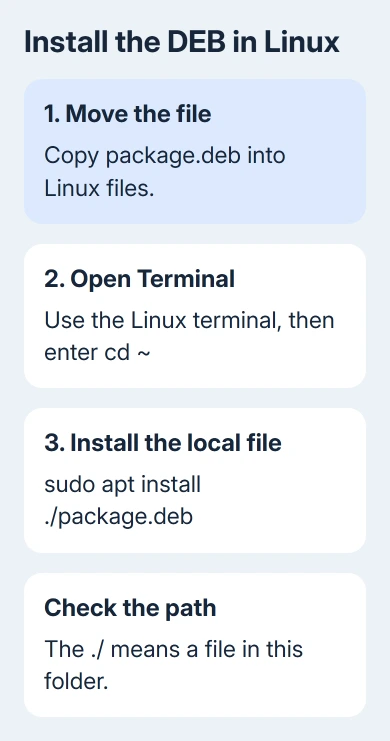
Open the ChromeOS Files app, find the downloaded DEB, and copy it into Linux files. Placing it at the top level makes the next commands straightforward: that location is your Linux home folder.
For this example, rename the copy to package.deb. It's just the filename used here, not an app to download. Keep the original download to preserve the developer's version and architecture details in its filename.
In Terminal, enter:
cd ~
ls
The listing should include package.deb. If it doesn't, check Files before installing. A file still in ChromeOS Downloads isn't automatically in the Linux home directory.
Capitalization matters. Package.deb and package.deb are different names in Linux. For a filename containing spaces, quote the path. For example:
sudo apt install ./"My App.deb"Make sure you know which folder holds the file. Copying it into Linux files avoids needing a shared-folder path for this first installation.
4. Install the local file with APT
With the file visible in the home directory, run these commands separately:
sudo apt update
sudo apt install ./package.deb
The first updates the list of packages available from your Linux software sources. The second installs your local DEB and asks APT to install its dependencies, the other packages the app needs to work.
The ./ tells APT to use a file in the current folder. Without a path, it treats the text as a package name to find in its software sources.
That distinction is covered in the Debian APT handbook.
Read the proposed changes before confirming. APT shows what it plans to install, upgrade, or remove and how much space is needed. Cancel if it would remove software you still need or asks for packages your system can't provide.
Let the command finish and return to the terminal prompt. Look for the package being unpacked and configured without a final error. Wait past the download progress; the app still needs to be installed.
Open the ChromeOS launcher and look in the Linux apps group for a graphical app. Some packages provide only command-line tools. Use the developer's launch instructions when no icon appears.
5. Resolve the reported installation error
Unable to locate package: check that the install command includes the local path and that ls shows the filename. Without the file path, APT searches its software sources instead of using your download.
Architecture doesn't match: get the package matching dpkg --print-architecture. Installing more dependencies won't change the processor code inside the download.
Unmet dependencies: note the package names and required versions. APT can retrieve dependencies from its configured sources, but it can't invent a version those sources don't provide.
Ask the developer for a build supporting your Debian release.
Not enough space: free room in the Linux environment before trying again. The DEB's download size doesn't include every installed file or dependency, so compare the space APT requests with what's available.
If the app installs but won't open, check the error it shows when you launch it. Run the developer's documented command in Terminal and keep the output. Repeating installation without reading that message usually leaves the same problem.
For help, give the developer the package filename, architecture, Debian release, and complete final error. If Terminal itself fails, use Chromebook Help's Linux troubleshooting route or your organization's administrator instead.
The Short Version
Enable Linux, match the DEB to its architecture, and copy it into Linux files. From the Linux home folder, refresh APT and install with sudo apt install ./package.deb. Read any error before changing packages or downloads.
Checked November 8, 2026.

Isaac Smith is the founder and editor of PC Glance, a website that covers computers, laptops, and technology. He is a tech enthusiast and a computer geek who loves to share his insights and help his readers make smart choices when buying tech gadgets or laptops. He is always curious and updated about the latest tech trends.