
Torrents that don't download on a Chromebook usually need a working torrent app, peers supplying the files, and a writable download folder.
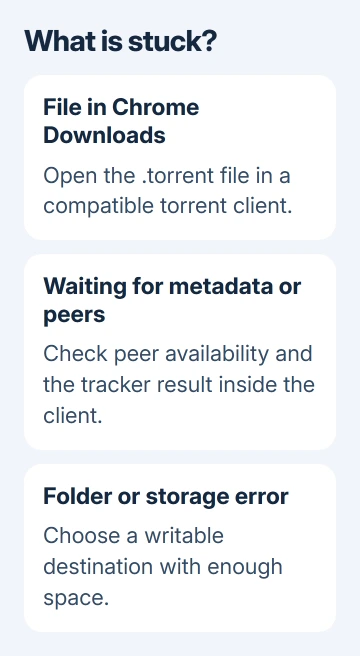
A .torrent file in Chrome's Downloads list hasn't started the actual transfer. Open it in a compatible client first; if the client is already stuck at zero, check the torrent's peers and error message.
A magnet link that opens nothing, a download stuck on metadata, and a storage error aren't the same fault. Use the status message to choose your next check before replacing the app or changing the network.
1. Open the torrent in a client that runs on ChromeOS
Check what's actually downloaded. A small .torrent file contains information that a torrent client uses to locate the shared content. Downloading that small file doesn't start the movie, archive or Linux image.
Open your installed torrent client and use its add-file control to select the .torrent file. For a magnet link, copy the link address and use the client's add-link or add-URL control if clicking the link in Chrome doesn't launch it.
A Windows installer ending in .exe won't install a Windows torrent client directly on ChromeOS. Choose a client that supports your Chromebook's available app environment instead of repeatedly opening the same installer.
Supported Chromebooks run Android apps through Google Play or apps inside their Linux environment. What's available depends on your model and any rules set by its administrator. A Windows installer won't add a missing app environment.
The Linux setup instructions use Settings > About ChromeOS > Developers > Linux development environment > Set up. This is separate from ChromeOS Developer Mode, which isn't needed just to enable supported Linux apps.
If you already use Linux, the Chromebook terminal package guide explains the installation route for a compatible package. Check the app's supported platform and processor before installing it.
2. Read the torrent's status and peer count
Start or resume the transfer inside the client and read its status. A paused or queued transfer needs the client's start control or an available queue slot before it can receive data. Check that you haven't set the selected files to skip.
Look for seeds, seeders or peers in its details. Seeders have the full content; other peers can share the pieces they already hold. A search result's title doesn't mean any peers are available to supply the missing data.
If only one torrent stalls, try a well-supported legal torrent such as an Ubuntu image. Transmission's troubleshooting guide recommends an active torrent to see if the original torrent lacks peers or your connection is the problem.
Open the Ubuntu alternative downloads page, choose the BitTorrent download for the release you want, and add its .torrent file to the client. Let it connect long enough to show whether data begins transferring.
If that transfer works while the original stays still, look for another legitimate source or wait for peers on the original. Reinstalling the app won't create a missing complete copy of that torrent's files.
I'd compare two torrents before touching the router. It quickly separates one unavailable torrent from a client that can't transfer anything.
3. Check metadata and tracker failures
A magnet link can show the torrent's name while still waiting for metadata, the file information it needs before the main download can start. At that point the client needs reachable peers that can supply that information too.
If the publisher offers a .torrent download for the same content, add that through the client's file control. That provides the metadata directly. Peers still need to supply the content.
Open the client's tracker details and read the latest announce result, if shown. A tracker helps clients find one another. A timeout calls for a tracker or network check, not a browser cache reset.
For a private tracker, check its own account and client requirements. If the link uses an expired account or the service doesn't support your client, fix that with the service. Random trackers won't fix an account access problem.
If other torrents download and only one tracker returns an error, use the publisher's current download link or support route. Keep the error wording to explain which part failed.
4. Choose a folder the app can write to
For permission denied, read-only or a destination error, check the selected download folder in the torrent client. Choose a folder available to that app and try a new small transfer there before moving existing partial files.
Linux apps can use their own Linux storage. In ChromeOS Files, use Share with Linux on a supported local folder. Select that shared location in the Linux app.
Android clients need access through their own Android file picker and permissions. Choose the location in that app. Seeing a folder in ChromeOS Files doesn't mean every Android app can save files there.
Check free space through Chromebook storage settings and, for Linux downloads, the available space inside the Linux environment. Having room for the small .torrent file doesn't mean the full download will fit.
If the error began after removing a USB drive or memory card, reconnect the intended destination or choose an available local folder. Use the client's move-location function for existing data so it can keep track of the partial download.
5. Compare networks without bypassing restrictions
If every active torrent stalls while ordinary browsing works, test on another network you have permission to use. Websites and peers use different connections. Being able to browse doesn't tell you whether torrent traffic is allowed.
Work and school Chromebooks can have app and network restrictions. Ask the administrator whether the client and peer-to-peer downloads are permitted. Only compare with a hotspot if it's permitted and you have enough data.
For a Chromebook that can't browse either, check the Chromebook Wi-Fi connection first. That is a broader connection failure than a single stalled torrent.
6. Get help with the error that remains
Update the client if an active torrent fails on a permitted network with a writable folder, then report the fault. Include the client version, ChromeOS version, Android or Linux environment, status text and tracker error.
For a managed device, ask IT to review that information first. For one unavailable torrent, ask its publisher for a working download or use its normal direct-download option. A reset or Developer Mode won't create missing peers.
The Short Version
Open the .torrent file or magnet link in a compatible client. Compare an active torrent and check its peers, tracker and destination errors. Ask the app developer, publisher or administrator for help with the error that remains.
Checked November 9, 2026.

Isaac Smith is the founder and editor of PC Glance, a website that covers computers, laptops, and technology. He is a tech enthusiast and a computer geek who loves to share his insights and help his readers make smart choices when buying tech gadgets or laptops. He is always curious and updated about the latest tech trends.