
An AirTag that won't connect to your iPhone usually needs its setup prompt restored or an account setting completed. Hold one tag near the unlocked phone. If the animation vanished, lock and unlock the iPhone, then wait 15 seconds.
An alert naming a different Apple Account means you'll need the previous owner's help, while a tag already listed in Find My has a different problem. Start with the section matching what your phone actually shows.
1. Bring back the setup prompt
Keep one AirTag beside the iPhone and move other unpaired tags away. Several nearby tags can trigger the More than one AirTag detected message, leaving setup waiting for you to separate them.
Press the side button, or Sleep/Wake button on an older iPhone, to put the phone to sleep. Wake it, unlock it and wait 15 seconds with the tag nearby. Tap Connect when the animation returns.
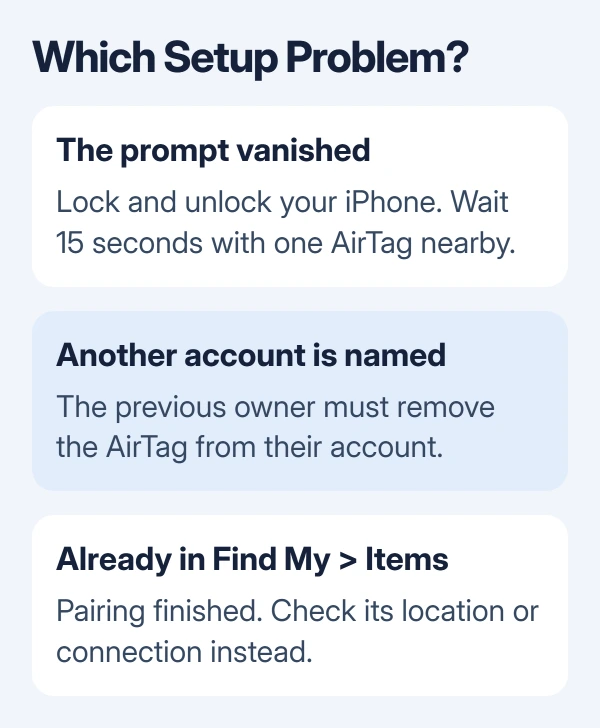
Choose a category or custom name, agree to link it to your account and tap Done. The tag should then appear under Find My > Items. Once it's in that list, pairing is finished, even if you still can't locate it.
You can also start from Find My > Items > Add > AirTag. Apple says to check the phone's settings if pairing fails; its AirTag setup instructions cover both starting routes.
If the tag is already in Items but its map position is wrong, use the AirTag location checks. Repeating first-time setup won't correct every stale location report.
2. Check the iPhone requirements and account alerts
Open Settings > General > Software Update. The original AirTag requires iOS 14.5 or later; AirTag (2nd generation) requires iOS 26.2.1 or later. A phone that supports the first model may still need updating for the second.
Next, open Settings > Bluetooth and turn Bluetooth on. Then go to Settings > Privacy & Security > Location Services, enable it and open Find My in that list. Allow location access and turn on Precise Location.
In Settings, tap your name and finish any Update Apple Account Settings alert. A Some iCloud data isn't syncing message has a Resume data sync action. Finish that before trying to pair again.
Check Settings > your name > Find My > Find My iPhone > Find My network. The network setting should be on. Also enable iCloud Keychain; current versions put Sync this iPhone in Settings > your name > iCloud > Passwords.
Use a working Wi-Fi or cellular connection, then restart the iPhone normally. I'd finish these account checks before opening the AirTag. A battery reset can't complete an account prompt on the phone.
If setup now finishes, stop there. If the phone still never detects the tag, check its battery next. If the message says the tag belongs to another account, go to section 4 instead.
3. Check that the battery makes contact
A new tag needs its battery tab removed. For a used tag or one that makes no sound, check the replaceable battery rather than assuming the iPhone's Bluetooth has failed.
Press the metal battery cover down and turn it counterclockwise until it stops. Remove the cover and battery. Fit a CR2032 lithium 3V battery with the positive side facing up; a sound means the battery has connected.
Keep the coin battery, cover and tag away from small children while the cover is off. Choose battery packaging marked compatible with AirTag, since some bitterant-coated batteries don't work with it.
Line up the cover's three tabs with the tag's three slots, press down and turn clockwise to close it. Try setup again. If a compatible replacement battery produces no sound, tell the service adviser that a fresh battery stayed silent.
4. Resolve an existing owner or an item limit
An AirTag can belong to one Apple Account. If setup says it's linked to someone else, ask the previous owner to open Find My and unlink the tag from their account. Resetting the tag itself doesn't unlink that account.
If they removed it while the tag was outside Bluetooth range, the AirTag also needs the reset in the next section. Both parts matter: removing it from their account lets you take ownership, and resetting the tag gets it ready to pair again.
A new items cannot be added message means something else. Find My supports up to 32 items, including shared items and accessories. AirPods count toward that total too, even though they appear under Devices.
The count isn't always one per AirPods set. AirPods Max count as one, AirPods and AirPods Pro 1 as two, and AirPods Pro 2 or later as three. Remove an item you no longer need before adding another.
5. Reset the right AirTag generation
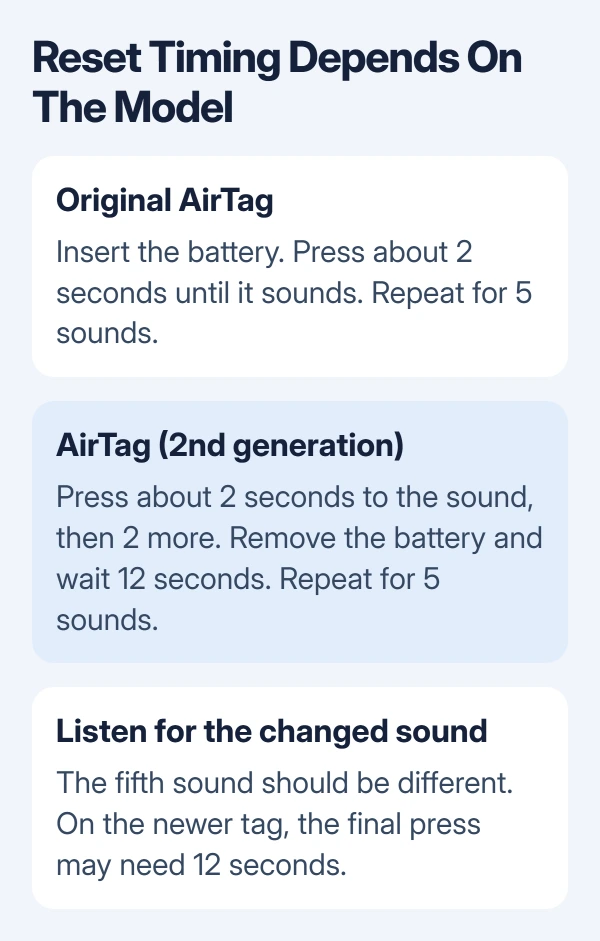
Open the battery cover as described in section 3. Keep the parts together and follow the timing for your model. The fifth sound should differ from the first four; that change means the tag is ready to pair.
Original AirTag: replace the battery and press it down for about two seconds until it sounds. After the sound finishes, remove and replace the battery, then press again. Do this five times in total.
If the fifth sound isn't different, continue the remove, replace and press cycle until you hear the changed sound. Refit the cover, then bring the tag near your unlocked iPhone.
AirTag (2nd generation): replace the battery, press for about two seconds until it sounds and keep pressing for two more seconds. After the sound finishes, remove the battery and wait 12 seconds.
Repeat that insertion and removal process four more times, making five sounds altogether. To get the different fifth sound, you may need to press the battery for 12 seconds. Refit the cover when that sound plays.
Apple's generation-specific reset steps include those different waits. Don't use the original model's quicker sequence on the newer tag and assume it's finished resetting.
6. Give support the remaining setup failure
If the tag still won't pair, contact Apple Support about AirTag setup, with the generation, iPhone model, iOS version and exact message. Say whether it made a battery sound and whether the fifth reset sound changed.
For a used tag linked to an unavailable seller, ask the seller to unlink it from their account or accept a return. Repeating resets won't release it. A connected tag that chirps when moved has separate AirTag separation-alert behavior.
The Short Version
Restore the pairing prompt, finish the phone's account requirements and check battery contact. Resolve another owner's account link before resetting. Follow the correct generation's timing and look for the changed fifth sound.
Checked November 9, 2026.

Isaac Smith is the founder and editor of PC Glance, a website that covers computers, laptops, and technology. He is a tech enthusiast and a computer geek who loves to share his insights and help his readers make smart choices when buying tech gadgets or laptops. He is always curious and updated about the latest tech trends.