Turn Siri off completely in iOS 27 through Settings > Siri > Turn Off Siri. To stop only voice activation, use Siri > Requests > Off instead, so you can still open Siri in other ways.
Earlier iOS versions use different names and separate voice and button switches. Choose the section matching the settings on your phone. Muting Siri's replies, stopping wake-word activation, and turning Siri off are three different changes.
In this guide
Turn Siri off completely in iOS 27
Apple's own steps say to open Settings > Siri, scroll down, tap Turn Off Siri, then tap it again to confirm. This turns the assistant off completely.
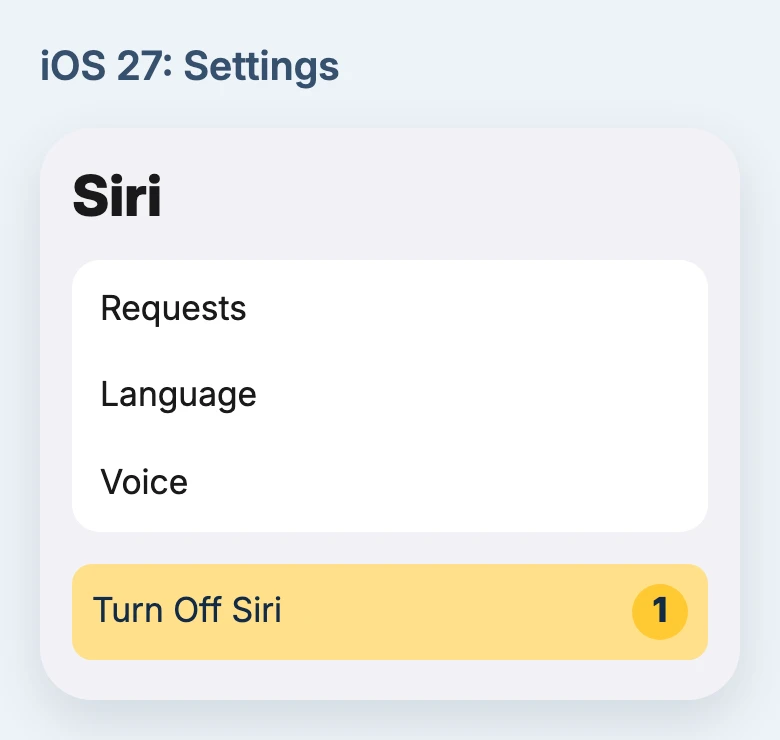
Afterward, Siri's settings offer Turn On Siri. Leave that alone if you want Siri to stay off. Check the result by trying the activation method that was bothering you, whether that was speaking or holding the phone's button.
If Siri AI was enabled, turning it off is also the first step in switching back to the older assistant. Turning it on again and choosing Use Siri Classic restores Siri Classic; it doesn't leave Siri disabled.
That choice matters when the complaint is about the new AI experience rather than the assistant itself. Leave Siri off if you don't want it at all, or choose Classic if you still want it for familiar requests.
The Apple Intelligence controls guide handles the wider set of summaries and other features. Turning Siri off doesn't replace choosing those settings separately.
Stop Siri listening for its name without disabling it
For accidental wake-ups during conversation or a TV program, turn off voice activation without changing every Siri setting. On iOS 27, open Settings > Siri > Requests, then select Off for voice activation.
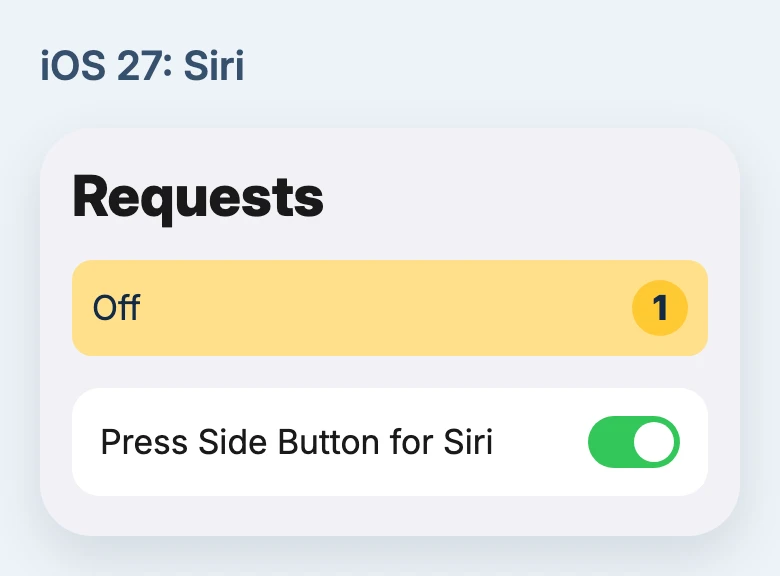
The phone stops using Siri's name as a wake phrase. Button activation can remain available, so you can still ask Siri a question without the phone joining a conversation on its own.
On earlier versions, open Settings > Siri, or Apple Intelligence & Siri, and choose Talk to Siri or Talk & Type to Siri. Select Off. The names depend on the iOS version and supported features.
Older releases may call the category Siri & Search. Open it if present. For a Listen for "Hey Siri" switch, turn it off. Keep the language you prefer and use the menu names shown on your version.
I'd use this narrower setting when voice wake-ups are the only problem. Siri will still be there when you choose to open it. Check it by saying the wake phrase: the phone should stay quiet.
Apple's Siri settings instructions distinguish voice activation from the side button and typing. That explains why choosing Off for the wake phrase can still leave Siri opening another way.
Remove the button trigger on earlier iOS versions
On versions without the iOS 27 complete-off control, turn off the voice option and the button option. In Siri or Apple Intelligence & Siri settings, disable Press Side Button for Siri.
A model with a physical Home button labels this option Press Home for Siri. On Face ID models, use the side-button option; on the iPhone SE, use its Home-button option.
If a Turn Off Siri confirmation appears, accept it. Then try holding the same button to check that it no longer opens Siri. A short press that locks the screen isn't the same test as a press and hold.
If the phone starts Classic Voice Control instead, check Settings > Accessibility > Side Button, or Home Button on the corresponding model. Under Press and Hold to Speak, choose Off.
That accessibility setting controls what a long button press does. It doesn't remove the button's ordinary lock or Home function, and it doesn't turn off the separate Accessibility feature named Voice Control.
For numbered labels appearing over apps, use the Voice Control checks. Siri settings won't stop that feature because it has its own listening control and accessibility shortcut.
Stop typed Siri and suggestions only when needed
On supported earlier iPhones, Talk & Type to Siri includes Type to Siri. Turn that off if a typing gesture is the problem but you still want to open Siri in other ways. On older setups, look in Accessibility > Siri for that option.
With Siri AI enabled in iOS 27, typing is still one way to use the assistant. Use Turn Off Siri if you want to stop Siri completely, including typing.
Suggested contacts in the sharing panel and suggested apps have their own settings. In iOS 27, open Settings > Siri > Suggestions and switch off the particular suggestion you don't want.
For example, Show When Sharing controls suggested contacts when sharing, while Show in App Library controls suggested apps there. Allow Notifications and Show Listening Suggestions control other places where suggestions appear.
Choose the item matching what appears on your screen. Removing a share suggestion doesn't disable Siri's voice activation, and disabling voice activation doesn't necessarily remove every suggested item.
Keep other devices and restrictions in view
Turning Siri off on your iPhone doesn't mean a nearby HomePod, Mac, or watch has stopped listening. When another device answers, check its own Siri controls. Start by seeing which screen actually lights up during the unwanted response.
A grayed-out Siri option points to restrictions. Check whether Screen Time or an organization manages the phone. Ask whoever controls Screen Time or manages the phone to review those restrictions before you try a reset.
If the control won't change on your personal phone, open Apple Support and choose iPhone software support. Give them the iOS version from Settings > General > About, the setting name, and the trigger that still opens Siri.
Use the off controls without erasing the iPhone. Telling support exactly what still opens Siri gives them something useful to check, especially when an older instruction uses different menu names.
The Short Version
Use Turn Off Siri in iOS 27, or Requests > Off for voice alone. Earlier versions need voice and Side or Home button options disabled separately. Check typing, suggestions, or Voice Control if those still appear.
Checked November 29, 2026.
 If you have any business, I can build it online