
Numbers appear over everything on your screen, your phone starts obeying things it overhears, and you asked for none of it. I know how alarming that is the first time it happens.
There is a short list of causes and one of them explains most cases.
First, know that there are two separate features with almost the same name, and telling them apart decides which fix you need.
1. Look at the Accessibility Shortcut, because it is usually this
Start here. The commonest cause, and twenty seconds to check.
Triple-clicking the side button runs whatever accessibility feature you assigned to it. Voice Control is one of the options.
Go to Settings, Accessibility, then scroll to the very bottom and tap Accessibility Shortcut. If Voice Control has a tick beside it, tap it to remove the tick.
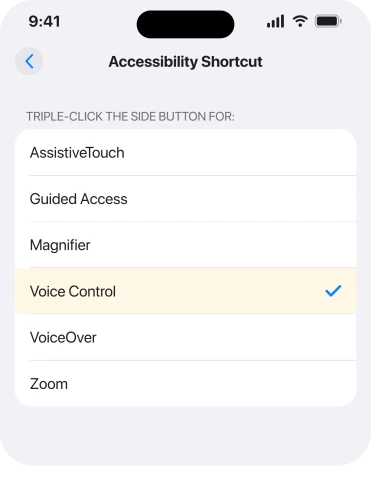
An owner with an iPhone 14 Pro found exactly this after months of Voice Control appearing on its own, and their explanation of why is the useful half: "Turns out Voice Control was ticked under Accessibility Shortcuts so that has to be it. The lock button is harder to push in my iPhone case so I probably had been triple clicking…"
So a thick case turns one deliberate press into three. If yours is stiff, that is your answer.
2. Turn Voice Control itself off
Second, and the one people go looking for first.
Go to Settings, Accessibility, Voice Control, and turn it off. Numbers and labels disappear. The phone stops listening for commands.
Do this as well as rung 1, not instead of it. Switching the feature off does not clear the shortcut, so a triple-click will simply turn it back on.
Apple describes what it does while it is on, on its Voice Control guide: "After you turn on Voice Control on your iPhone, you can speak commands to interact with what's on the screen, perform gestures and button presses, dictate and edit text, and more."
3. The reason your dictation stopped working
Narrower. It explains a symptom people never connect to this.
If normal Dictation vanished at the same time Voice Control appeared, that is not a coincidence.
Apple: "When Voice Control is on, you use Voice Control to dictate text; standard iOS Dictation isn't available."
So a microphone key behaving strangely can be a Voice Control symptom rather than a dictation fault. Turn Voice Control off and normal dictation comes back.
If it does not, an iPhone whose dictation has stopped is the page for the rest of it.
4. Classic Voice Control is a different thing, on a different switch
More specific. This is the fix when your phone starts listening as you hold the side button.
There is an older feature called Classic Voice Control. It lives on the button rather than in the Accessibility list.
Apple's route: "On an iPhone X or later, go to Settings > Accessibility, then tap Side Button. On an iPhone 8 or earlier, go to Settings > Accessibility, then tap Home Button." Under Press and Hold to Speak, choose Off.
Apple names the three options on that screen. Siri responds when you press and hold. Classic Voice Control responds instead, and Apple notes that choosing it "will also turn off Siri".
Or Off, where "there will be no response when you press and hold the Home button".
That is worth knowing on its own: if Siri stopped answering the button around the time voice commands started, this switch is why.
5. Your headphones, which nobody suspects
Narrower again. Apple documents it in two sentences almost nobody quotes.
Apple: "The press and hold setting applies only to the Side or Home button. If you're using a headset, and it unexpectedly activates Siri or Classic Voice Control, make sure that your headset is fully inserted into the device."
And the detail that makes it a real diagnosis: "If you have a loose or poor headset connection, frayed cables, or moisture on the connector or remote, it might unexpectedly activate Siri or Classic Voice Control. If the issue persists, try using a different headset."
So a frayed cable or a damp connector presses the button for you, over and over.
Does it only happen with headphones in? Then stop changing settings and change the cable.
6. Check it is Voice Control and not one of its look-alikes
Last, because a wrong diagnosis wastes the most time.
Three features get confused with each other. Each has its own switch, all in the same Accessibility list.
Voice Control puts numbers or names over things on screen and listens for commands. VoiceOver reads the screen aloud and changes how every tap works. Siri answers questions and does not label anything.
If your phone is reading everything out loud and you cannot tap anything normally, that is VoiceOver, and an iPhone reading everything out loud is the page you want.
It takes different gestures to escape, which is why getting this right first matters.
Ours, and marked as ours: all three share the Accessibility Shortcut list, so a phone that keeps launching the wrong one usually has more than one thing ticked there.
Untick everything you do not use and the triple-click gets one job instead of a menu.
What does not help
- Restarting the phone. The shortcut and the switch survive a restart, so it comes straight back.
- Turning off Hey Siri. Different feature, different trigger. It does nothing for Voice Control.
- Resetting all settings. It would clear the shortcut, and so does one tap in rung 1, without costing you every Wi-Fi password.
- Blaming the update. Owners have reported this across several iOS versions and iPhone models, and the causes here have not changed.
Status: iOS 26.6.1, checked 19 August 2026. Apple documents the button setting and the headset causes. The Accessibility Shortcut cause in rung 1 is an owner finding.
Why does Voice Control keep turning on by itself?
Almost always because Voice Control is ticked under Settings, Accessibility, Accessibility Shortcut, and the side button is being triple-clicked by accident. One owner traced their own case to a phone case that made the button stiff.
What is the difference between Voice Control and Siri?
Voice Control labels items on screen with numbers and obeys commands about what you can see. Siri answers questions and labels nothing. There is also Classic Voice Control, an older feature that lives on the Press and Hold to Speak setting.
Why did my dictation stop when Voice Control came on?
Because Apple states that standard iOS Dictation is not available while Voice Control is on. Turning Voice Control off restores normal dictation.
Can headphones trigger Voice Control?
Apple says yes. A loose connection, frayed cables or moisture on the connector or remote can unexpectedly activate Siri or Classic Voice Control, and Apple's advice is to try a different headset.
The Short Version
- Check Settings, Accessibility, Accessibility Shortcut first and untick Voice Control.
- A stiff phone case can turn one press of the side button into three.
- Turn Voice Control off in Settings, Accessibility as well, or the shortcut brings it back.
- Voice Control disables normal Dictation while it is on, and Apple documents that.
- Classic Voice Control is separate and lives under Side Button, Press and Hold to Speak.
- Frayed or damp headphone connectors can trigger it, which Apple states outright.
Where to Next
The thing worth carrying away is that two switches are involved, not one. Turning the feature off without clearing the shortcut is why so many people find it back the next day.
Where the feature dropping out is Universal Control between a Mac and an iPad, that has its own causes.
If yours keeps returning with both cleared, tell me whether it happens with headphones in and whether your case covers the side button. Those two questions have settled most of the cases I have read.

Isaac Smith is the founder and editor of PC Glance, a website that covers computers, laptops, and technology. He is a tech enthusiast and a computer geek who loves to share his insights and help his readers make smart choices when buying tech gadgets or laptops. He is always curious and updated about the latest tech trends.