

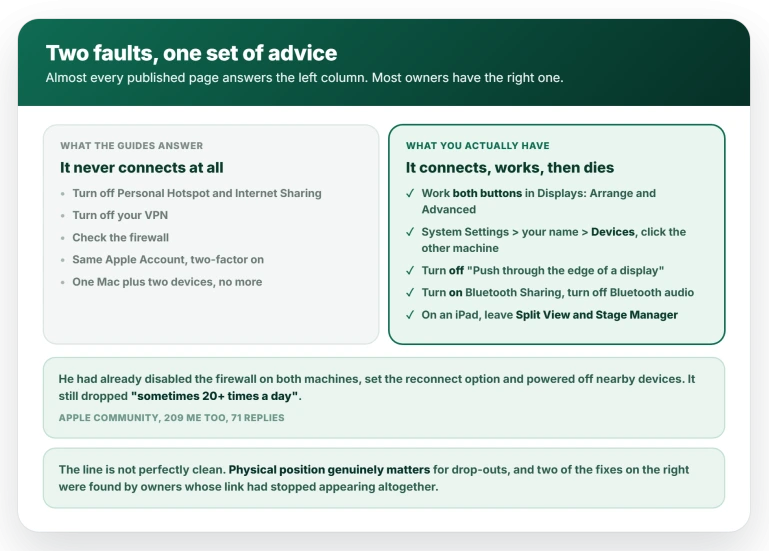
Universal Control connects, works for a while, and then drops, and everything you find written about it is aimed at somebody whose link never worked in the first place.
That is why none of it helps you. Yours connects perfectly well right up until it does not.
Let me deal with the version you actually have, which is the intermittent one.
The advice you keep finding is aimed at setup
Search this and you get the same list: turn off Personal Hotspot, turn off your VPN, check the firewall, move the devices closer.
Every item is real, and Apple publishes it on its Universal Control page. But it is written for a link that has never worked, and yours has.
The owner quoted at the top had worked through most of it before posting. His thread carries 209 "Me too" votes and 71 replies, the largest on this exact symptom, and nothing on the standard list held.
One caveat, because the line is not clean. Position genuinely matters here, and two fixes below came from owners whose link had stopped appearing rather than dropping mid-session. This article flags those.
When it drops, reset the link before anything else
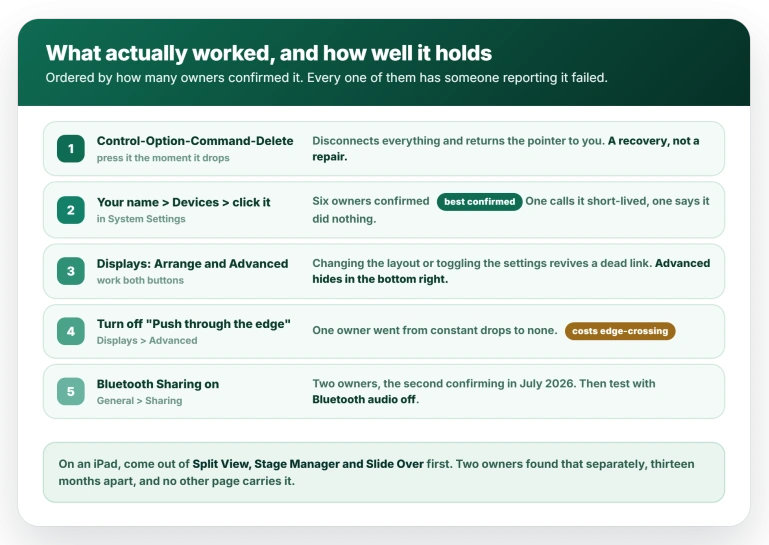
Press Control-Option-Command-Delete. That disconnects every linked device at once.
Owners report it returns the pointer to the machine you are sitting at and clears the stuck state. One described it as resetting a number of things at once; another replied "This Right Here! You deserve a holiday!"
A recovery, not a repair. If you press it several times a day, work through what follows.
Work both buttons in Displays settings
Go to System Settings, Displays. Two buttons sit at the bottom: Arrange holds the screen layout, Advanced holds the Universal Control checkboxes.
One owner reported Advanced is easy to miss until you move the pointer into the bottom-right corner.
Open them and change something. An owner whose pointer "just disappears from both devices" was pointed at Advanced and came back with: "I had to play around with that button. It's been working again!" A second revives a dead link by switching "Automatically reconnect to any nearby Mac or iPad" off and on again.
Neither reports it stopping the drops, only restoring the link.
Check the layout is legal while you are in Arrange. Apple allows the other display to the left, to the right, or below, and adds that "a Mac display can also be positioned above other displays".
An iPad cannot go above.
One owner has been stuck on this for months and is still asking for help, reporting that with his iPad in portrait "I have to set it to be BELOW my Mac's screen to get it working!"
Open your device list and click the other machine
This is the strangest entry here, and the best confirmed.
Open System Settings, select your name at the very top, then Devices. Click the Mac or iPad you are trying to reach. Change nothing. Go back.
It came from an owner in a thread carrying 420 "Me too" votes, where it is the highest-voted reply offering a fix.
Apple's own marked top reply in that thread recommends something else, signing out of iCloud.
One person confirmed it having already failed with the popular alternative: "Logging in and out of iCloud didn't work. I could see my other mac in the Displays dropdown, but couldn't push through to its display. Once went to my AppleID settings and clicked on the Mac under the Devices list, I could then push through to its display."
Note two things. That owner's link was not appearing at all rather than dropping mid-session, so this is one of the crossovers flagged earlier.
And it does not hold for all: six owners confirmed it, one called it "not a long term solution, or not even a short one", and one reported it did nothing.
Treat it as a way to revive a dead link, not a way to stop it dying.
Turn off the setting that sounds like the answer
Under System Settings, Displays, Advanced there is a checkbox called "Push through the edge of a display to connect a nearby Mac or iPad". It reads like the one you want enabled.
An owner in the 209-vote thread turned it off and reported "this is the longest I've gone in FOREVER without seeing a disconnect".
Six days later he confirmed no disconnects through restarts on both machines. His follow-up credits two changes together though: Bluetooth-pairing the two Macs once, then turning off "push through".
You do not lose the feature. Apple's page says that with it deselected "you can still connect by clicking Display in Control Center". You trade automatic edge-crossing for a manual connection that stays up.
This is not the checkbox directly over it, "Allow your pointer and keyboard to move between any nearby Mac or iPad", which is the master switch and stays on.
Bluetooth is doing more of this than you think
Switch Bluetooth Sharing on. It sits in System Settings, General, Sharing, and appears in none of Apple's requirements.
One owner: "I've found toggling on Bluetooth Sharing really improves reliability." A second, in July 2026: "Before this change it was dropping every couple of minutes."
Then test with your Bluetooth audio off. One owner found it exactly: "as soon as I turn on my BT soundbar the connection dies."
Audio switching in general deserves a look. A different owner found his link broke whenever he touched the Music app on the other machine, and with the Displays panel open he watched macOS clear the master switch as it happened.
He never mentions Bluetooth, so this is audio changing hands rather than Bluetooth itself.
Third-party mouse software is a repeat offender. Two owners independently traced constant drops to Logitech background software, one with a link that "never lasts more than about 30 seconds".
Open System Settings, General, Login Items & Extensions, switch off anything from your mouse or keyboard maker, then restart; the second owner isolated his by booting into safe mode.
Counterweight: another running only an Apple keyboard and trackpad is dropped anyway, so this aggravates rather than causes.
On an iPad, come out of Split View and Stage Manager
Two owners found this separately.
If your iPad is in Split View, Stage Manager or Slide Over, Universal Control can stop dead. One posted his own update after solving it: "Split view and stage manager break universal control. Making an app full screen or going to the home screen immediately allows universal control without locking/unlocking ipad."
A second, in July 2026, narrowed it: "whenever I have an app in SlideOver mode (in my case it was Spotify), the trackpad stops working completely and the cursor won't show up on either the iPad or the MacBook. Once I close the SlideOver app, everything works as normal."
One related trap: do not mirror or AirPlay between the machines while you need Universal Control.
Owners report the link dying when they AirPlay to a Mac, and Apple treats the two as alternatives, telling you on its Sidecar page to "use Universal Control instead" if you want the iPad running its own apps.
If Continuity fails more widely, iPhone Mirroring timing out is the next thing to rule out.
If none of these hold
Some setups defeat all of it. This is the floor.
Connect manually rather than by pushing the pointer. Open Control Center, click Display, and choose the device under Link Keyboard and Mouse.
That route works with edge-crossing off and is the most reliable way in.
Then try physical position. Apple asks for 10 meters but says "ideally within 1 meter (3 feet)" when troubleshooting.
One owner whose machines already sat 18 inches apart fixed his by changing how they faced, tracing it to a blocked iPad antenna: "It turns out I was blocking my iPad antenna!" Against that, another tried repositioning with no change, and a third has two Macs a quarter of an inch apart that drop anyway.
After that, there is not much left. Four owners describe going through Apple Support and getting nowhere, one saying he "spent literally weeks with Apple support until they completely ghosted me".
If your Mac drops Wi-Fi generally, that is a separate fault to rule out first.
Status: unacknowledged by Apple, unfixed as of macOS Tahoe 26.6, and named in none of the macOS 26 release notes. Recheck when a release note names it.
What does not help
- Personal Hotspot and Internet Sharing. A genuine Apple requirement, and across dozens of drop-out reports not one owner names it. Check it once, then move on.
- Having too many devices. Apple's limit is one Mac plus two others. Not one drop-out report exceeds it.
- The firewall. The most-cited fix in this space and the least reliable. The best-known version stopped working for the man who posted it, who went on to find a physical cause instead. Two other owners tried it and reported it failing, one of them after switching the firewall off completely on both machines.
- Removing your security software. One owner did exactly that on Apple Support's advice: "I was ABOUT to say 'guess what, it worked' but just as I was typing I had a drop-out of about a minute."
- Turning Sidecar off as a general fix. No owner reports it helping, and several report Sidecar still working while Universal Control fails. It matters only if the iPad is actively running Sidecar, since it cannot be both at once.
- A Thunderbolt cable between two Macs. Three owners tried it and report no change, one noting the Thunderbolt Bridge sat on a self-assigned IP. No confirmed success was found.
Why does Universal Control drop when I use Bluetooth headphones?
Apple has published nothing, so the mechanism is guesswork.
The best explanation on offer comes from a forum contributor who notes that AirPlay and Sidecar run over a peer-to-peer Wi-Fi interface called AWDL, and guesses Universal Control uses it too.
The pattern holds even if the cause is unproven: owners report links dying the moment a Bluetooth speaker comes on. Test with Bluetooth audio off first.
Does turning off "Push through the edge" break Universal Control?
No. It stops the pointer connecting by shoving it past the screen edge; you connect from Control Center, Display instead, a route Apple documents. One owner reported it ended his disconnects.
Is this a macOS Tahoe bug?
No, and updating is unlikely to fix it.
The oldest report is from October 2022, and the same thread was still collecting confirmations in January 2026 from an owner on Tahoe 26.2: "I can confirm that this problem/bug still exists." More than three years on one thread.
Each release gathers a fresh group who blame the version they installed, while one long-term sufferer reports Tahoe is the most stable it has been for him.
The Short Version
- The advice you keep finding is written for a link that never worked. Yours connects and then dies.
- Press Control-Option-Command-Delete when it drops. Disconnects everything and returns the pointer to you. Recovery, not repair.
- System Settings, Displays. Work both buttons: Arrange for the screen layout, Advanced for the Universal Control checkboxes. The Advanced button is easy to miss in the bottom right.
- An iPad can sit left, right or below your Mac, never above. Only a Mac display can go above.
- System Settings, your name, Devices, click the other machine. Most-confirmed fix in the record, with six owners reporting it worked, one calling it short-lived and one saying it did nothing.
- Turn off "Push through the edge of a display". One owner went from constant drops to none, confirmed six days later. Connect from Control Center instead.
- Turn Bluetooth Sharing on under General, Sharing. Test with Bluetooth speakers and mouse software off.
- On an iPad, leave Split View, Stage Manager and Slide Over, and never mirror to the iPad you want to control.
- It is not new and it is not your update. The complaint runs unbroken from October 2022, on Macs and iPads alike.
- Expect a workaround, not a cure. Every named fix here has someone reporting it failed, which is why they are ordered by how well they hold.
Where to Next
Almost everything written about this is aimed at a link that never worked. Yours works and then drops, and that is a different problem with different answers.
Deal with the sleep and the network conditions first, because those cause most of the drops.
If yours drops at a consistent interval, tell me roughly how long it lasts before it goes, because a regular number points at one specific cause.

Isaac Smith is the founder and editor of PC Glance, a website that covers computers, laptops, and technology. He is a tech enthusiast and a computer geek who loves to share his insights and help his readers make smart choices when buying tech gadgets or laptops. He is always curious and updated about the latest tech trends.